View FBX Models and Animations in Your Browser
Upload an FBX file to inspect geometry and play back embedded animations. Override materials with a custom color or texture, toggle wireframe, cycle through lighting environments, and export a PNG screenshot.
Open Viewer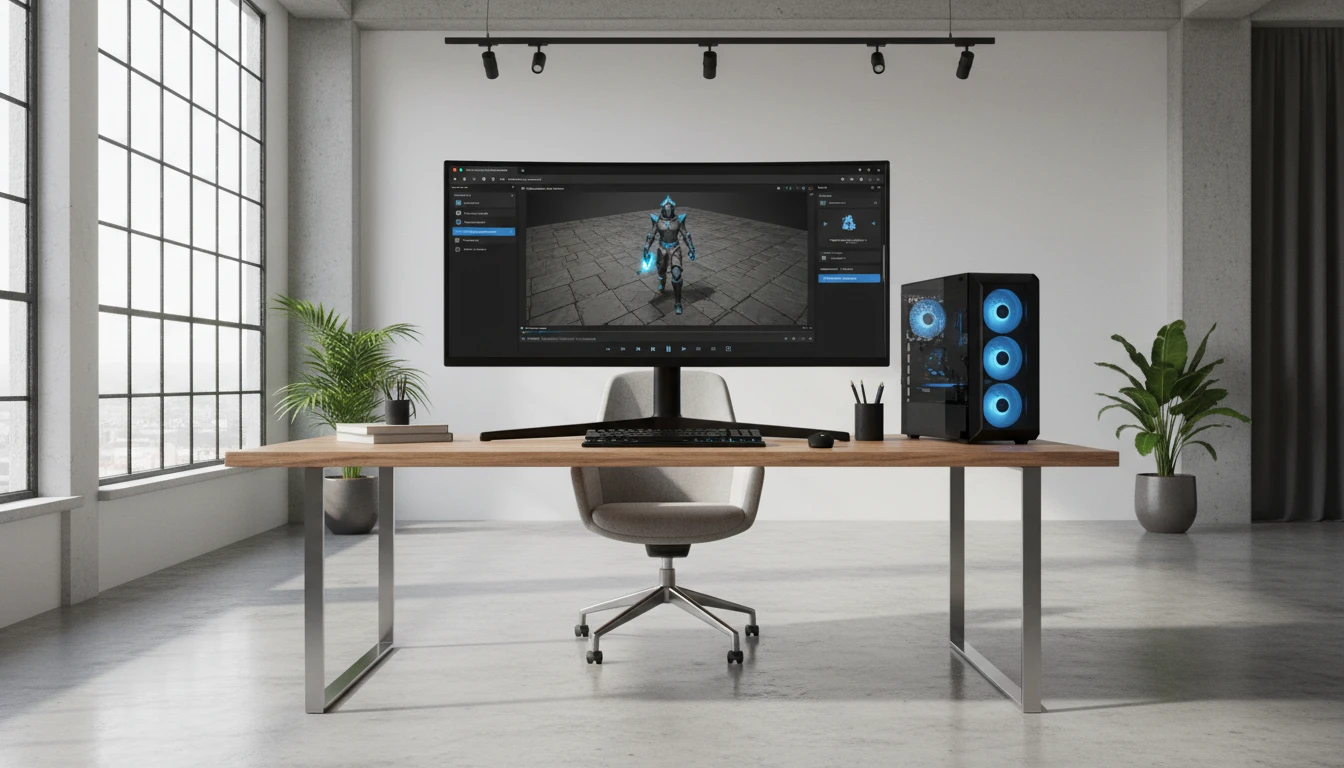
FBX 3D Model Viewer
Upload an FBX file to view geometry and play embedded animations. Override materials with a color or texture, toggle wireframe, and export a screenshot.
Drop your FBX file here
or click to browse your files
Supports .fbx (Autodesk Filmbox)
Animation Playback
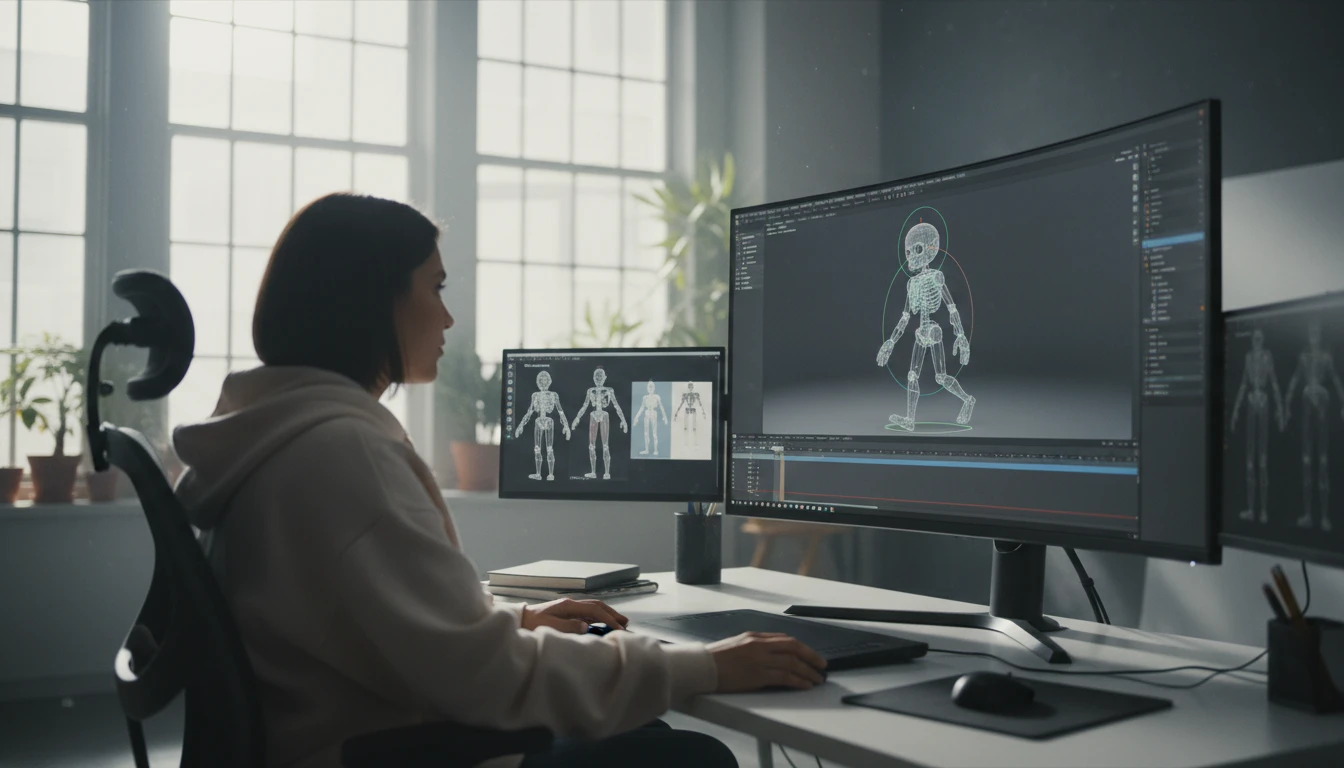
FBX is the industry standard for animated characters and objects. The viewer parses embedded AnimationClips and lets you play, pause, and scrub through any animation stored in the file — skeletal rigs, morph targets, and keyframe sequences.
Open Viewer
Material Override
FBX embedded materials often rely on proprietary Autodesk shaders. The viewer lets you override all materials with a custom color or an uploaded texture, giving you clean, predictable rendering using a physically-based material across all meshes in the scene.
Open Viewer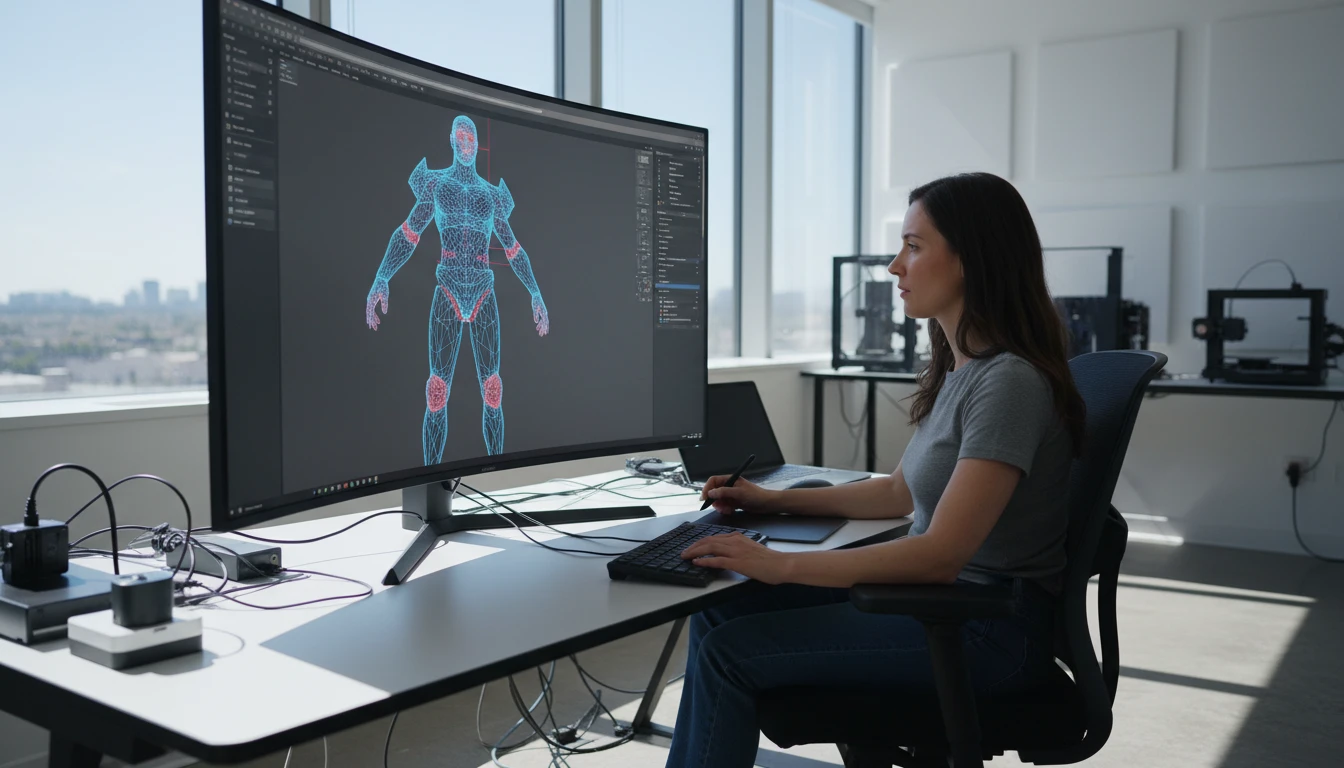
Wireframe, Lighting, and Screenshot
Toggle wireframe to inspect triangle topology and skeletal mesh structure. Cycle through ten environment lighting presets to preview how the model reads under different conditions. Snap to camera presets and export a PNG screenshot.
Open ViewerView an FBX model in three steps
Upload your FBX file
Drag an FBX file onto the drop zone or click to browse. The FBXLoader parses the scene hierarchy, geometry, and any embedded AnimationClips. The model is automatically normalised to fit the viewport.
Play animations and set material
If the file contains animations, a play/pause control appears. Click Play to start any embedded animation clip. Switch between Color and Texture material modes using the toolbar — pick a custom color or upload a PNG/JPG to override all mesh materials.
Inspect, switch lighting, and export
Orbit, zoom, and pan around the model. Toggle wireframe to check mesh topology. Switch between ten environment lighting presets. Snap to camera presets and capture a PNG screenshot for documentation or team review.
Deep Dive
What the FBX Viewer Supports
Designed for game artists, animators, and technical directors who need a quick way to preview FBX files without opening Maya, 3ds Max, or Blender.

Why Use the FBX Viewer
Animation Playback
Play back embedded AnimationClips from game characters, rigged props, and architectural walkthroughs.
Material Override
Replace proprietary Autodesk materials with a clean color or texture for consistent PBR rendering.
Wireframe Inspection
Toggle wireframe to check triangle topology and skeletal mesh structure before handoff.
Screenshot Export
Capture any camera angle as a PNG for game asset reviews, client sign-offs, or sprint documentation.
Who Uses It
Who Uses a Browser-Based FBX Viewer
FBX is the most common interchange format in game and film production. Artists, engineers, and reviewers need a fast way to check assets without a full DCC tool.
Related Tools
Frequently Asked Questions
What is an FBX file?
FBX (Filmbox) is a proprietary 3D file format developed by Kaydara and later acquired by Autodesk in 2006. It is the most common interchange format in game development, film production, and architectural visualisation. FBX can store complete 3D scenes including geometry, materials, textures, skeleton rigs, animation clips, cameras, and lights. Unlike open formats such as glTF or OBJ, the full FBX specification is not publicly documented.
Can the viewer play FBX animations?
Yes. The Three.js FBXLoader extracts AnimationClip objects from the file and the viewer plays them back using a Three.js AnimationMixer. A Play/Pause button appears automatically when the FBX contains animation data. All clips in the file are played simultaneously at the current time.
Why are the original FBX materials replaced?
FBX uses Autodesk-proprietary material models (Lambert, Phong, FBX Standard Surface) that rely on shaders and textures that reference files on the original artist's machine. These references cannot be resolved in a browser context. The viewer replaces all mesh materials with a standard PBR material so the geometry renders cleanly and predictably. You can choose any color or upload a texture to use as the override.
How do I change the material?
Use the Color and Texture buttons in the right toolbar. In Color mode, click the color swatch to open a color picker and choose any hue. In Texture mode, click the image icon to upload a PNG or JPG file which will be applied to all mesh surfaces. Switching between modes is instant and does not reload the FBX.
How do I navigate the model?
Left-click and drag to orbit. Scroll the mouse wheel to zoom. Right-click and drag to pan. Use the P/F/T/R buttons to snap to Perspective, Front, Top, and Right camera presets.
What does wireframe mode do?
Wireframe mode renders only triangle edges across all meshes in the scene. Useful for inspecting polygon density, checking skeletal mesh topology, verifying LOD levels, and confirming that geometry is correctly tessellated before game engine import.
Why does my FBX model appear at the wrong scale?
FBX files can be exported in different unit systems (centimetres, metres, feet, inches). The viewer automatically normalises every model to fit a consistent 2-unit bounding box so it always renders at a readable size. This means very large architectural models and very small mechanical parts both fit in the viewport, but the displayed scale does not correspond to the real-world size.
Is there a file size limit?
There is no server-imposed limit because all processing happens in your browser using your GPU. Very large FBX files (over 100 MB) with dense geometry may load slowly on lower-powered devices. Most game-ready assets under 50 MB load and play back smoothly.
Ready to Inspect Your FBX File?
Upload an FBX file, play animations, override materials, inspect the mesh, then export a screenshot.