Inspect OFF Geometry in Your Browser, No Software Needed
Upload an OFF file and explore it from every angle. Vertex colors embedded in the file are rendered automatically. Toggle wireframe, switch lighting environments, and export a PNG screenshot.
Open Viewer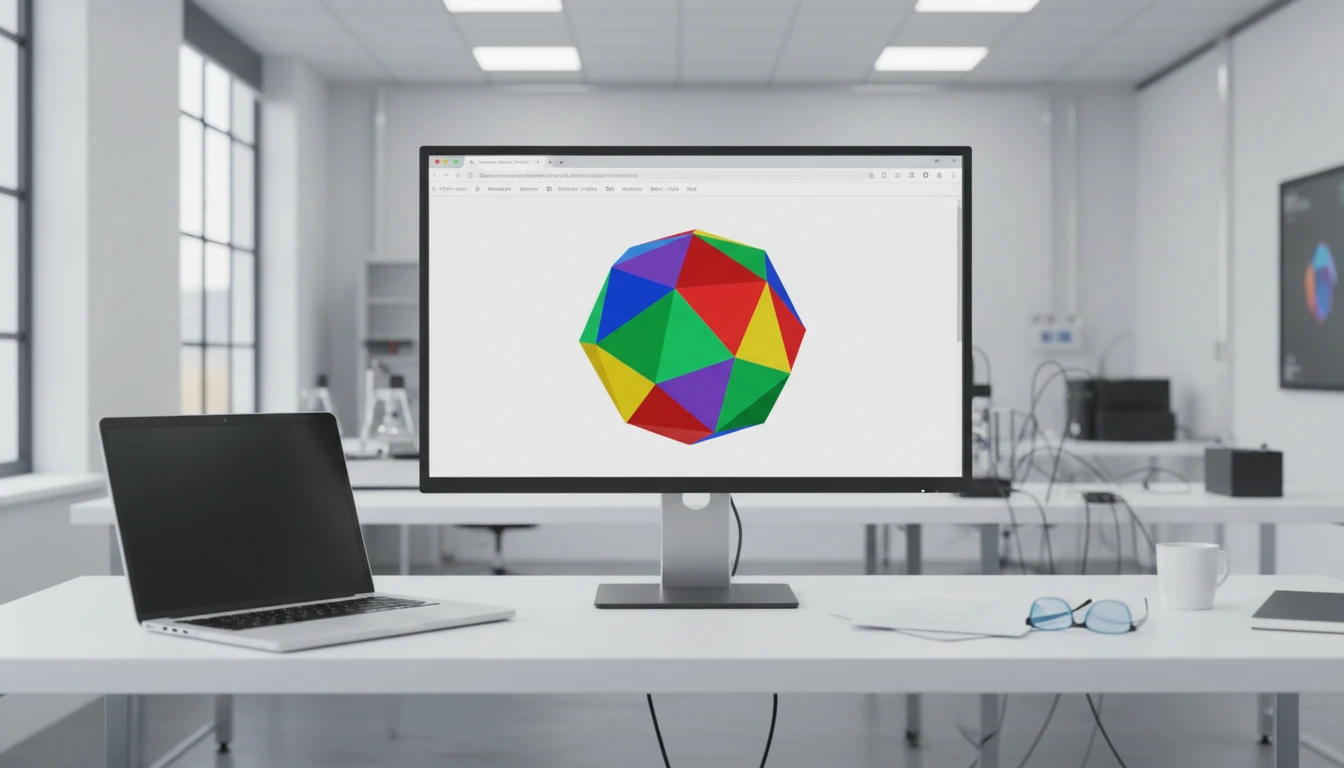
OFF 3D Model Viewer
Upload an OFF file to explore geometry with vertex colors, wireframe, lighting environments, and screenshot export.
Drop your OFF file here
or click to browse your files
Supports .off (plain and colored OFF)
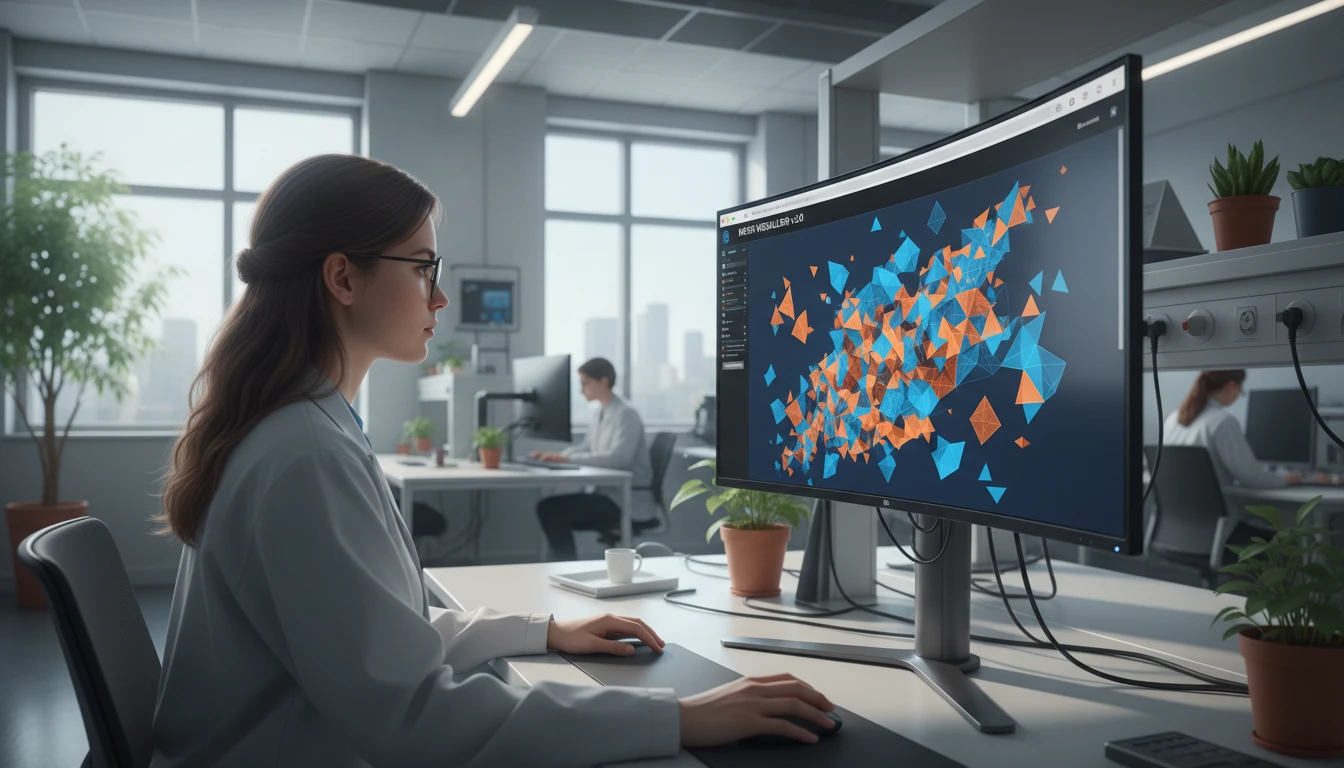
Vertex Colors Rendered Automatically
OFF files can embed per-face or per-vertex RGB color data from computational geometry workflows. The viewer detects and renders these colors without any extra configuration, so you see the model exactly as intended.
Open Viewer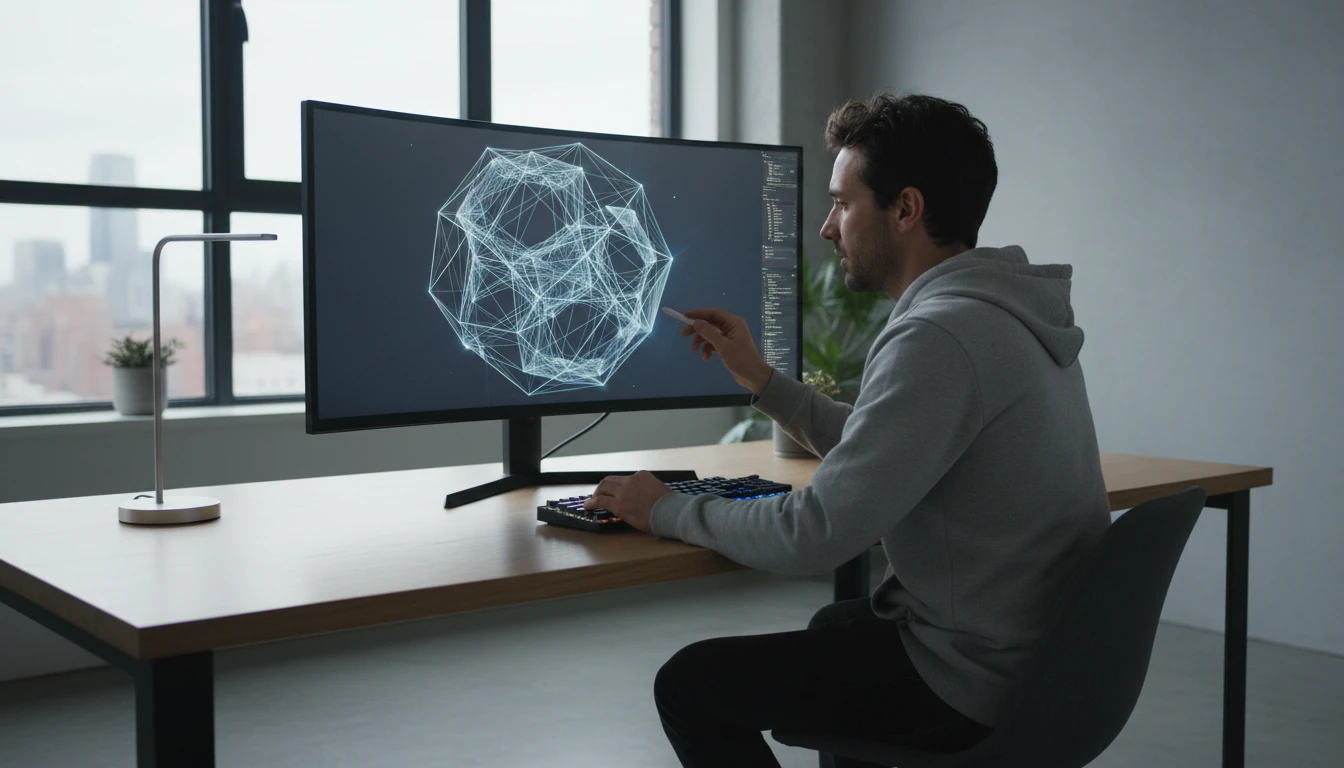
Wireframe to Inspect Mesh Topology
Toggle wireframe mode to reveal the underlying polygon structure. OFF files support triangular, quadrilateral, and arbitrary polygon faces. Wireframe view makes it easy to inspect polygon density and mesh structure before further processing.
Open Viewer
Screenshot, Rotate, and Explore
Auto-rotate the model for a continuous turntable preview. Snap to Perspective, Front, Top, or Right camera views for precise inspection. Cycle through ten lighting environments and capture any angle as a PNG screenshot.
Open ViewerView an OFF File in Three Steps
Upload your OFF file
Drag an OFF file onto the drop zone or click to browse. Both colored and plain OFF formats are supported. Vertex or face color data embedded in the file is detected and rendered automatically.
Explore the geometry
Orbit, zoom, and pan around the model. Toggle wireframe to inspect the polygon structure. Cycle through ten lighting environments to see how the mesh reads under different conditions.
Export a screenshot
Snap to a camera preset for a clean angle, then click the screenshot button to download a PNG named after your OFF file.
Deep Dive
What the OFF Viewer Supports
Built for the Object File Format, with support for colored faces, arbitrary polygon meshes, and browser-side parsing with no file upload.
Why Use It
Vertex Color Rendering
Per-face and per-vertex RGB color data from OFF files is detected and rendered automatically, preserving the color information stored in the file.
Wireframe Inspection
Toggle wireframe to reveal the polygon mesh structure, check face density, and inspect arbitrary polygon faces that are common in computational geometry OFF files.
Ten Lighting Environments
Cycle through studio, city, sunset, warehouse, forest, and more to see how the surface reads under different real-world lighting conditions.
Screenshot Export
Capture any camera angle as a PNG for mesh documentation, research logs, or comparison images.
Who Uses It
Who Uses a Browser-Based OFF Viewer
OFF is the standard format for computational geometry and academic mesh datasets. Researchers, students, and engineers need to preview models quickly without installing tools like MeshLab.
Frequently Asked Questions
What is an OFF file?
OFF (Object File Format) is a simple text-based 3D geometry format developed by the Geometry Center at the University of Minnesota. An OFF file begins with the keyword "OFF", followed by counts of vertices, faces, and edges, then the vertex coordinates and face definitions. It is widely used in computational geometry, academic benchmarks, and mathematical visualization because of its simplicity and human-readable structure.
Does the viewer support colored OFF files?
Yes. OFF files can optionally include RGB color values after each face definition. When the viewer detects color data in the file, it renders the mesh with those colors using vertex color rendering. Plain OFF files without color data are rendered in a default indigo color.
How are non-triangular polygon faces handled?
OFF files can define faces with any number of vertices. The viewer triangulates each polygon face during parsing using fan triangulation, splitting quads and other polygons into triangles. This means all geometry renders correctly regardless of the original polygon type.
How do I navigate the model?
Left-click and drag to orbit around the model. Scroll the mouse wheel to zoom in and out. Right-click and drag to pan the camera. Use the P/F/T/R buttons at the bottom-left corner to snap to Perspective, Front, Top, and Right camera presets.
What does wireframe mode do?
Wireframe mode renders only the polygon edges of the mesh instead of filled surfaces. For OFF files from computational geometry tools, this is useful for inspecting polygon density, checking face connectivity, verifying triangulation output, and reviewing mesh structure.
Is there a file size limit?
There is no server-imposed limit because all parsing and rendering happens entirely in your browser. Very large OFF files with millions of faces may load slowly on lower-powered devices, but most academic and research OFF files load within a few seconds.
What does the screenshot button do?
The screenshot button captures the current canvas viewport and downloads a PNG file named after your OFF file. Use it to document mesh results, create comparison images, or share model previews without any additional software.
Ready to Inspect Your OFF File?
Upload an OFF file, explore geometry with vertex colors, check the mesh in wireframe, then export a screenshot.