Inspect PLY Scans and Models in Your Browser
Upload a PLY file and explore it from every angle. Vertex colors embedded in the file are rendered automatically. Add an optional texture, toggle wireframe, cycle through lighting environments, and export a PNG screenshot.
Open Viewer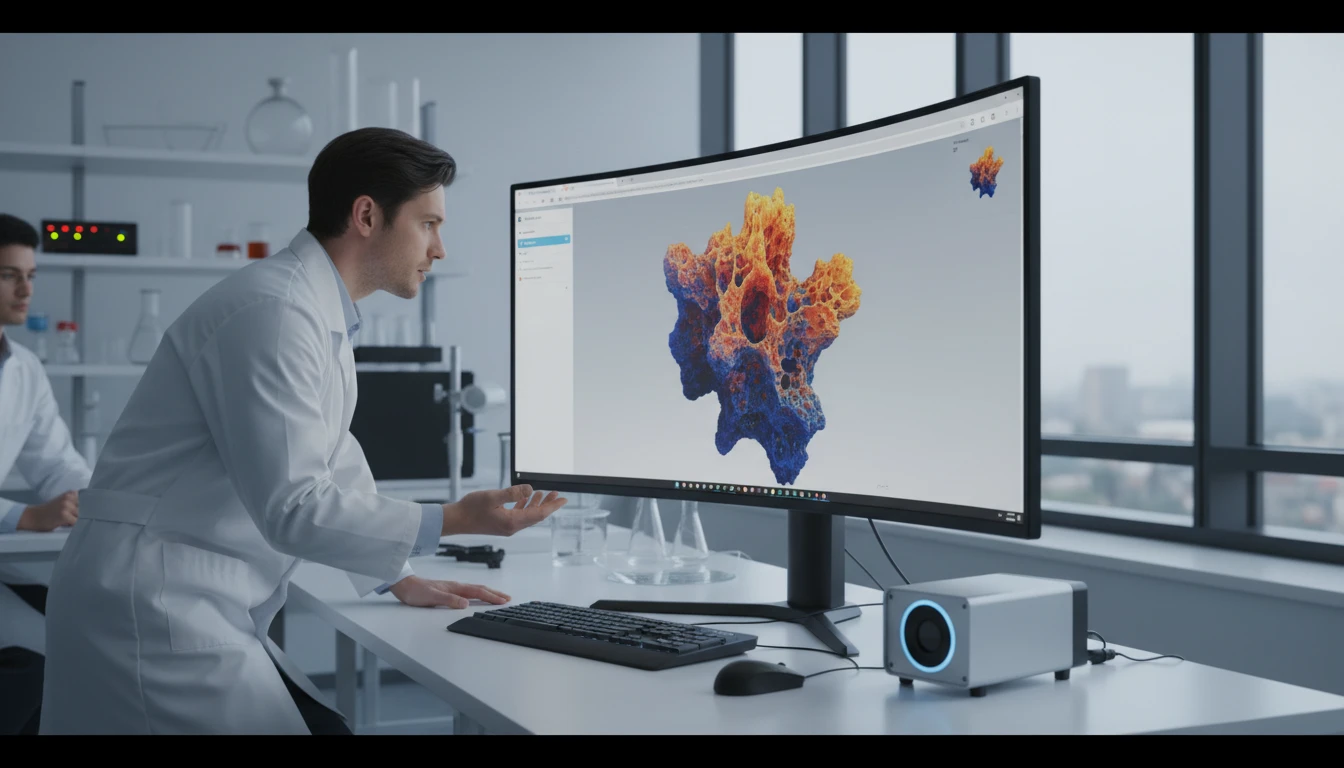
PLY 3D Model Viewer
Upload a PLY file to explore geometry with vertex colors or an optional texture. Toggle wireframe, switch lighting, and export a screenshot.
Drop your PLY file here
or click to browse your files
Supports .ply (ASCII and binary) — optionally drop a PNG/JPG texture too

Vertex Colors Rendered Automatically
PLY files from 3D scanners and photogrammetry tools often embed per-vertex RGB color data. The viewer detects and renders these colors automatically — no extra configuration needed. View scan data exactly as captured.
Open Viewer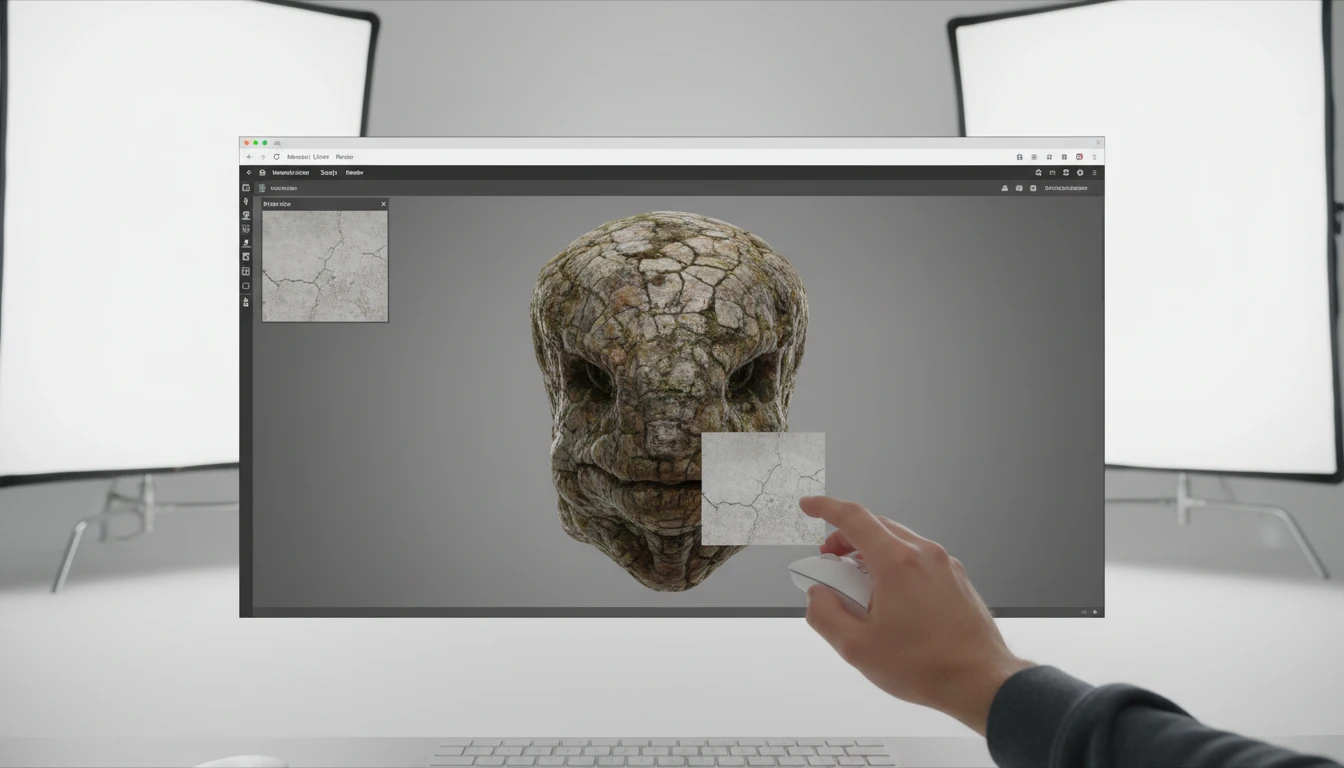
Optional Texture Overlay
Some PLY models include UV coordinate data for texture mapping. Upload a PNG or JPG texture alongside your PLY file and the viewer will apply it to the surface using spherical UV mapping for models without native UV data.
Open Viewer
Wireframe, Lighting, and Screenshot
Toggle wireframe to inspect the underlying triangle mesh. Cycle through ten environment lighting presets to see how the model reads under different conditions. Snap to camera presets and export a PNG screenshot for documentation.
Open ViewerView a PLY file in three steps
Upload your PLY file
Drag a PLY file onto the drop zone or click to browse. Both ASCII and binary PLY formats are supported. Vertex color data embedded in the file is detected and rendered automatically.
Optionally add a texture
Click the texture button in the toolbar to upload a PNG or JPG image to apply to the model surface. The viewer generates UV coordinates using spherical mapping for models that do not include native UVs.
Inspect, switch lighting, and export
Orbit, zoom, and pan around the model. Toggle wireframe to see mesh topology. Switch between ten lighting environments. Snap to camera presets and capture a PNG screenshot.
Deep Dive
What the PLY Viewer Supports
Built for the Stanford PLY format — handles scan data with embedded vertex colors, optional texture overlays, and mesh geometry from any source.

Why Use the PLY Viewer
Vertex Color Rendering
Embedded per-vertex RGB data from 3D scans is rendered automatically, preserving the original captured color fidelity.
Optional Texture
Apply a PNG or JPG texture to the model surface. Works even on PLY files without native UV coordinates via spherical mapping.
Mesh Inspection
Toggle wireframe to check triangle density and mesh topology of scan data before processing or export.
Screenshot Export
Save any camera angle as a PNG for scan logs, design reviews, or client documentation.
Who Uses It
Who Uses a Browser-Based PLY Viewer
PLY is the go-to format for 3D scan data. Researchers, engineers, and designers need to preview scan results quickly without installing specialized software.

Frequently Asked Questions
What is a PLY file?
PLY (Polygon File Format, also called Stanford Triangle Format) is a 3D geometry format developed at Stanford University in the 1990s for storing data from 3D scanners. Unlike STL, it can store per-vertex properties including color, surface normals, transparency, and custom application data alongside geometry. It supports both ASCII (human-readable) and binary (compact) representations.
How does vertex color rendering work?
Many PLY files from 3D scanners embed per-vertex color data as red, green, and blue properties in the vertex element. The viewer uses the Three.js PLYLoader which parses these properties and populates a color attribute in the geometry buffer. Three.js then renders the mesh using vertex colors automatically — no user configuration is required.
How do I add a texture to the model?
Click the texture button (image icon) in the right toolbar to open a file picker and choose a PNG or JPG image. If the PLY file includes UV coordinates, the texture is mapped directly. For PLY files without UVs (most scan data), the viewer generates spherical UV coordinates so the texture wraps the model surface.
Are both binary and ASCII PLY files supported?
Yes. The Three.js PLYLoader automatically detects the format from the PLY header and parses both binary (little-endian and big-endian) and ASCII PLY files. Both produce identical rendered geometry.
How do I navigate the model?
Left-click and drag to orbit around the model. Scroll the mouse wheel to zoom in and out. Right-click and drag to pan the camera. Use the P/F/T/R buttons at the bottom left to snap to Perspective, Front, Top, and Right camera presets.
What does wireframe mode do?
Wireframe mode renders only triangle edges of the mesh. For scan data this is especially useful for inspecting mesh density, spotting holes or non-manifold geometry, and assessing whether a region needs rescanning before running a mesh repair or retopology workflow.
Can it render point clouds?
PLY files from LIDAR systems often contain only vertex data with no face elements (no triangles). The Three.js PLYLoader will parse these as a non-indexed geometry with no triangle faces. The viewer renders the geometry as a mesh; pure point cloud files without faces may appear invisible or as a flat plane because there are no surfaces to render. Point cloud rendering requires a points primitive rather than a mesh material.
Is there a file size limit?
There is no server-imposed limit because all processing happens in your browser. Very large PLY files from dense 3D scans (over 100 MB) may load slowly on lower-powered devices. Most scan outputs under 50 MB load within a few seconds.
Ready to Inspect Your PLY File?
Upload a PLY file, explore vertex colors or add a texture, check the mesh in wireframe, then export a screenshot.