Convert STL Print Geometry to COLLADA for DCC Tool Pipelines
Convert STL meshes from 3D printing and CAD tools into DAE (COLLADA) and make them importable in Unity, Blender, Cinema 4D, and any DCC tool or game engine that reads the structured XML COLLADA format.
Convert Now
Convert STL to DAE
Upload a STL file and download the converted DAE — all processing happens on the server.
Drop your STL file here
or click to browse
Accepts .stl files
From Print Format to DCC Scene
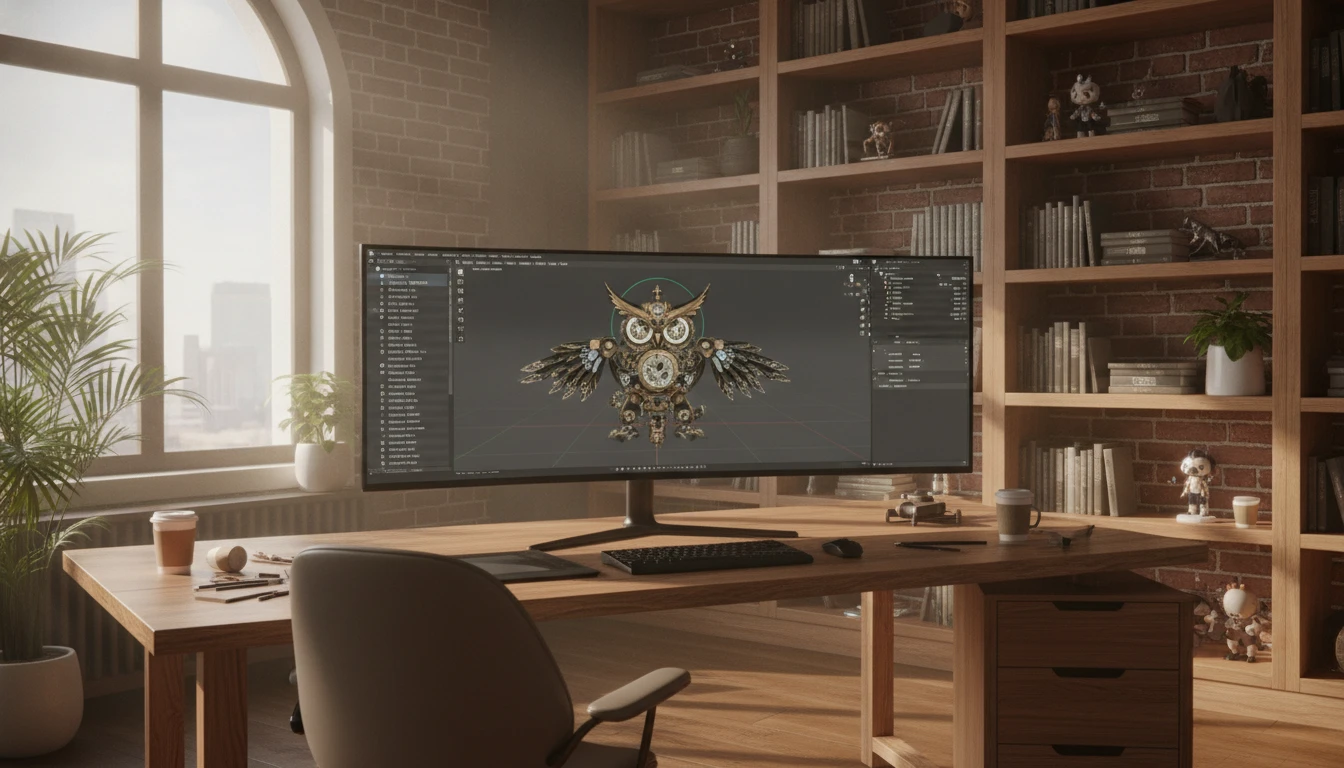
STL is geometry-only — triangles and face normals with no scene structure. COLLADA is the structured XML interchange format read natively by Unity, Blender, Cinema 4D, and Maya. Converting STL to DAE wraps the print geometry in a scene structure that DCC tools can import directly with smooth normals and material slot support.
Convert Now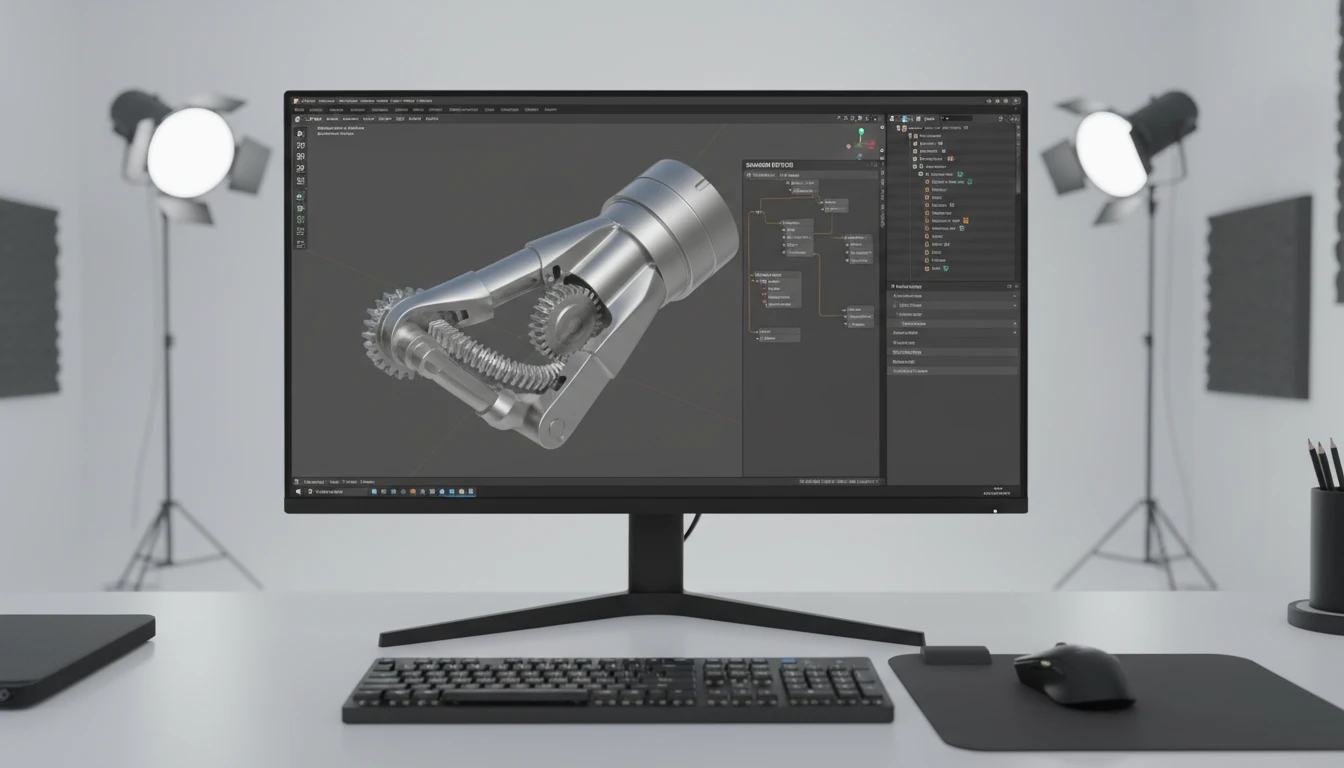
Smooth Normals Rebuilt for Correct DCC Rendering
STL flat face normals produce faceted shading on curved surfaces in DCC tools. The converter reconstructs smooth per-vertex normals during conversion and writes them into the COLLADA geometry, so product enclosures, organic forms, and mechanical parts render correctly in Blender, Unity, and Cinema 4D without manual normal smoothing.
Convert Now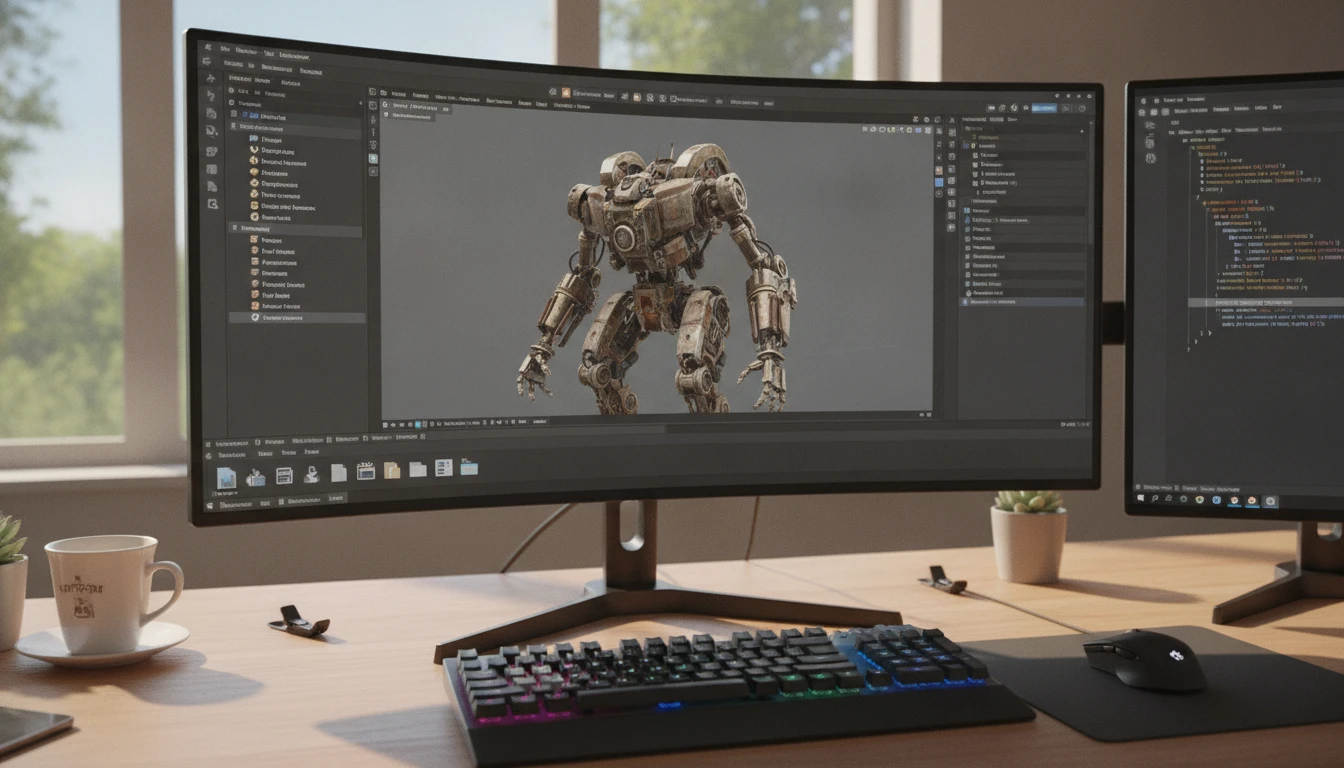
Unity, Blender, and Cinema 4D Ready
Unity imports DAE files natively from the Assets folder, and Blender's built-in COLLADA importer handles the output directly. Cinema 4D and Maya also read COLLADA without plugins. Convert your STL print geometry to DAE for a direct import path into any of these production tools for visualization, rendering, or game scene integration.
Convert NowHow to Convert STL to DAE
Upload Your STL File
Drag and drop an STL file into the upload zone or click to browse. Both ASCII and binary STL files up to 100 MB are supported.
Sign In and Convert
Sign in to start the conversion. The server parses the STL geometry, reconstructs smooth vertex normals, and writes them into a COLLADA DAE document.
Download the DAE
Once ready, click Download. The DAE file is immediately importable into Unity, Blender, Cinema 4D, Maya, and any other COLLADA-compatible DCC tool or game engine.
Deep Dive
STL and DAE: Print Format vs. DCC Scene Format
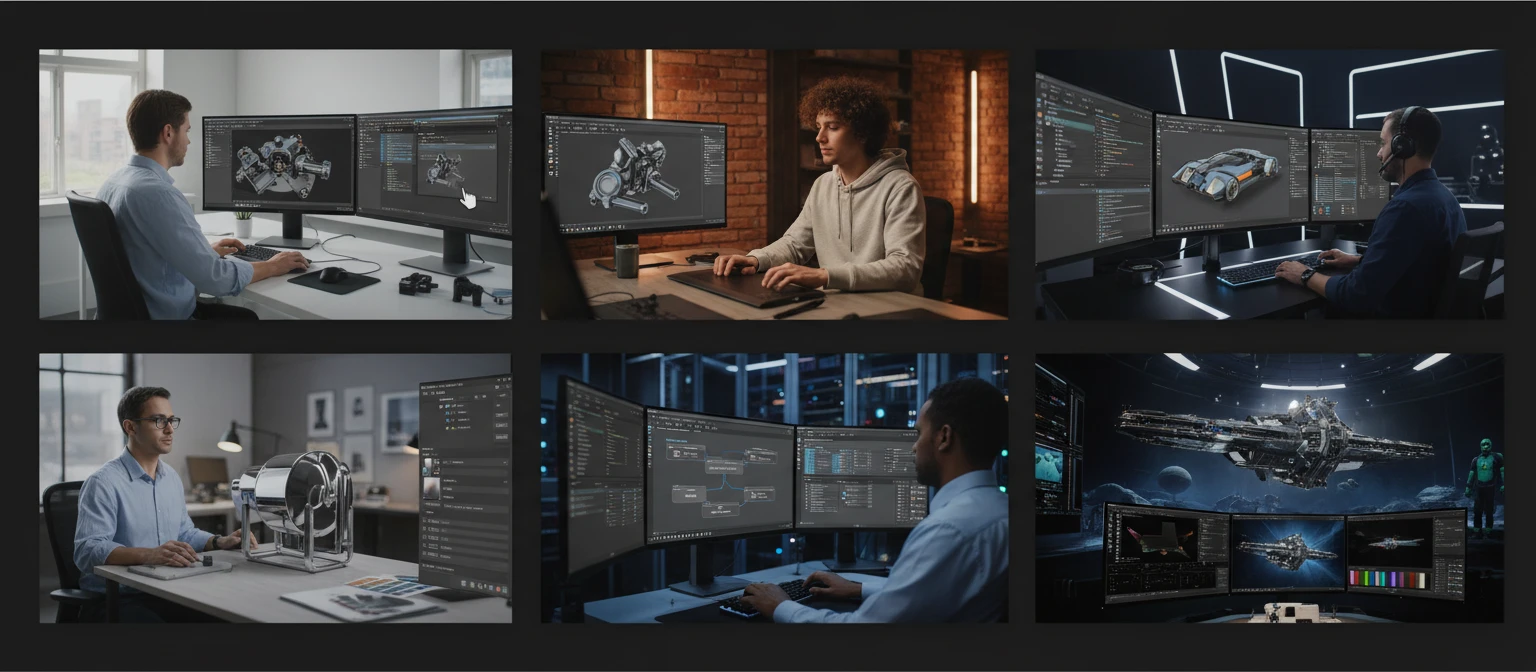
Why Use It
No Software to Install
The conversion runs on the server. No Blender Python scripts, FBX Converter workarounds, or local Assimp CLI pipelines needed. Upload and download directly from your browser.
Smooth Normals Rebuilt
STL flat face normals are replaced with smooth per-vertex normals written into the COLLADA geometry, fixing faceted shading on curved surfaces without manual normal smoothing in the target DCC tool.
DCC Tool Ready
The output DAE is immediately importable into Unity, Blender, Cinema 4D, and Maya without additional plugins or format conversion steps.
Material Slot Ready
COLLADA supports material definitions and geometry grouping. The converted DAE includes a default material slot, ready for texture and PBR material assignment in any DCC tool without manual geometry re-import.
Who Uses It
Who Converts STL to DAE
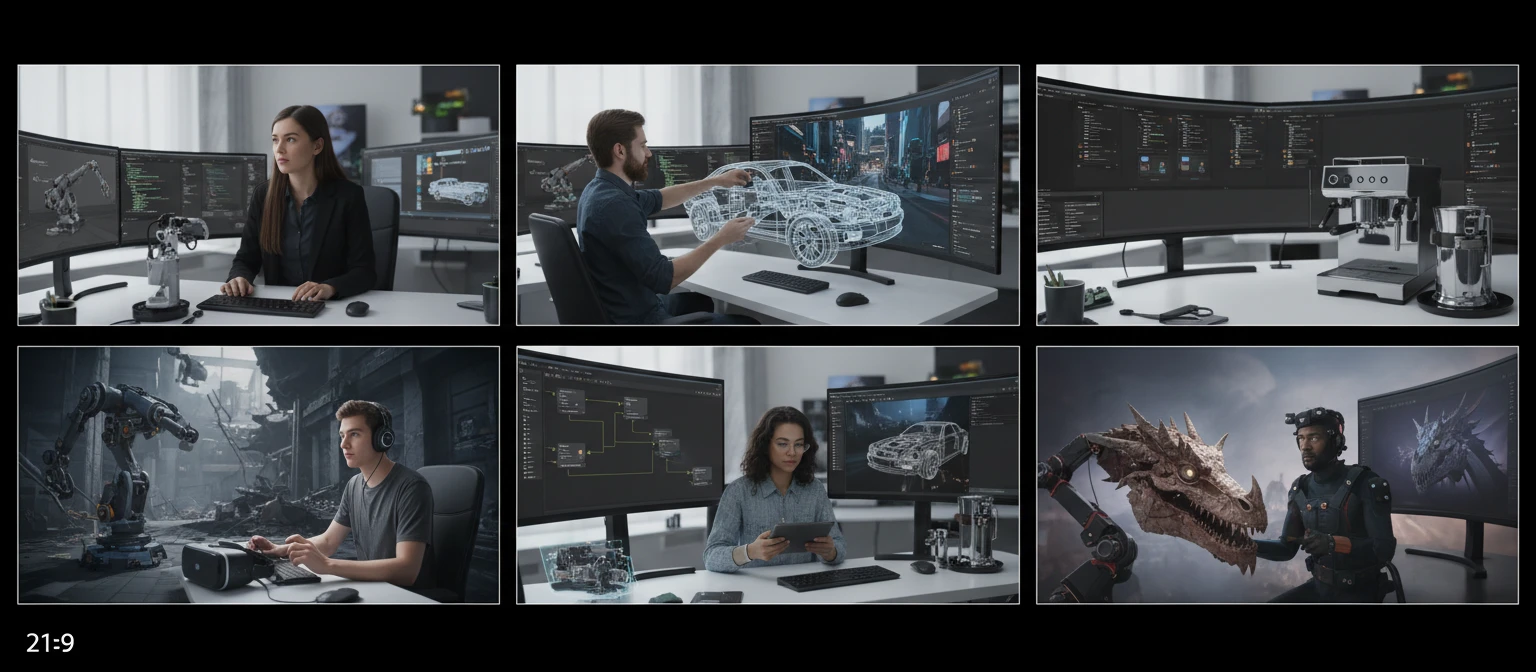
Frequently Asked Questions
Are both ASCII and binary STL files supported?
Yes. The converter handles both ASCII STL and binary STL. Binary STL is more compact and the standard output of most slicer and CAD software for large models.
Does the DAE output include smooth vertex normals?
Yes. STL face normals are flat per-face normals that produce faceted shading. The converter reconstructs smooth per-vertex normals and writes them into the COLLADA geometry, fixing rendering on curved surfaces in DCC tools without manual smoothing.
Does the converted DAE include materials or colors?
STL carries no color or material data, so the DAE output uses a default neutral material. You can assign PBR materials, colors, and textures in Blender, Unity, Cinema 4D, or Maya after import.
Which tools can open the resulting DAE file?
Unity, Blender, Cinema 4D, Maya, 3ds Max, SketchUp, and most other DCC tools and game engines import DAE files natively without plugins.
What is the maximum STL file size?
The converter supports STL files up to 100 MB. COLLADA's verbose XML structure means the DAE output may be larger than the original binary STL for complex meshes.
Convert Your STL File to DAE Now
Upload your STL mesh and get a COLLADA DAE with smooth normals in seconds. No install, no manual steps.