Convert COLLADA Scenes to the Universal STL Print Format
Convert DAE (COLLADA) scene files to STL and make your geometry compatible with any slicer, printer firmware, CNC toolpath generator, or CAD tool that requires the universally supported Stereolithography format.
Convert Now
Convert DAE to STL
Upload a DAE file and download the converted STL — all processing happens on the server.
Drop your DAE file here
or click to browse
Accepts .dae files
From DCC Scene to Print-Ready Geometry
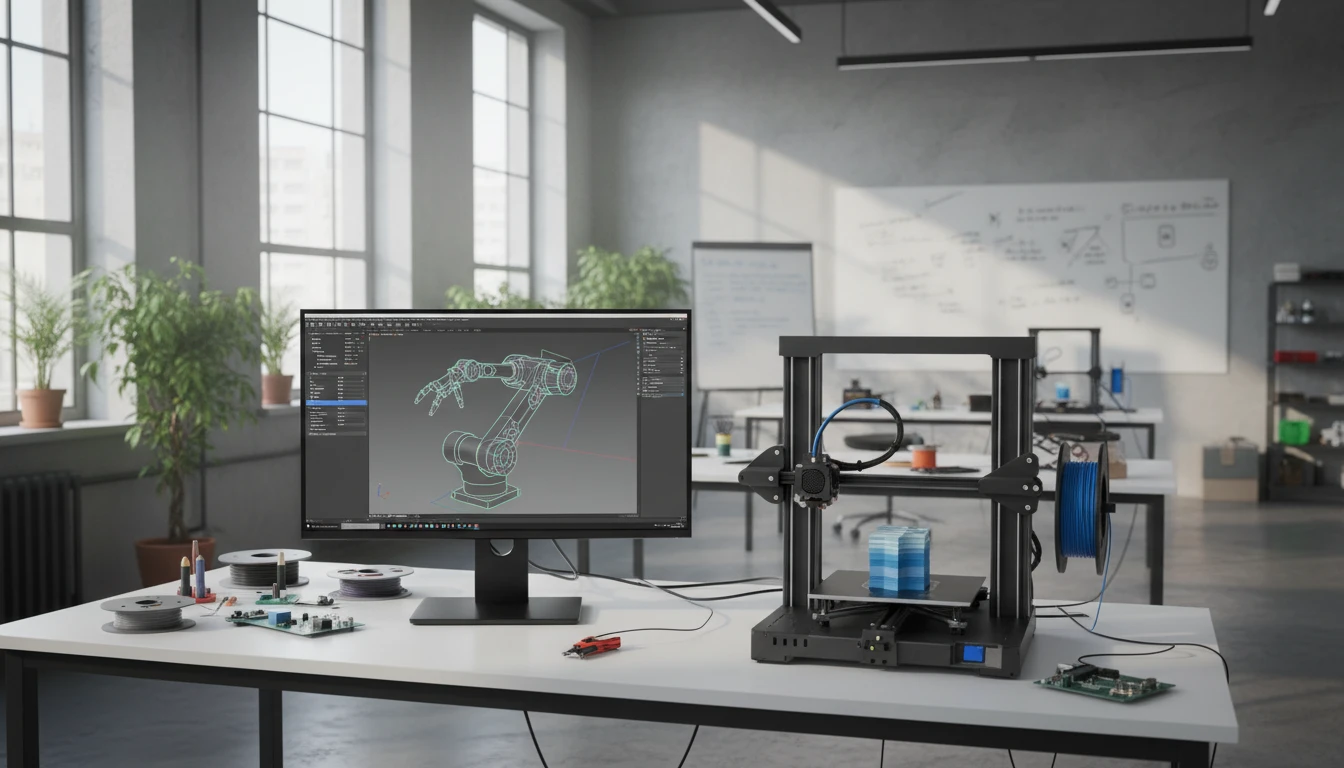
COLLADA is a rich DCC interchange format with scene hierarchy, materials, animations, and cameras. STL is the geometry-only format that every slicer, printer, and CAM tool accepts. Converting DAE to STL extracts the mesh from the scene wrapper and delivers a clean, universally compatible geometry file ready for printing or machining.
Convert Now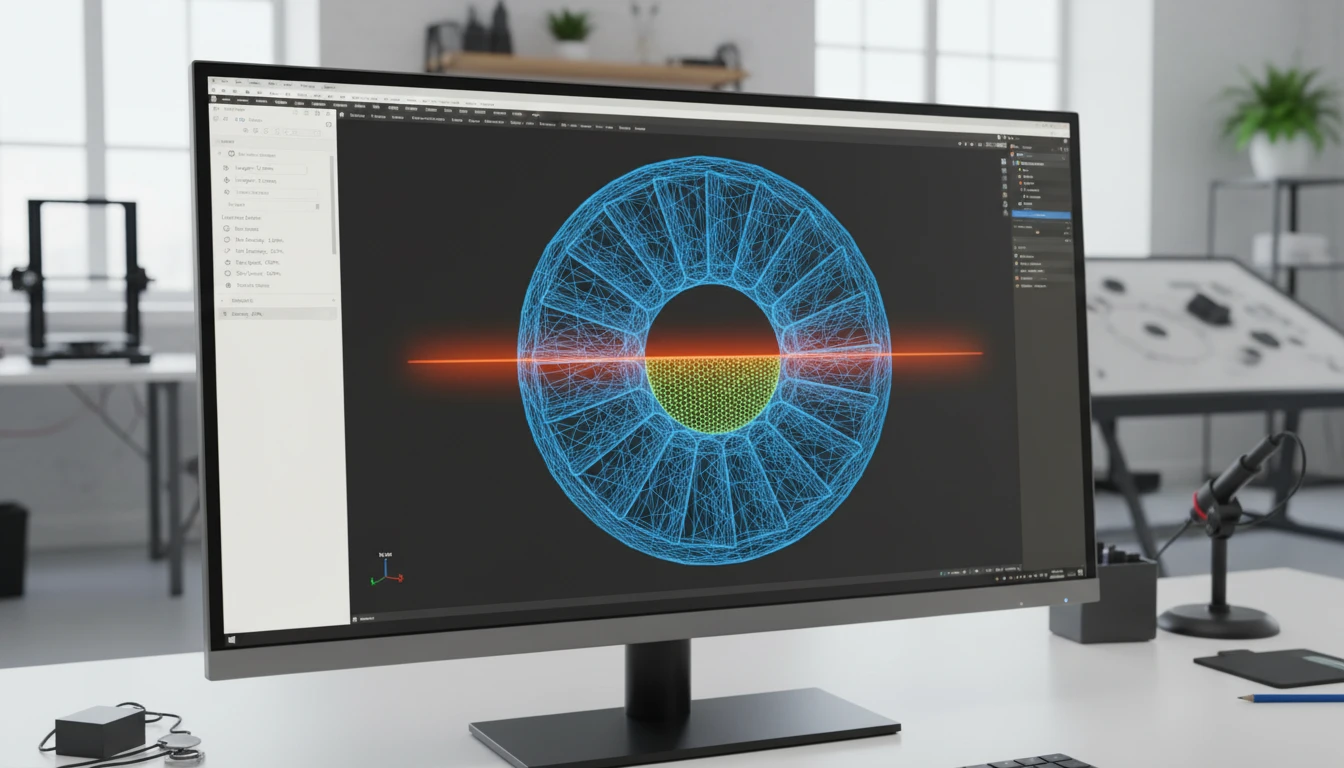
Clean Triangulated Mesh with Correct Normals
The converter extracts the triangulated geometry from the COLLADA scene and writes a binary STL with correct outward-facing face normals. The output is a valid, watertight mesh ready for slicing, FEA pre-processing, or CNC post-processing without manual repair steps.
Convert Now
Every Slicer and CAM Tool Compatible
STL is accepted by every slicer ever made — Cura, PrusaSlicer, Bambu Studio, Chitubox, and all legacy and proprietary printer interfaces — as well as FEA tools like ANSYS and CAM applications like Fusion 360. Converting DAE to STL gives your COLLADA geometry maximum toolchain reach.
Convert NowHow to Convert DAE to STL
Upload Your DAE File
Drag and drop a DAE (COLLADA) file into the upload zone or click to browse. Files up to 100 MB are supported.
Sign In and Convert
Sign in to start the conversion. The server parses the COLLADA scene geometry and writes a clean binary STL with correct face normals.
Download the STL
Once ready, click Download. The STL file is immediately usable in any slicer, printer firmware interface, CAD tool, or CAM application.
Deep Dive
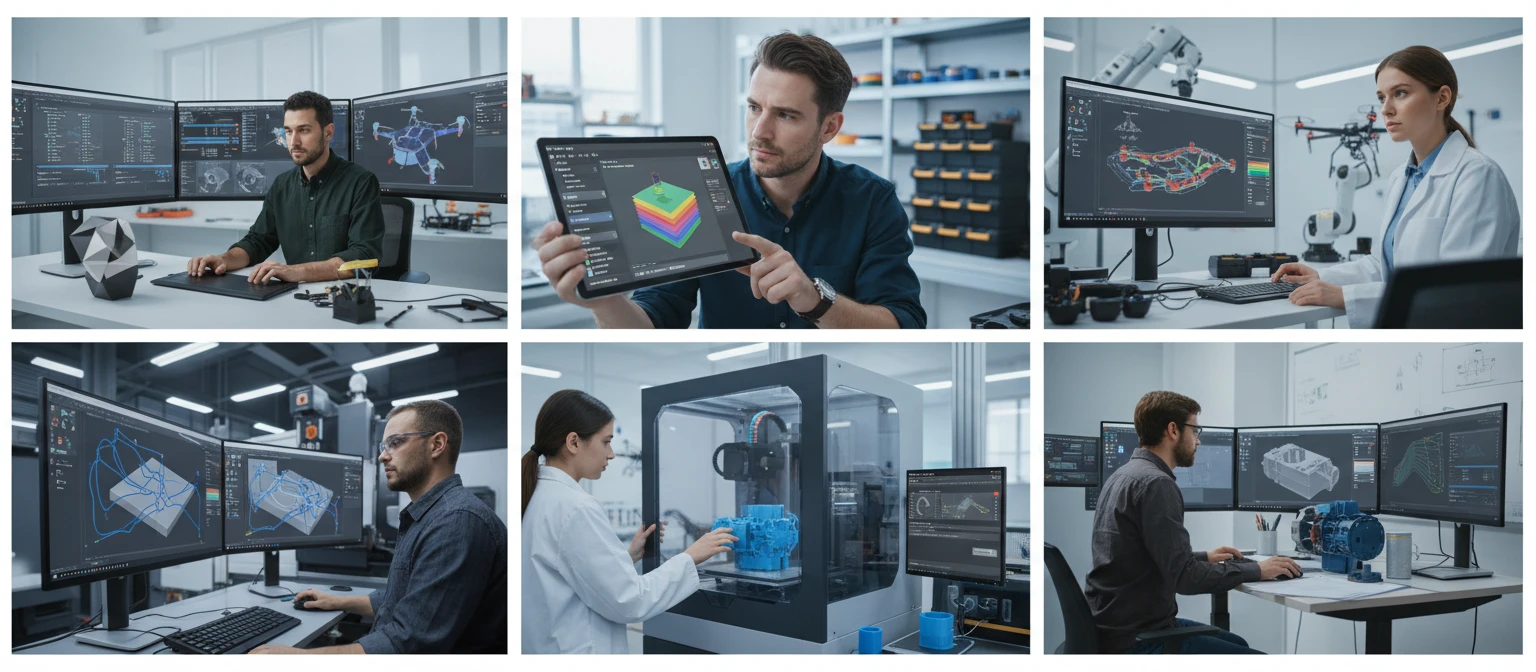
DAE and STL: DCC Scene Format vs. Universal Print Geometry
Why Use It
No Software to Install
The conversion runs on the server. No Blender Python scripts, no slicer workarounds, no local Assimp CLI pipelines needed. Upload and download directly from your browser.
Clean Binary STL Output
The converter produces a binary STL with correct face normals and a solid triangulated mesh, ready for slicing or CAD import without manual repair steps.
Universal Slicer Compatibility
STL is accepted by every slicer and printer firmware ever made. The converted file opens in Cura, PrusaSlicer, Bambu Studio, Chitubox, and all legacy and proprietary printer software.
CAD and CAM Ready
STL is the standard import for FEA pre-processing, reverse engineering, and CNC toolpath generation in Fusion 360, SolidWorks, ANSYS, and other engineering tools.
Who Uses It
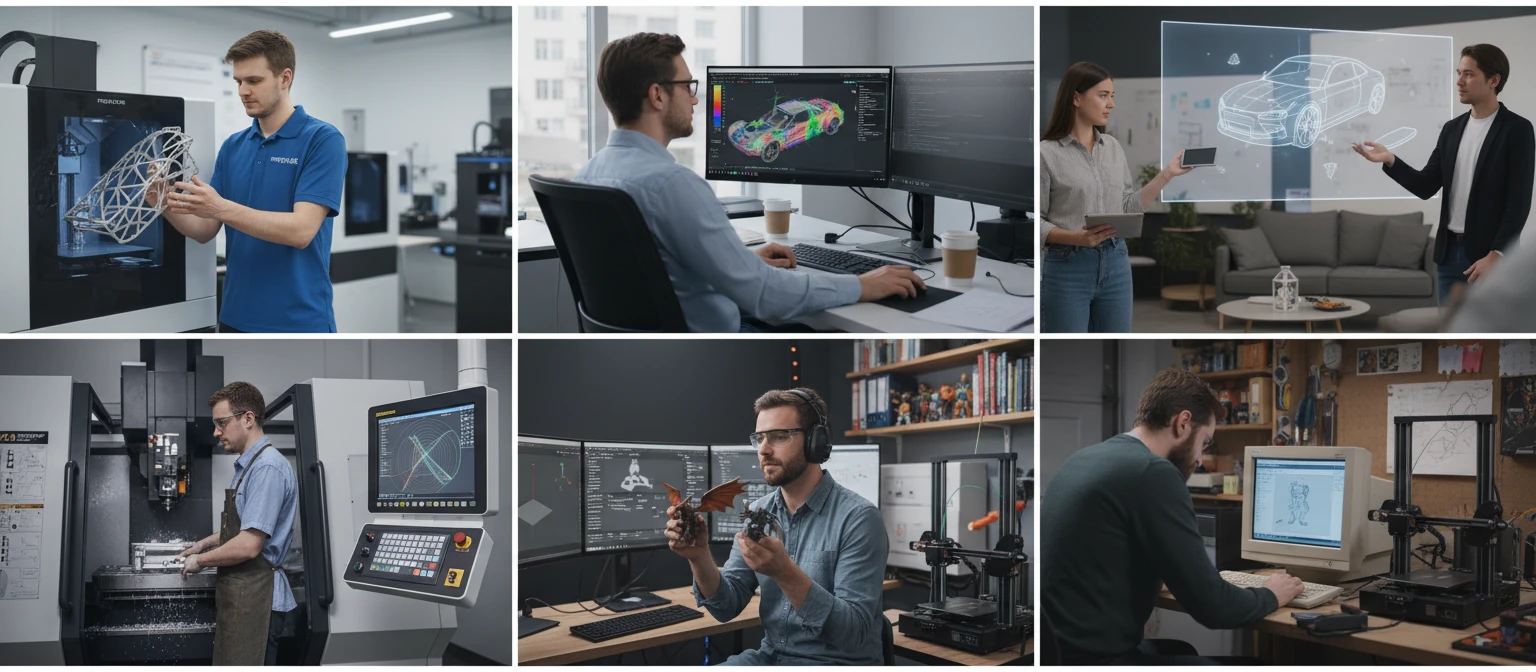
Who Converts DAE to STL
Frequently Asked Questions
Does the STL output include materials or colors from the DAE file?
No. STL carries only geometry — vertex positions and face normals. Color, material, and texture data from the COLLADA file cannot be represented in the STL format. If you need to preserve color or materials, convert to OBJ, PLY, or GLB instead.
Is animation data from the DAE file included in the STL?
No. STL is a static geometry format. Only the mesh at its rest pose is exported. Scene hierarchy, cameras, lights, and animation data from the COLLADA file are not included.
Is the STL output ASCII or binary?
The converter produces binary STL, which is more compact and faster to parse than ASCII STL. All modern slicers, CAD tools, and CAM applications read binary STL transparently.
Are the face normals correct in the STL output?
Yes. The converter calculates correct outward-facing face normals from the COLLADA triangle winding order and writes them into the STL output, producing a valid mesh for slicers and FEA tools.
What is the maximum DAE file size?
The converter supports DAE files up to 100 MB. COLLADA's verbose XML structure means DAE files for complex scenes can be significantly larger than equivalent binary formats.
Convert Your DAE File to STL Now
Upload your COLLADA scene and get a print-ready STL in seconds. No install, no manual steps.