Record HD 16:9 Video Right in Your Browser
Capture clean widescreen webcam footage at 1920x1080 without installing anything. Pause, resume, preview, and download your video when you're done.
Start Recording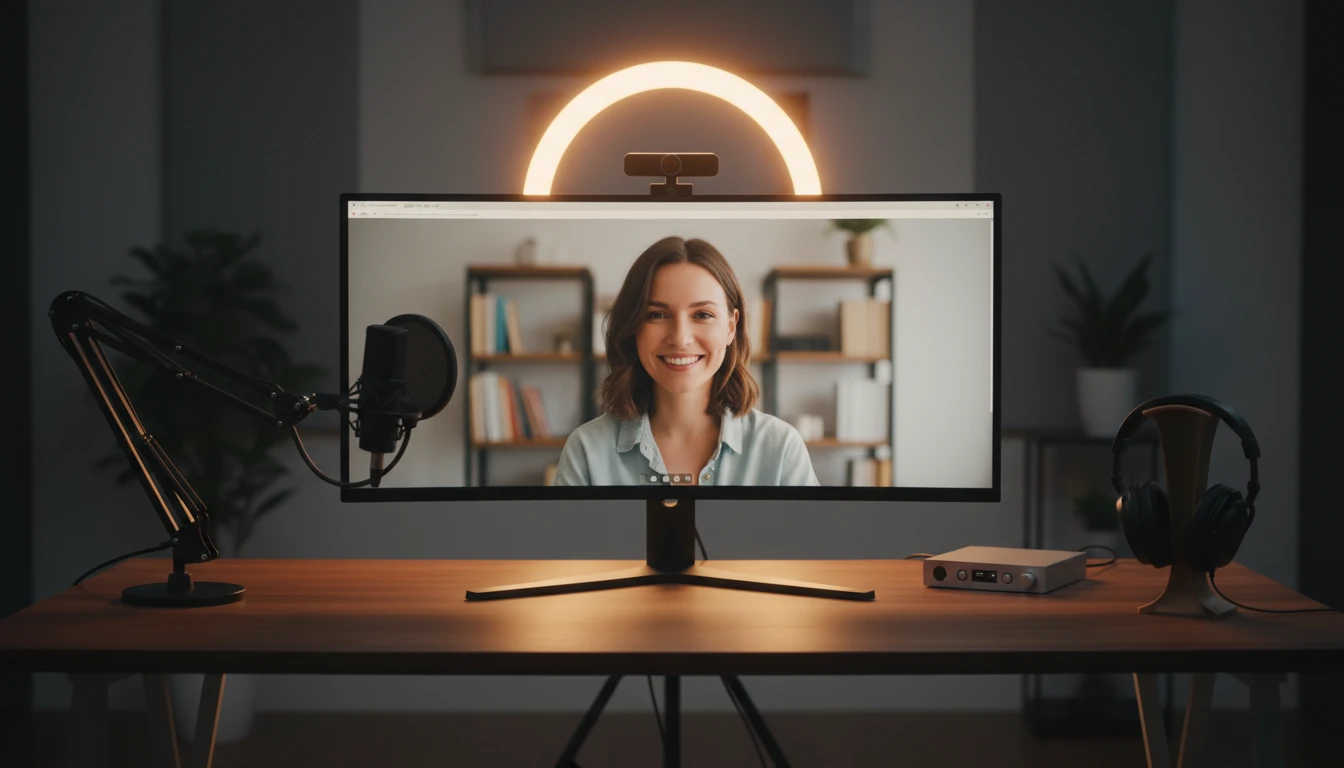
Widescreen Video Recorder
Record 16:9 HD webcam videos for YouTube, presentations, and professional content
Controls
Camera preview will appear here
Tips for a Better Recording
- •Face a natural light source (window) to keep your face well lit.
- •Position the camera at eye level so you look directly into the lens.
- •Use headphones to prevent microphone echo from your speakers.
- •The output is always 1920x1080 (16:9), regardless of your webcam's native ratio.
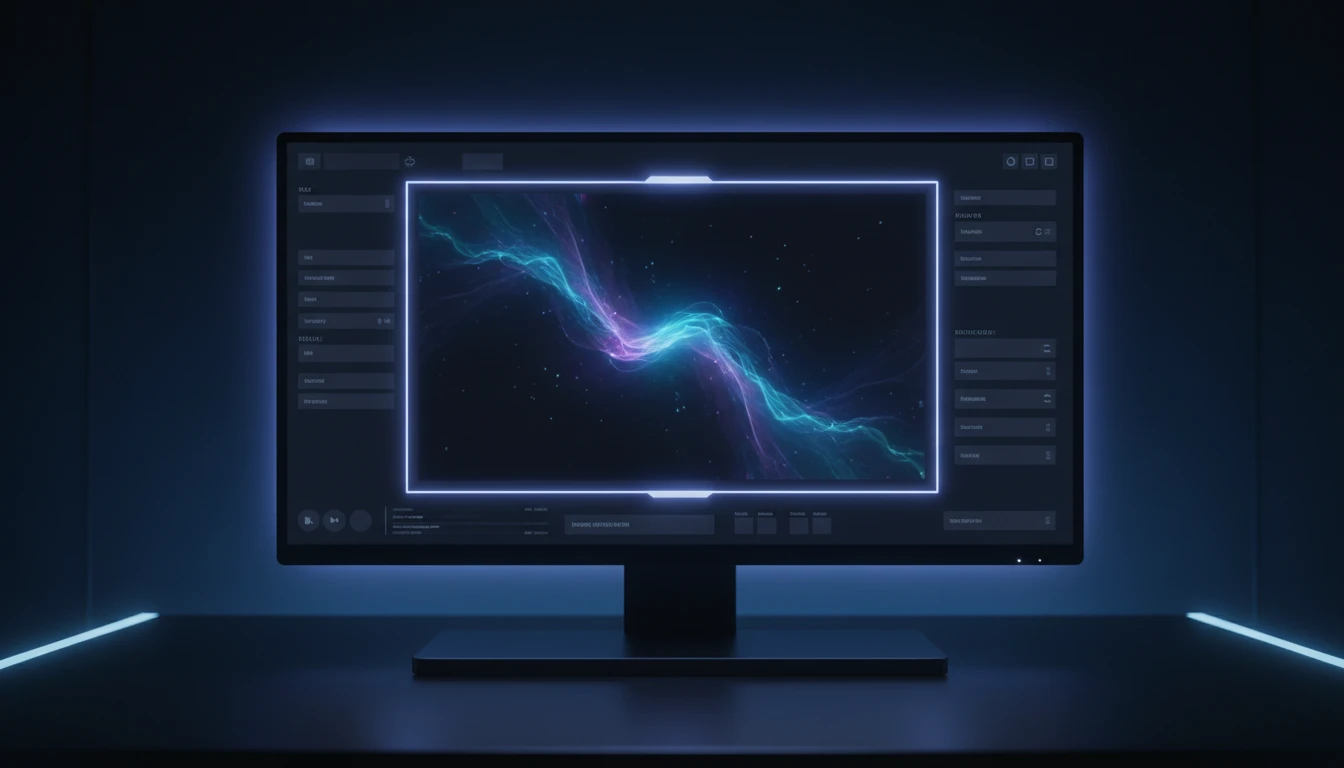
Enforced 16:9 Canvas Output
Your webcam feed is drawn onto a 1920x1080 HTML5 Canvas every frame, so the output is always true 16:9 regardless of your camera's native ratio. Non-16:9 feeds are letterboxed with a black background and centred in the frame.
Try It Now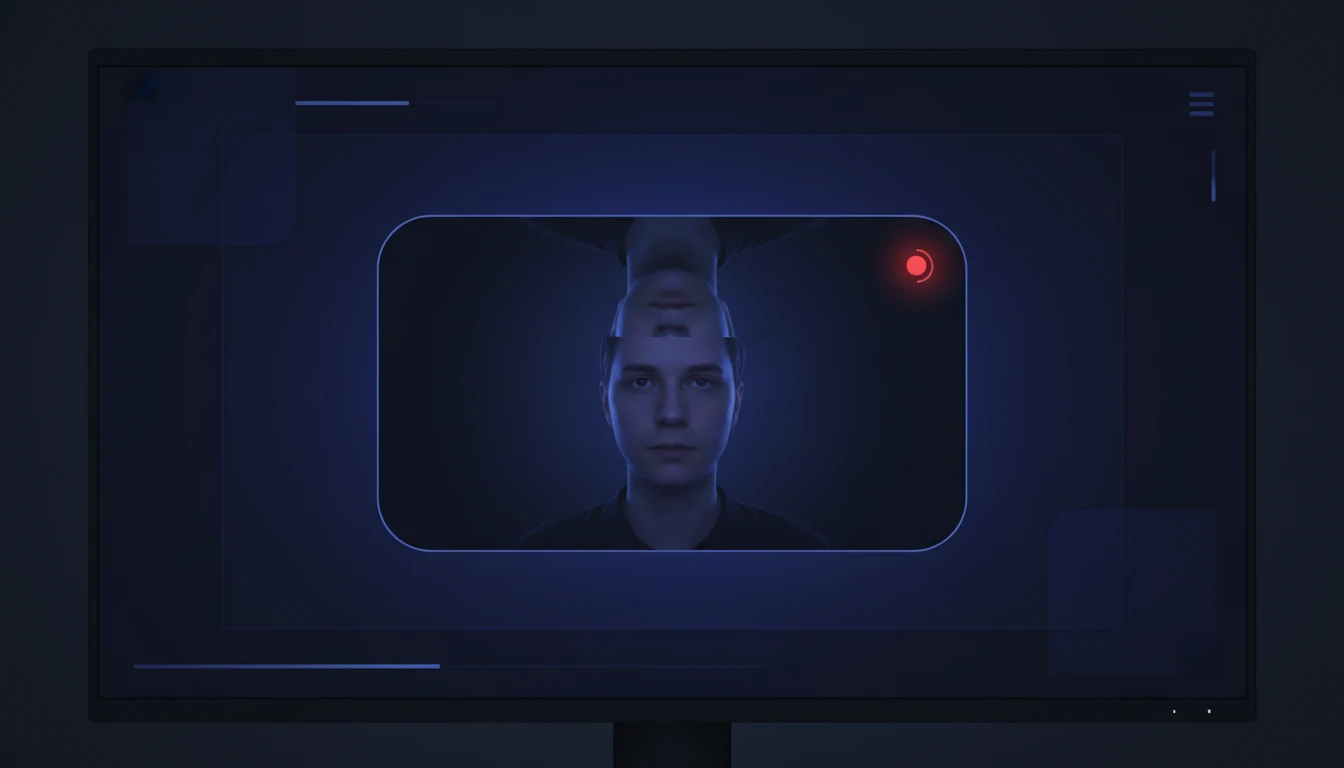
Live Preview While Recording
A mirrored live camera preview is shown during recording so you can monitor your framing, adjust your position, and ensure good lighting before you stop.
Try It Now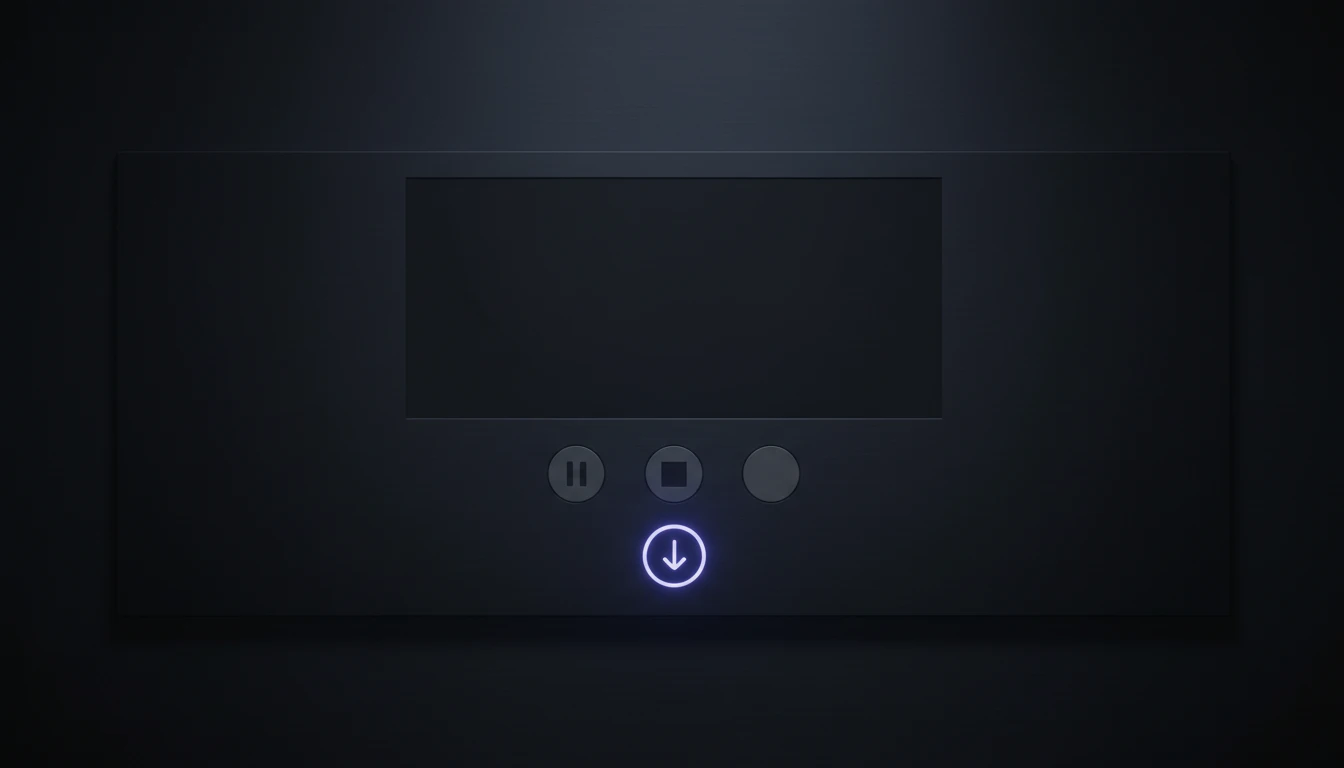
Pause, Resume, and Download
Pause recording at any point without losing footage, resume to continue the same file, and download as WebM when done. The video is available for immediate browser playback before you save.
Try It NowCapture a widescreen video in three steps
Click Start Recording
Allow camera and microphone access when your browser prompts. Your live camera feed will appear immediately in the preview.
Record your video
Speak naturally into the camera. Use Pause if you need a break, then Resume to continue the same recording without cutting.
Stop and download
Click Stop to finish. Preview the result directly in the browser, then click Download to save your 16:9 widescreen video.
Deep Dive
How Widescreen Video Recorder Works
The tool uses an offscreen Canvas to enforce the 16:9 ratio, then feeds the composited stream into the MediaRecorder API — all in your browser.
Why Use This Widescreen Recorder
Always 16:9
Canvas compositing guarantees 1920x1080 output regardless of your webcam's native ratio.
Audio Included
Microphone audio with echo cancellation and noise suppression is recorded alongside the video.
Pause and Resume
Pause at any point and resume into the same file without splitting or re-editing.
No Install, No Upload
Everything runs locally in your browser — record and download without installing any software.
Who Uses It
Who Uses Widescreen Video Recorder
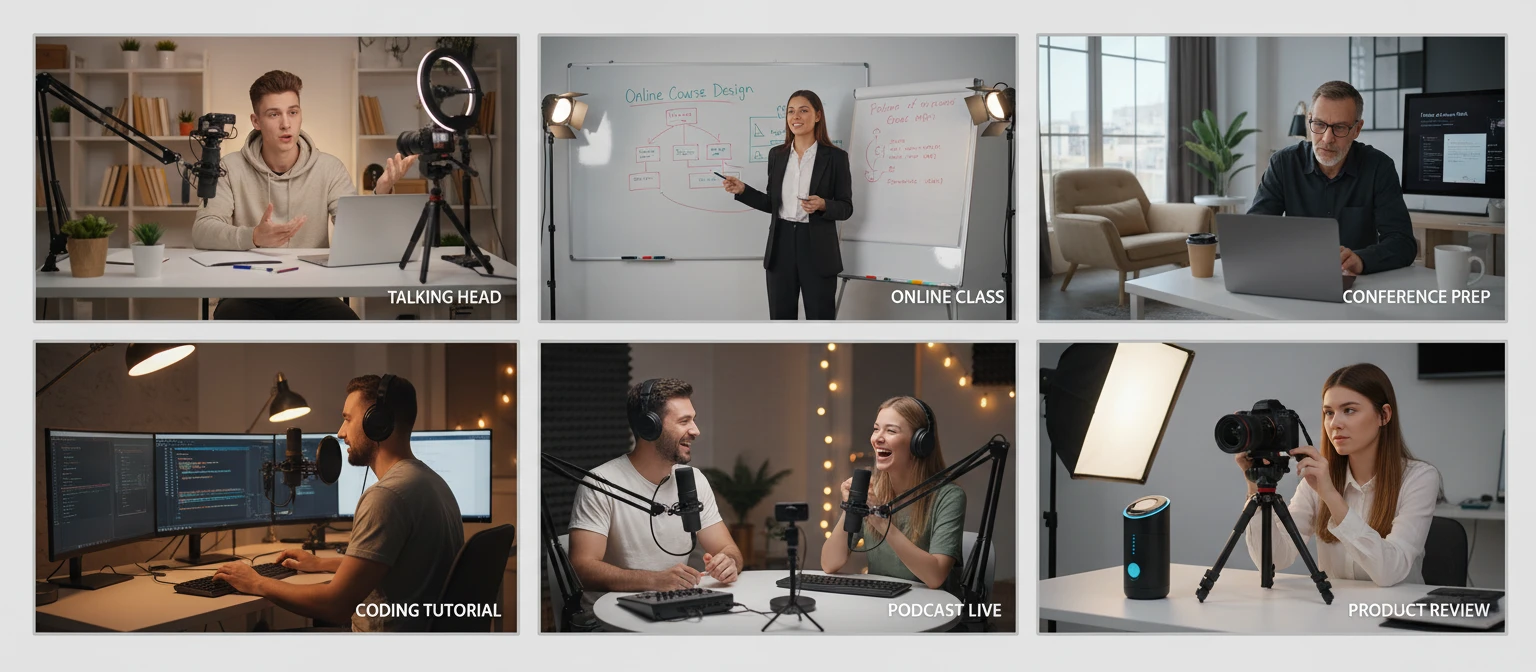
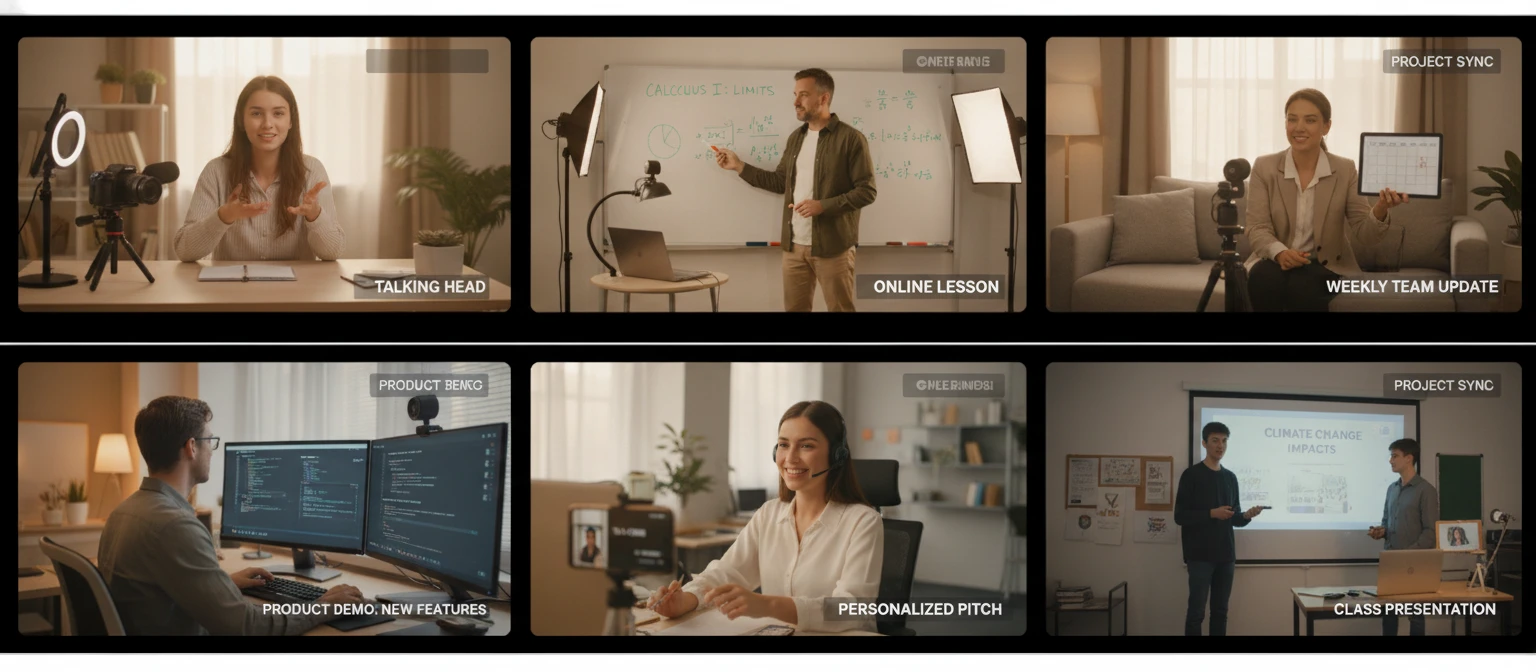
Anyone who needs a clean 16:9 talking-head or demo video without production software.
Frequently Asked Questions
What resolution does the widescreen recorder output?
The recorder always outputs 1920x1080 (Full HD) in a 16:9 aspect ratio. This is achieved by drawing your camera feed onto a fixed 1920x1080 Canvas element, regardless of your webcam's native resolution or ratio.
What happens if my webcam is not natively 16:9?
The camera frame is scaled to fit inside the 1920x1080 canvas while maintaining its original proportions. Any unused space (e.g. at the top and bottom for a 4:3 camera) is filled with black, resulting in a clean letterboxed 16:9 video.
Can I pause and resume recording?
Yes. Clicking Pause suspends recording without stopping it, and Resume continues adding to the same file. The final download contains all footage from the session as a single continuous video.
What file format is the downloaded video?
The recorder saves in WebM format using the VP9 or VP8 codec with Opus audio, which is the format best supported by browser-based recording. WebM plays natively in Chrome, Firefox, and Edge, and can be converted to MP4 with any standard video editor.
Can I switch between front and rear cameras on mobile?
The tool uses the browser's default camera, which is typically the front-facing camera on mobile. You can change the active camera in your device settings or browser site permissions before starting a recording.
Why is the live preview mirrored?
The preview is horizontally flipped so it behaves like a mirror, making it easier to frame yourself and check your appearance while recording. The recorded and downloaded video is not mirrored — it plays back in normal orientation.
Is there a time limit on recordings?
There is no enforced time limit. Recording continues until you click Stop. Very long recordings may consume significant RAM because video chunks are held in browser memory, so consider using the Pause feature for extended sessions.
Ready to Record Your First Widescreen Video?
Open the recorder, allow camera access, and have a 1080p 16:9 video ready to download in minutes.