Cut Any Audio File in Your Browser
Cut MP3, WAV, OGG, FLAC or M4A files online. Drag on the waveform to create cuts, play each one back, and export as WAV.
Start Cutting
Audio Cutter
Upload any audio file, drag regions on the waveform to select what you want to keep, and export as WAV.
No file loaded
Drop an audio file here, or click Load file
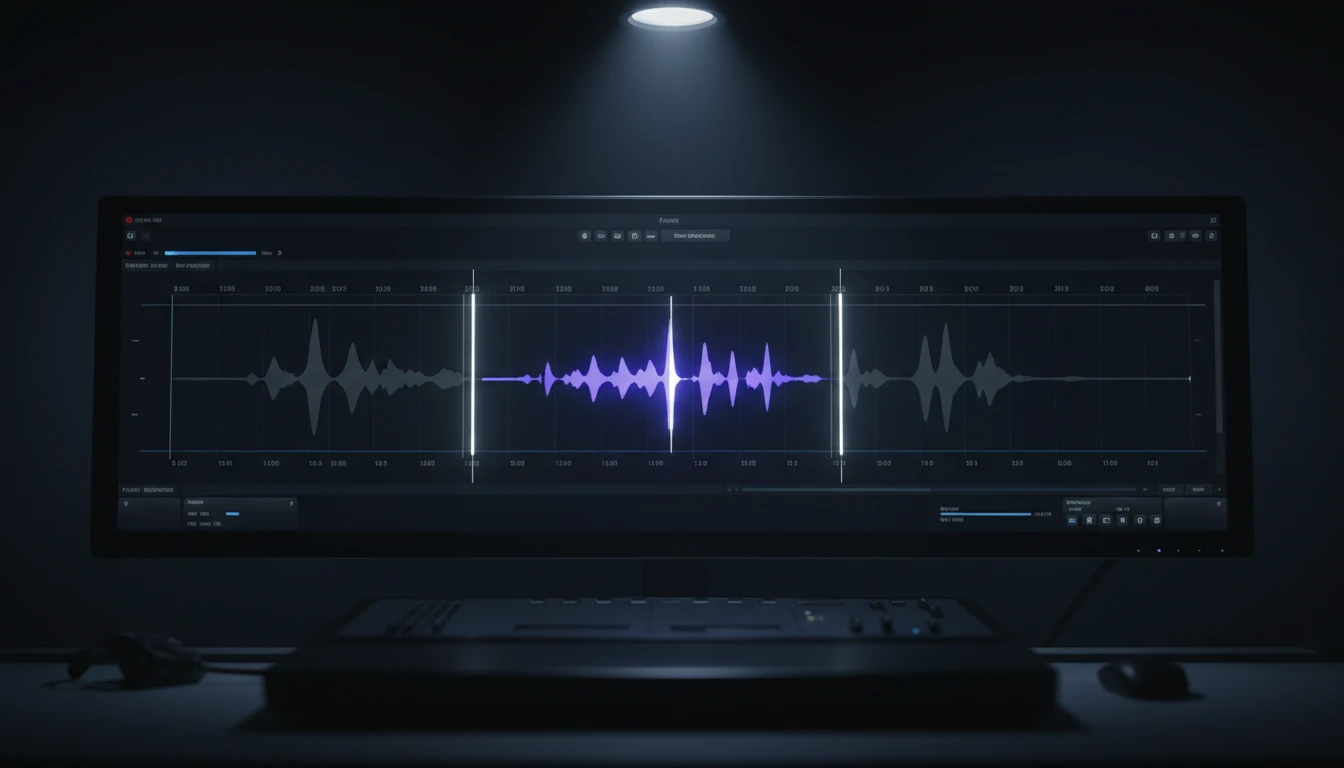
Multi-Region Waveform Editor
See the full waveform the moment a file loads. Drag anywhere to create a cut, drag the colored region to move it, or drag the white handles to resize. Each cut appears as its own labeled track below.
Try It Now
Play Each Cut Independently
Every cut gets its own track row with a dedicated Play button. Audition any region in isolation, then hit Play All to hear the full sequence before exporting.
Try It Now
Lossless WAV Export
All cuts are concatenated and rendered by an OfflineAudioContext at the original sample rate, then encoded to 16-bit PCM WAV with no quality loss.
Export NowCut audio in three steps
Upload your audio
Drop an audio file onto the waveform area or click Load file. MP3, WAV, OGG, FLAC, and M4A are all supported. The full waveform appears immediately.
Create and arrange cuts
Drag anywhere on the waveform to mark a cut. Add as many cuts as you need. Drag a colored region to reposition it, or drag the white handles to resize. Click the pencil icon on any track to enter exact start and end times.
Preview and export
Hit the Play button on any track to audition that cut, or Play All to hear the full sequence. Click Export WAV to download all cuts joined into one file.
Deep Dive
How the Audio Cutter Works
Everything runs in your browser using standard Web APIs, no plugins required.
Why Use This Audio Cutter
Multiple Cuts
Mark as many regions as you need on the waveform and export them all joined into one file.
Per-Cut Playback
Every cut has its own Play button. Audition any region in isolation before exporting.
Multiple Formats In
Accepts any format your browser supports: MP3, WAV, OGG, FLAC, M4A.
Lossless WAV Out
16-bit PCM WAV at the original sample rate with no quality loss.
Who Uses It
Who Uses the Audio Cutter
From podcasters removing an intro to developers testing audio pipelines, here are the most common uses.

Frequently Asked Questions
Can I use this as an MP3 cutter?
Yes. Drop any MP3 file onto the waveform, drag to mark your cuts, and export the result as WAV. The browser decodes the MP3 natively so no conversion step is needed beforehand.
Can I cut WAV files?
Yes. WAV files load and decode instantly since they are already uncompressed PCM. The exported WAV is rendered at the same sample rate as the original, with no quality loss.
What audio formats does the cutter support?
Any format your browser's built-in codec can decode: typically MP3, WAV, OGG, FLAC, M4A, and AAC. The exported file is always a WAV.
How precise is the cut?
The handles snap to 10 ms increments, which is accurate enough for virtually all use cases. The OfflineAudioContext renders at the file's original sample rate, so there is no quality loss.
Why is the exported WAV larger than the original file?
WAV is an uncompressed format. The original file may have been an MP3 or OGG compressed to a fraction of the size. Run the exported WAV through an audio converter if you need a smaller file.
Can I trim very long files?
The tool loads the entire file into memory as a decoded PCM AudioBuffer. Files up to around 30–60 minutes work fine on most modern devices. Very long files may cause the browser to run out of memory.
Why does it only export WAV and not MP3?
Encoding MP3 requires a third-party JavaScript library. WAV encoding uses a simple 44-byte header and no external dependencies, keeping the tool fast and lightweight.
Ready to Cut?
Drop an audio file onto the waveform, set your range, and download your trimmed clip in seconds.