Remove Anything from Photos Instantly
Describe what to remove and AI erases it and reconstructs the background seamlessly. No masking, no Photoshop. Works on people, signs, vehicles, furniture, and more.
Remove Objects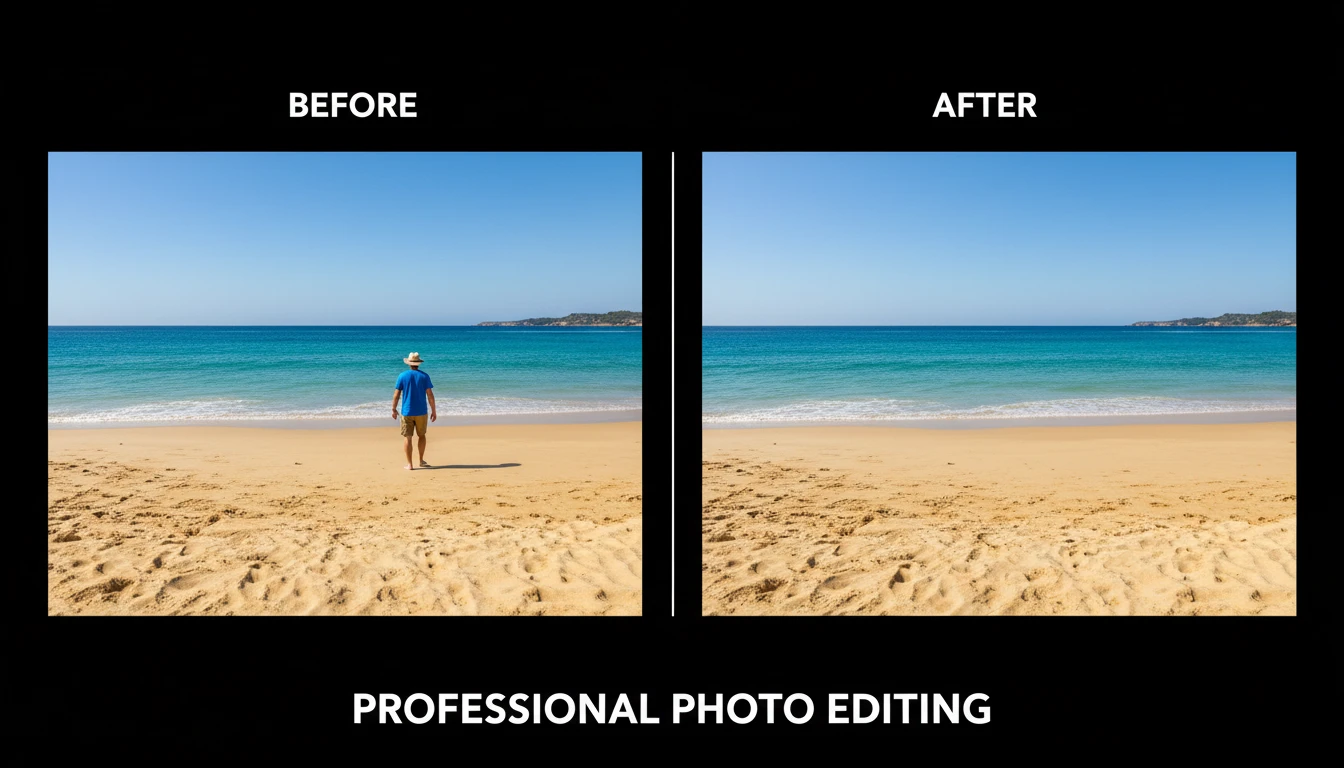
Remove Any Object from a Photo
Add a photo and we'll open AI Image Studio with it ready to clean up.
Drag & drop your photo here
or click to browse — JPG, PNG or WebP, up to 15MB
Your photo is used only to edit it for you.
Remove People, Signs, Vehicles and Anything Distracting
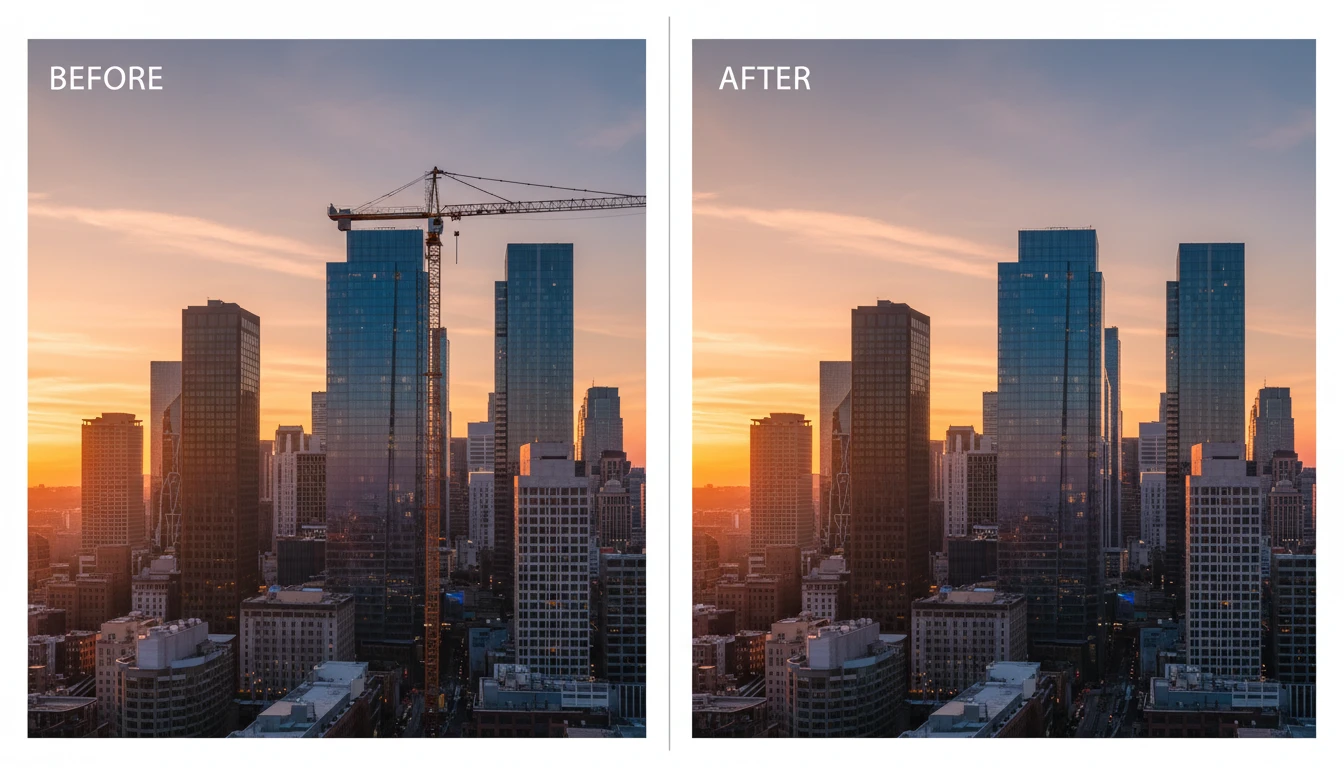
Clean up cluttered backgrounds, remove photobombers, erase unwanted cars or signs from real estate photos, remove tourists from travel shots, or delete any distracting element. Just describe what you want gone and AI handles the rest.
Try Object Removal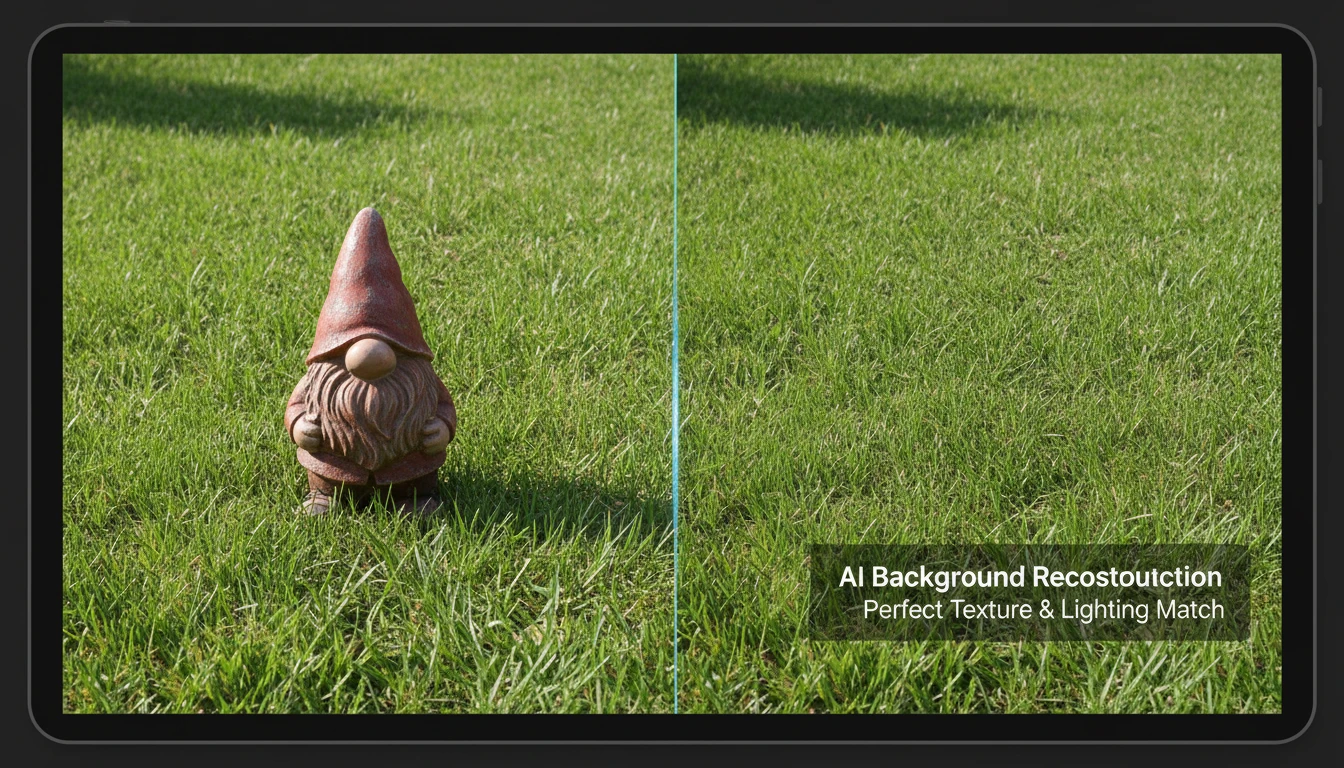
Seamless Background Reconstruction, Every Time
Unlike basic eraser tools that leave blank holes, AI Object Remover reconstructs the background behind removed elements using context from the surrounding scene, matching textures, lighting, perspective, and depth naturally.
See the Difference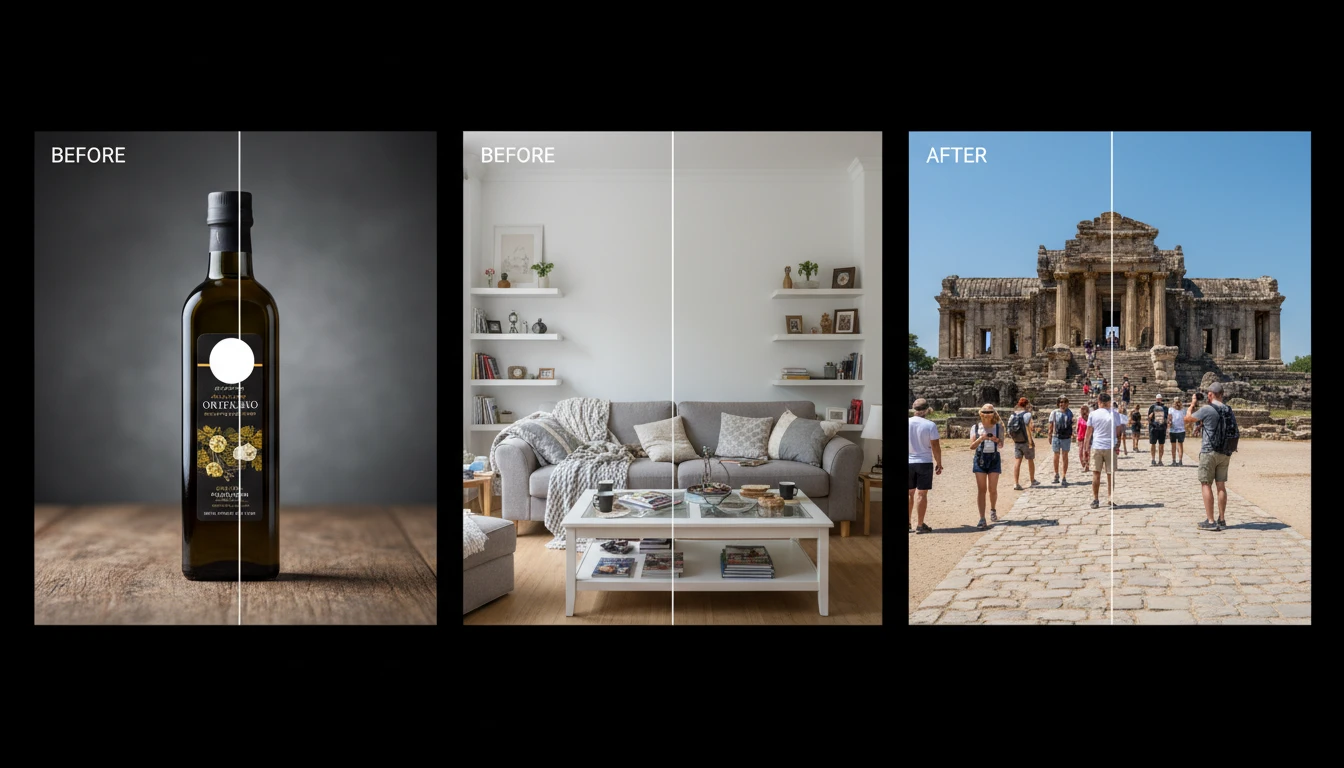
Perfect for Product, Real Estate, and Travel Photography
Remove unwanted objects from product shots, clear clutter from real estate listing photos, erase cables and tripods from commercial photography, or clean up travel images without expensive post-production.
Clean Up Your Photos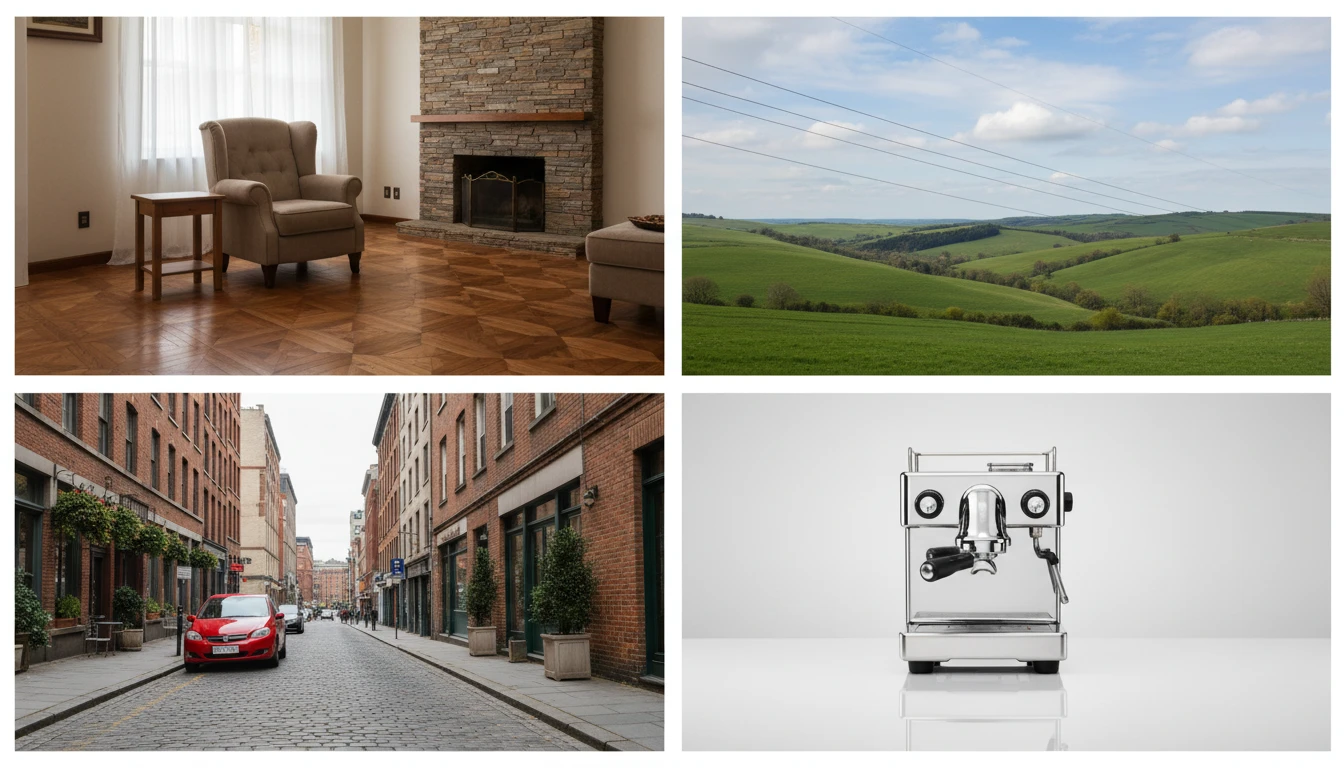
Works on Any Photo: Indoors, Outdoors, Studio, or Street
Whether it is an indoor portrait with cluttered furniture, an outdoor landscape with power lines, a street photo with parked cars, or a studio shot with a stray prop, AI Object Remover handles any scene type with natural-looking results.
Try ItWho Uses AI Object Remover

Real Estate Photographers and Agents
Remove cars from driveways, clear bins and clutter from exteriors, erase power lines from sky shots, and clean up interior photos for listing images that make properties look their best.
Travel and Lifestyle Photographers
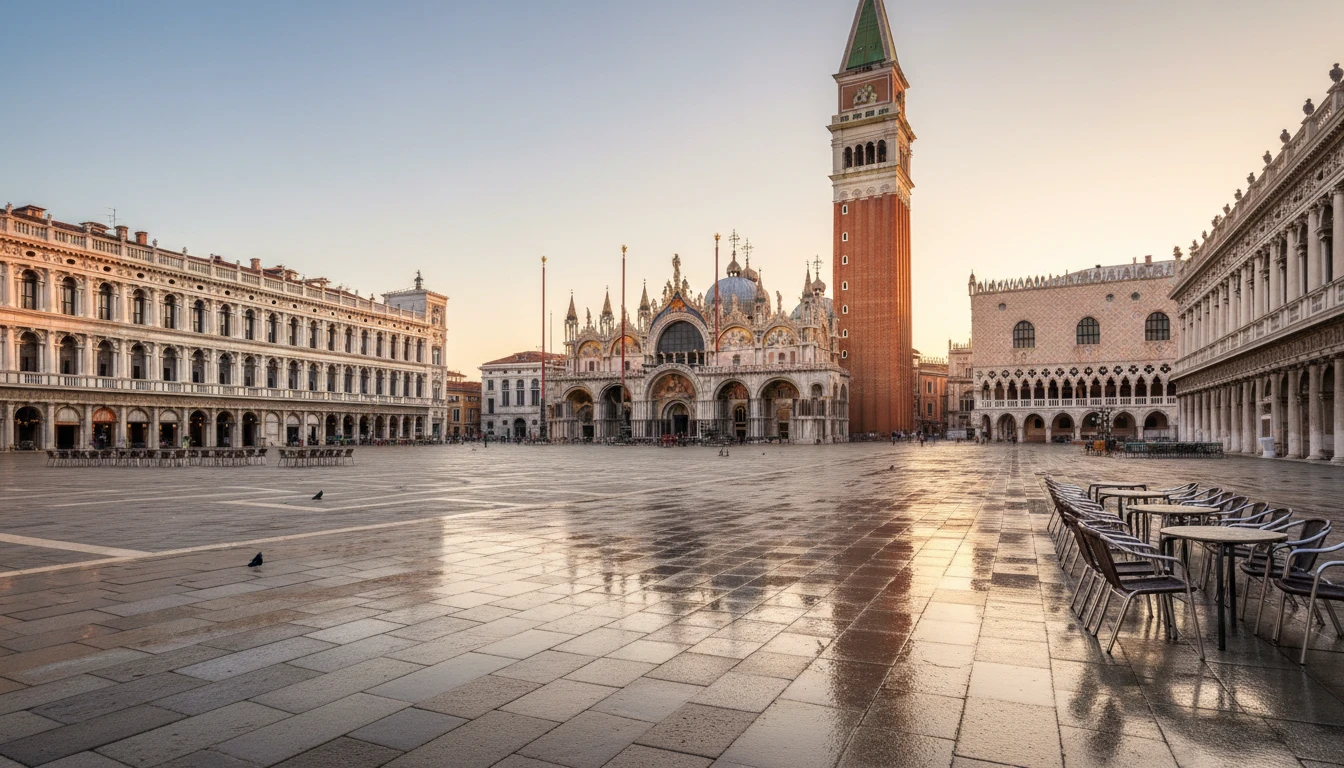
Remove photobombers and crowds from landmark shots, erase tourists from scenic landscapes, and clean up street signs or barriers that interrupt your travel photography.
E-Commerce and Product Photographers
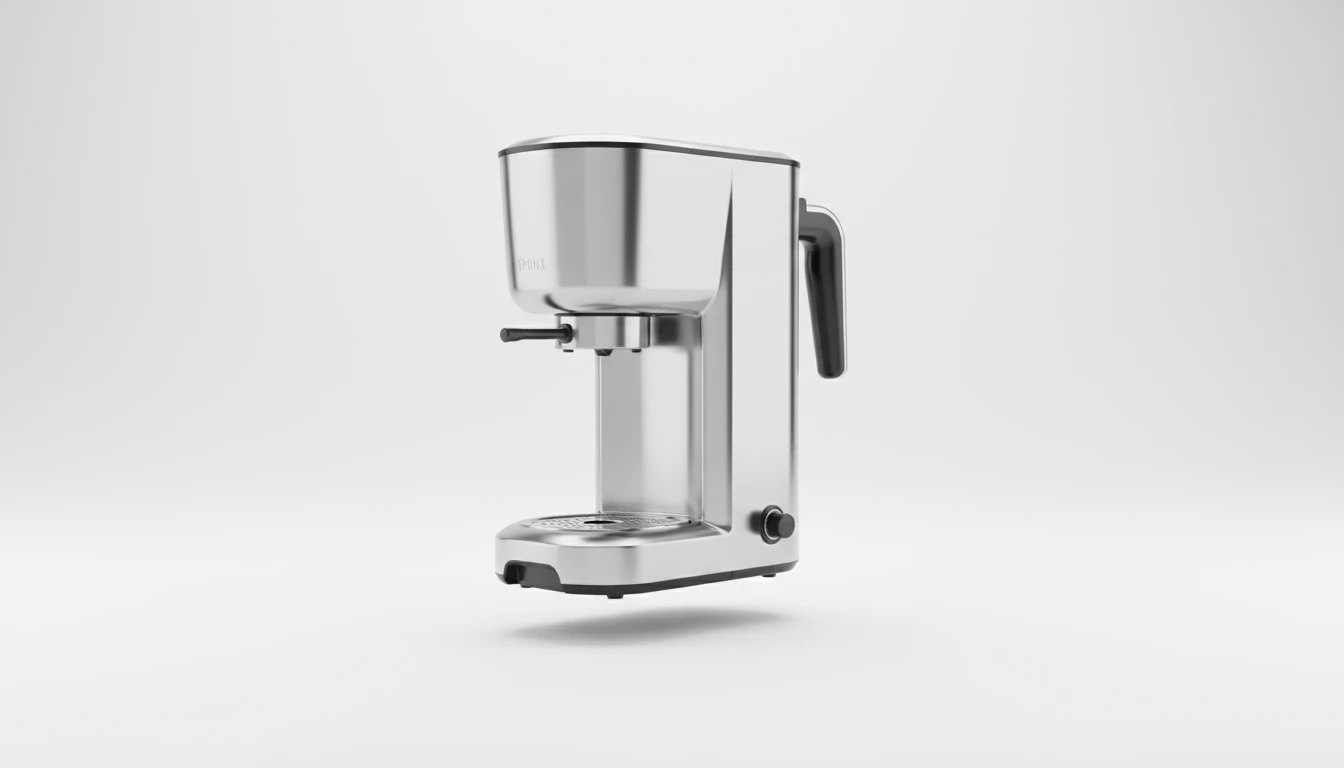
Remove price tags, cables, props, and background clutter from product shots. Clean up studio imperfections and erasing any unwanted elements from commercial product photography.

Social Media Creators and Content Teams
Clean up content before posting. Remove distracting elements, erase unwanted objects, and produce polished images that look professionally edited.
How to Remove Objects from Photos
Upload Your Photo
Upload the photo containing the object or element you want to remove. JPG, PNG, and WebP are all supported.
Describe What to Remove
Type a description of what you want removed: "the person on the left", "the power lines in the sky", "the price tag on the bottle", "the traffic sign". Be as specific as needed.
AI Removes and Reconstructs
AI identifies and erases the described element, then reconstructs the background with contextually accurate content that blends seamlessly with the surrounding scene.
Explore More
More AI Studio Tools
Discover other powerful AI tools to enhance your creative workflow
AI Background Remover
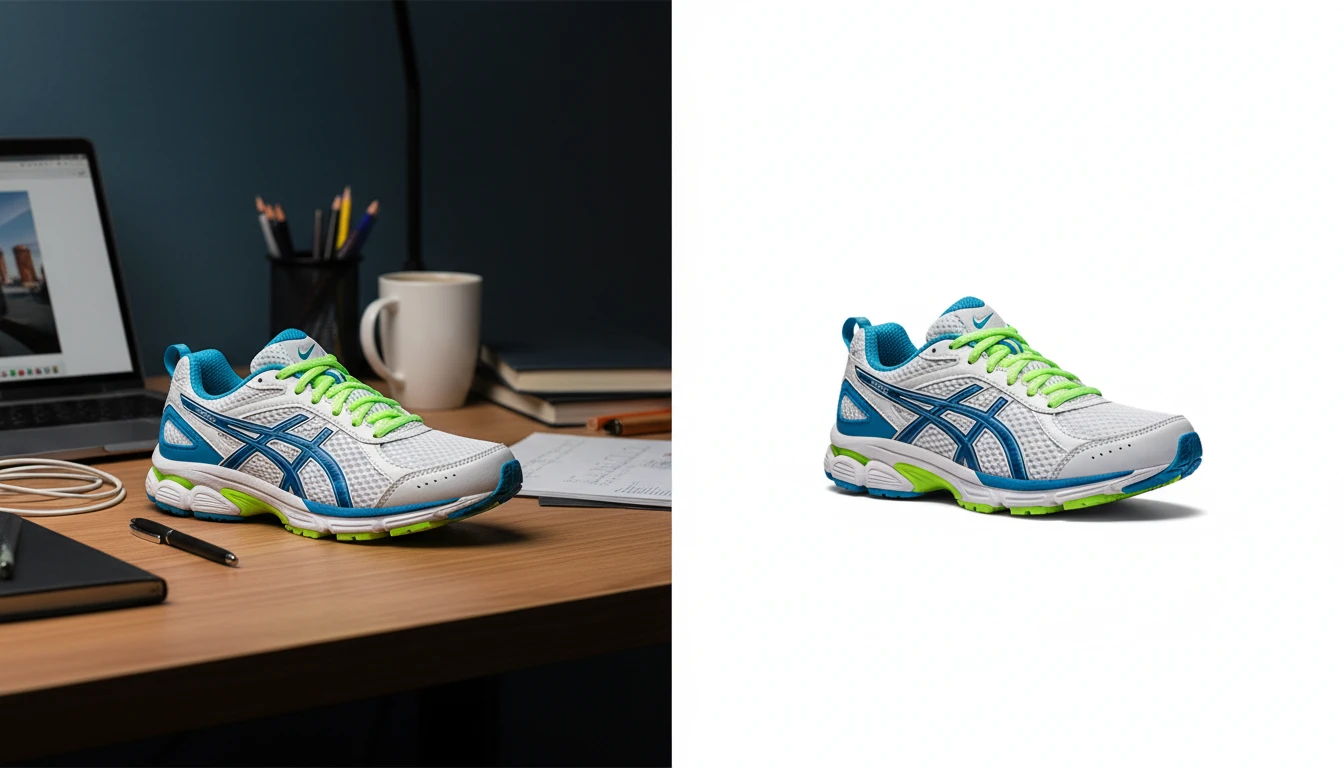
Upload any photo or product image and AI removes the background in seconds, delivering a clean transparent PNG. No manual masking required. Ideal for profile photos, marketing materials, and design assets.
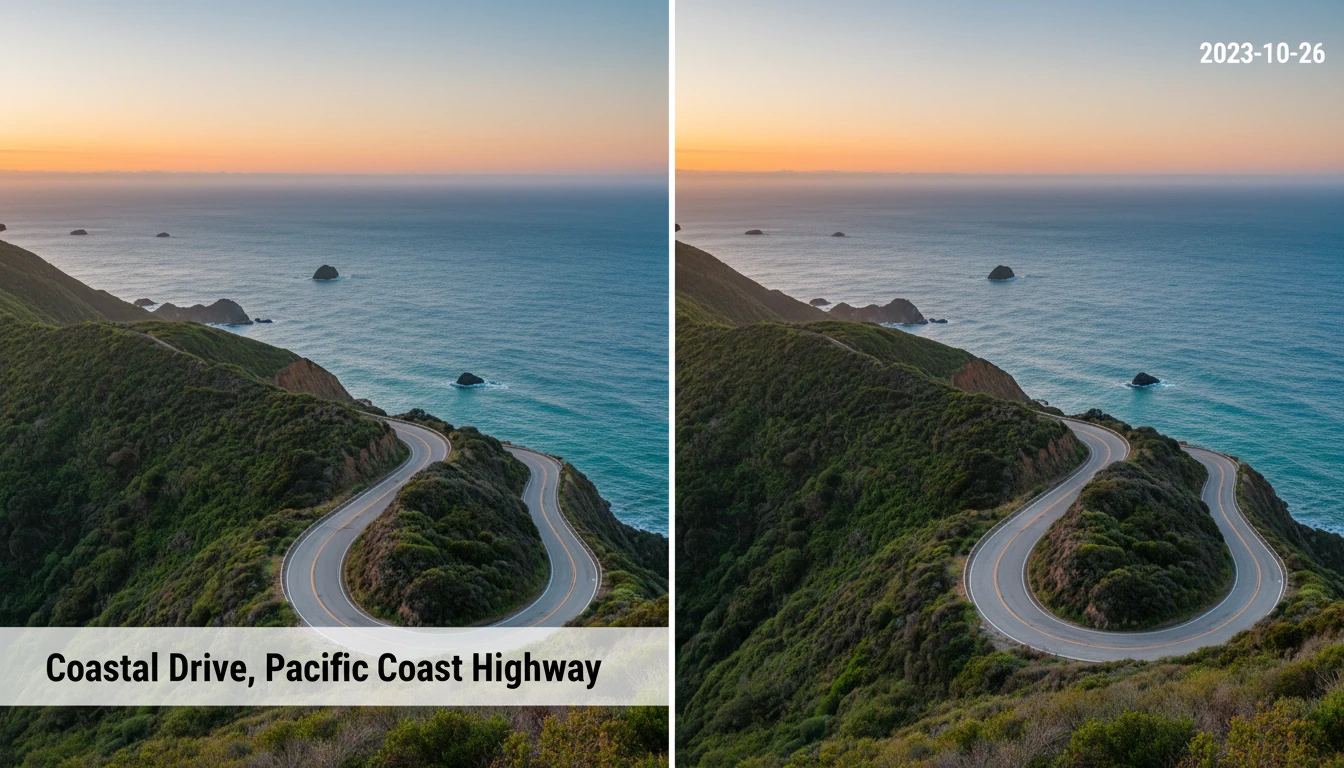
AI Image Text Remover
Upload any image and AI automatically detects and removes all text overlays, captions, timestamps, watermarks, and labels. The underlying background is reconstructed seamlessly so the result looks as if the text was never there. Works on photographs, screenshots, scans, and social media images. No manual selection or masking required.
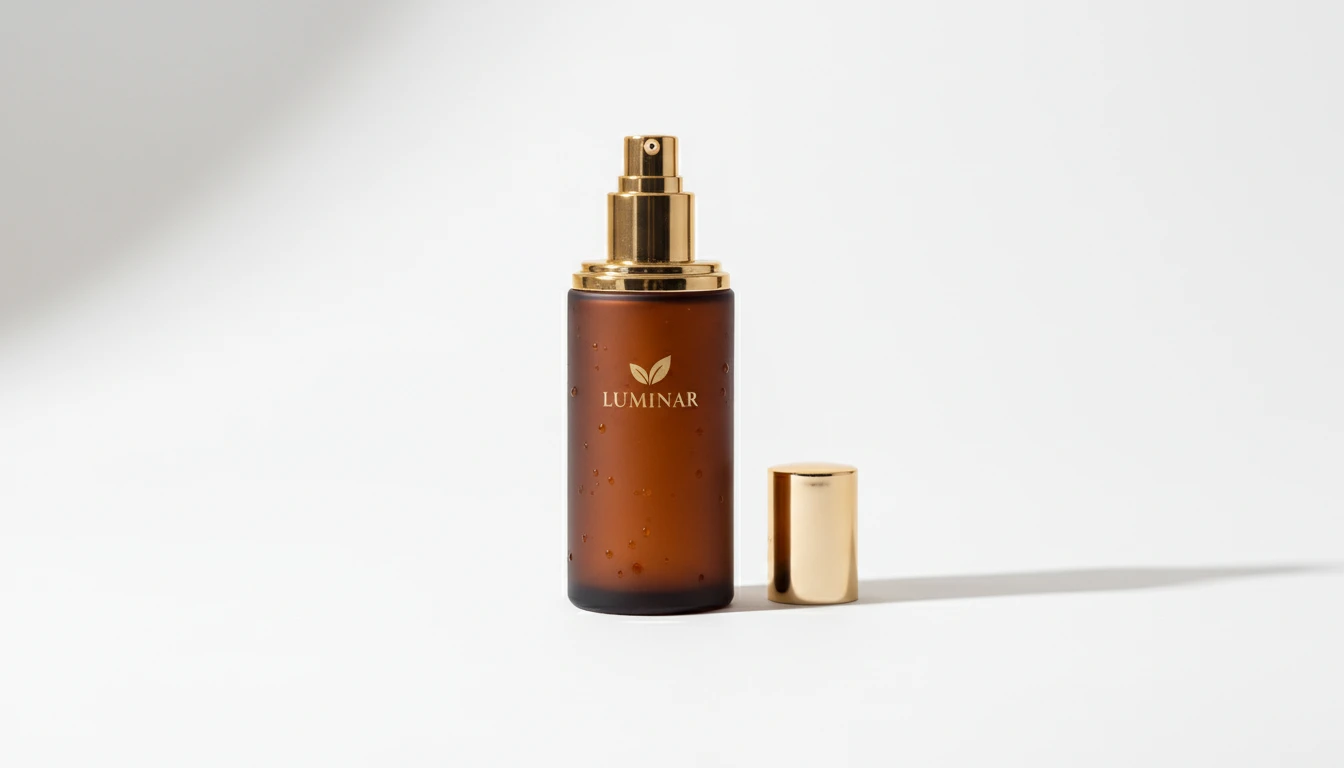
AI Product Photo Editor
Upload any product photo and AI transforms it into a professional e-commerce image. Choose from 13 editing modes including clean white background, soft studio lighting, lifestyle scene placement, flat-lay, luxury dark background, and more. No Photoshop or photography skills required. Results are ready for Amazon, Shopify, Etsy, and social media product listings.
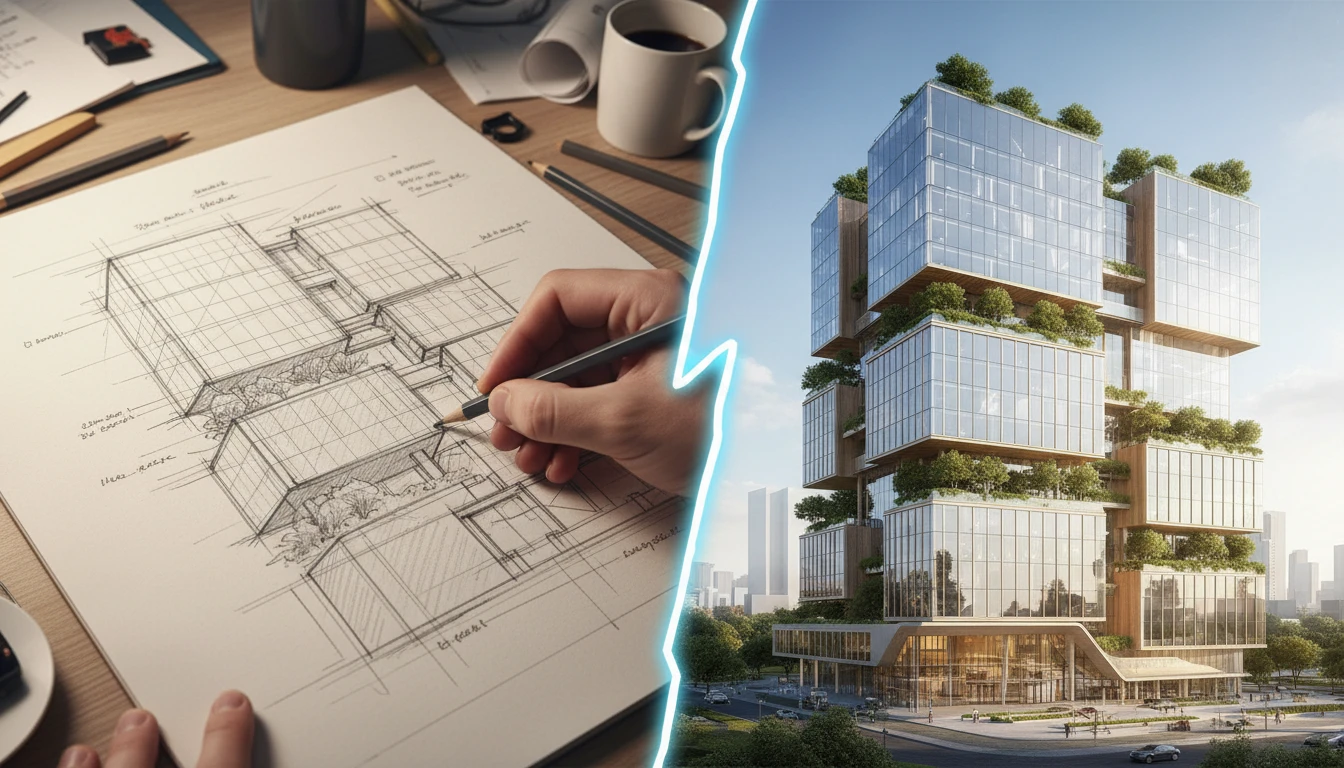
AI Sketch to Image
Upload any hand-drawn sketch, pencil drawing, blueprint, or concept line art and AI converts it into a detailed, fully rendered image. The model interprets the outline structure and fills it with colors, textures, lighting, and lifelike detail. Works for character concepts, architectural sketches, product designs, storyboards, and more.
Opens in
Image Studio
Frequently Asked Questions
Everything you need to know to get started.
How does AI Object Remover work?
Upload a photo and describe the object, person, or element you want removed. AI finds it, erases it, and reconstructs the background behind it with contextually accurate content that blends naturally.
What kinds of objects can I remove?
People, vehicles, signs, cables, furniture, logos, text overlays, props, trash cans, and any other physical element. Just describe what you want gone in plain language.
Can I remove text or watermarks with this tool?
This tool is optimized for removing physical objects, people, and scene elements. For removing text overlays or printed text within images, use the AI Image Text Remover tool instead.
What image format should I upload?
JPEG, PNG, and WebP are all supported. High-resolution images with clearly visible objects produce the cleanest removal results.
How specific should my description be?
Be as specific as possible. Instead of "remove the person", try "remove the man standing on the left". For multiple elements, describe each one clearly for the most accurate removal.
What if the background fill does not look right?
Try generating again as the AI produces slightly different results each time. You can also be more specific in your description, or crop the photo to include more surrounding background context.
Remove Unwanted Objects from Your Photos Instantly
Sign up free and get 100 credits instantly. Clean up any photo in seconds. No Photoshop skills required.
Remove ObjectsDisclaimer: This tool uses generative AI technology which may produce content that resembles copyrighted materials or that is inaccurate, incomplete, or out-of-date. It is provided for general information and educational purposes only and is not intended for illegal activities or to replace professional advice, diagnosis, or treatment. Users are solely responsible for how they use the generated content. If you plan to use AI-generated content commercially or publicly, we strongly recommend reviewing it for potential copyright issues and obtaining proper permissions where necessary. We accept no liability for copyright infringement or any other consequences resulting from the use of content generated by this tool.