Generate Any Silhouette from a Text Description
Describe the subject or pose and AI creates a crisp silhouette in seconds. Classic black, gradient, gold foil, neon glow, botanical, and more.
Generate a Silhouette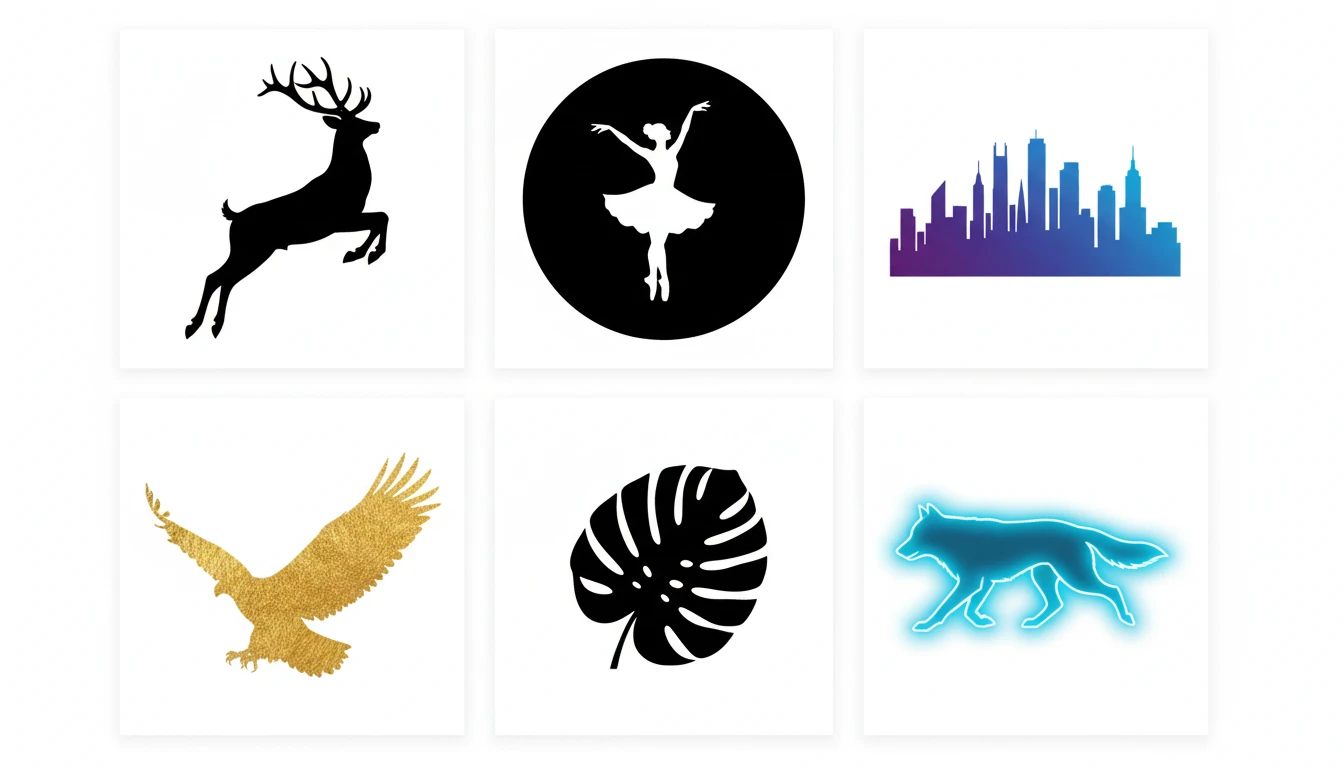
Describe Your Silhouette
Say the subject, pick a style, then open it in AI Image Studio to generate.
Runs inside the AI Image Studio — generate and edit in one place.
Classic Black Silhouettes
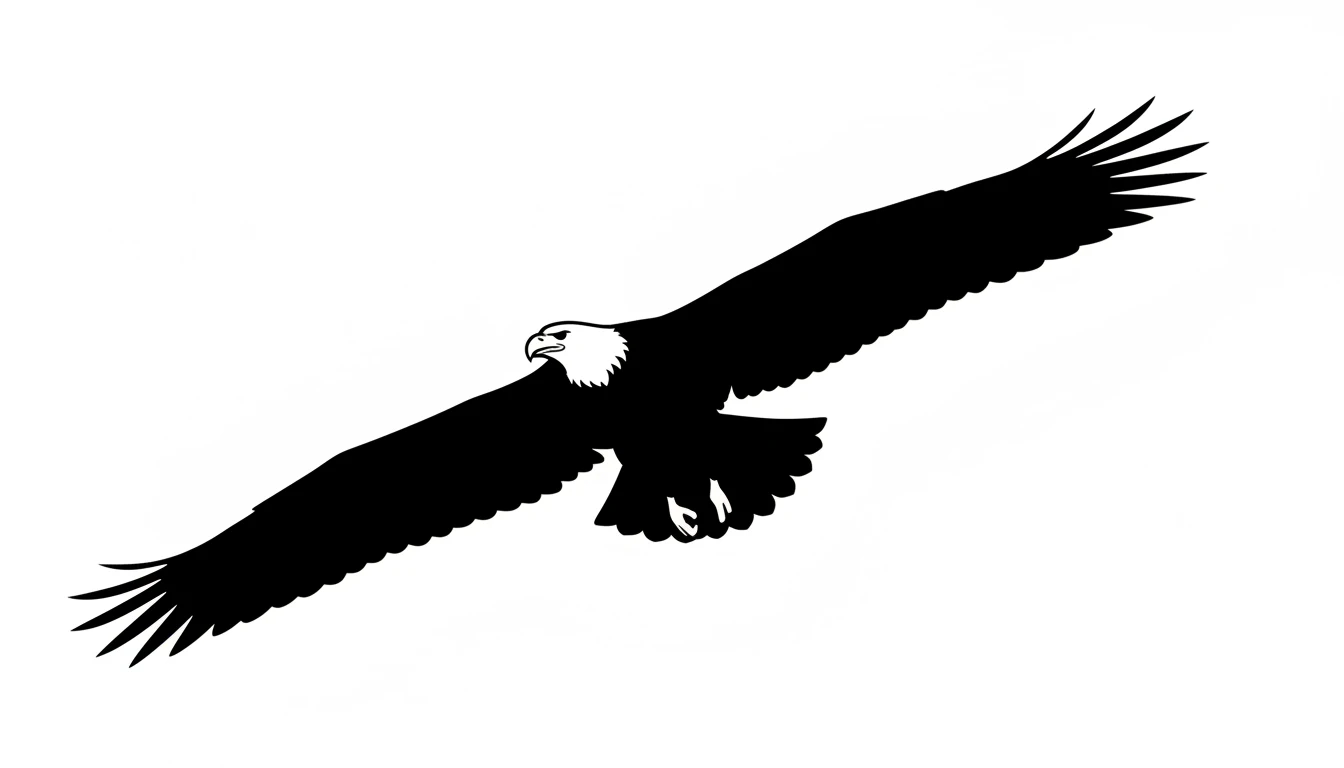
The most versatile and recognizable silhouette style. Solid black shapes on white for logos, crafts, laser cutting, vinyl decals, and print designs. Works for people, animals, objects, and landscapes.
Generate a Classic Silhouette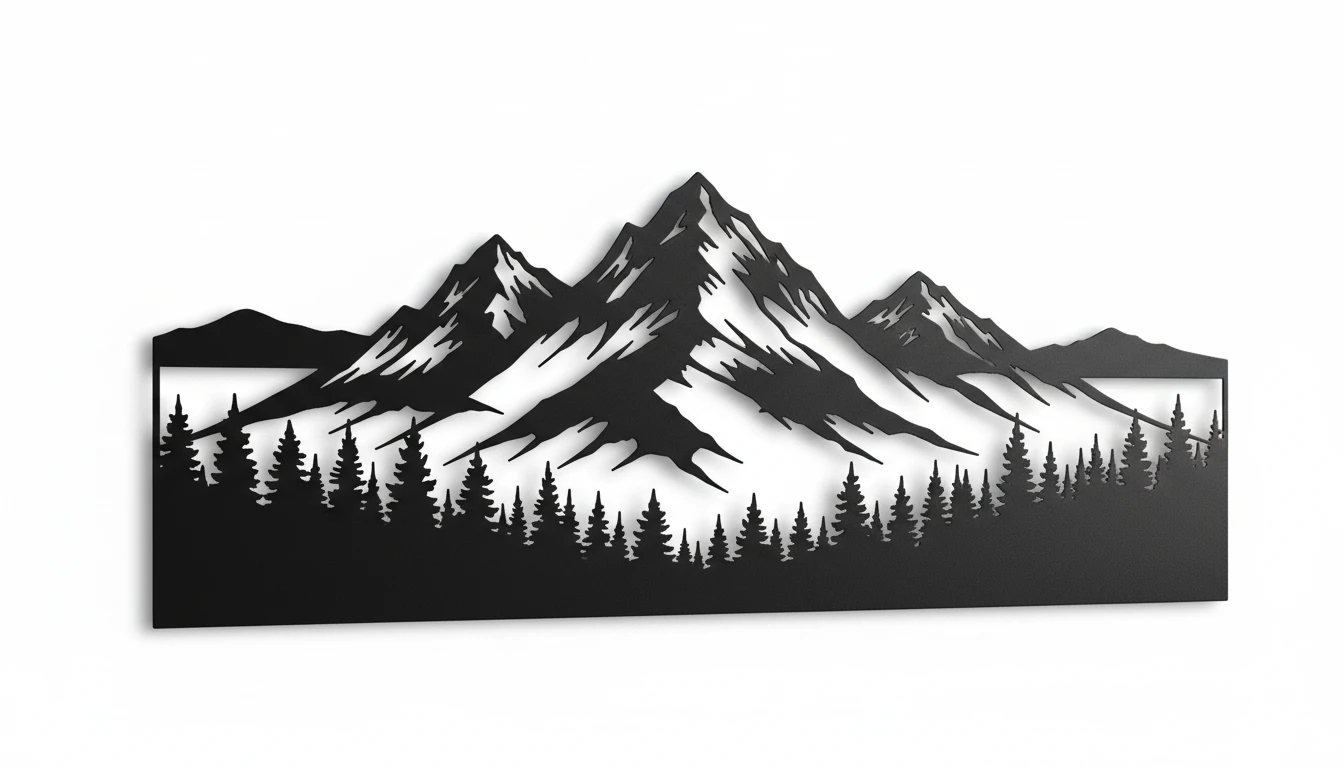
Scene and Landscape Silhouettes
Panoramic horizon silhouettes with layered depth. City skylines, forest treelines, mountain ranges, and coastal scenes. Perfect for wall art, banners, and wide-format prints.
Generate a Scene Silhouette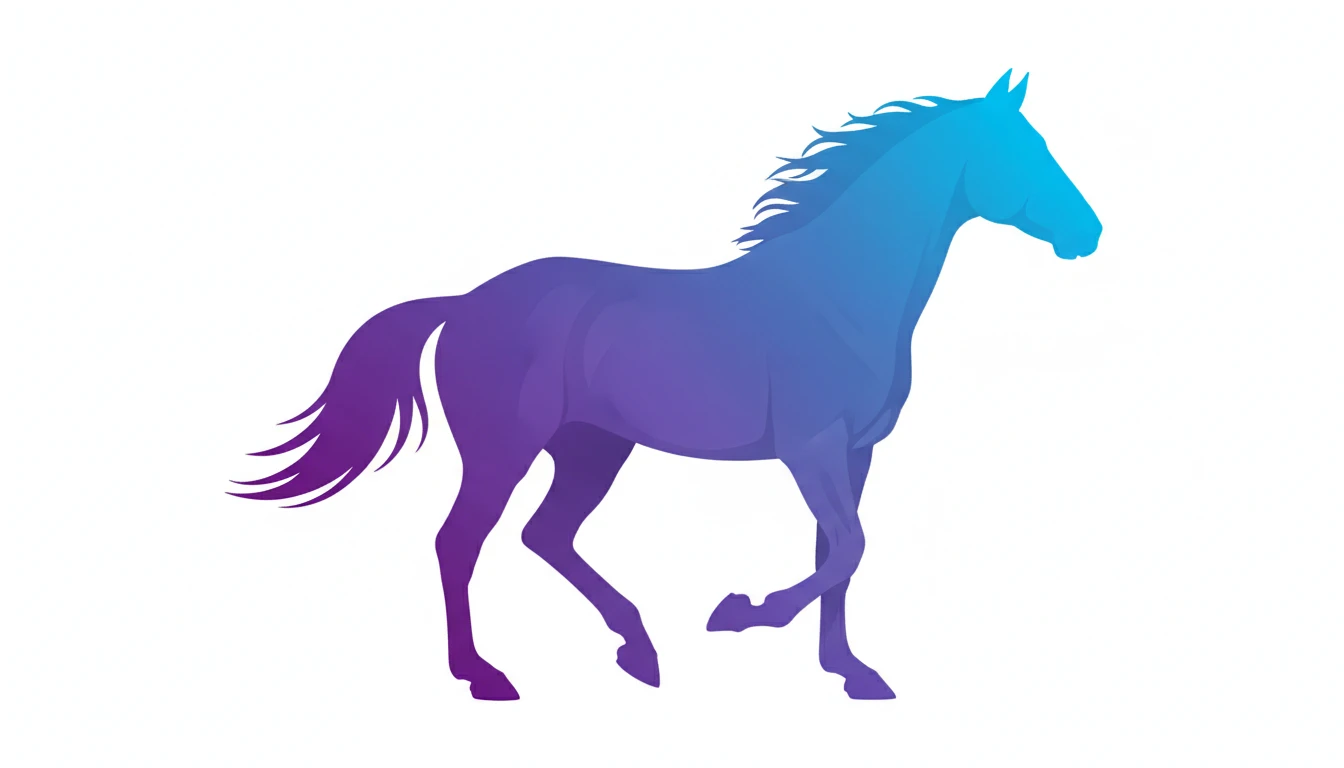
Gradient and Color Silhouettes
Modern silhouettes filled with smooth color gradients, metallic gold foil, or bold duo-tone splits. Great for social media graphics, brand identity, and decorative wall art.
Generate a Gradient Silhouette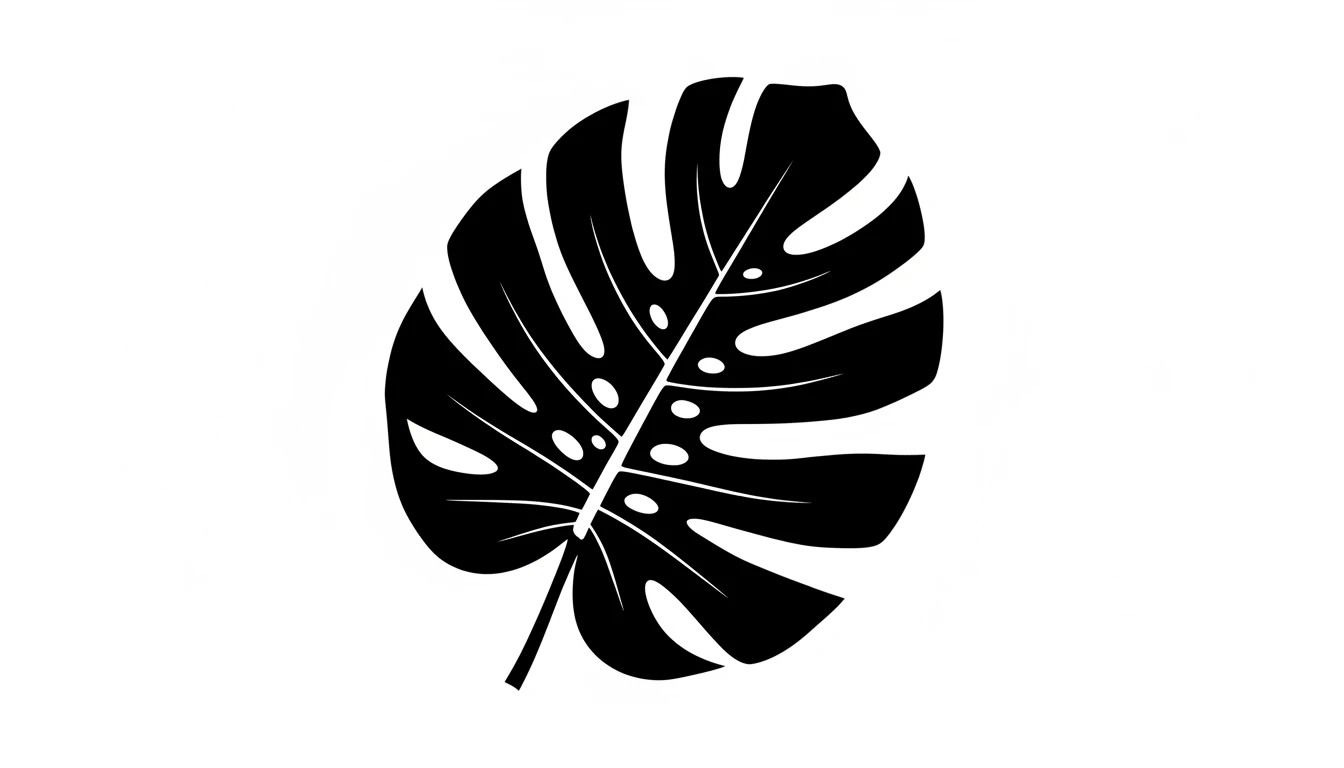
Neon and Botanical Styles
Neon glow silhouettes for bold digital graphics and nightlife design. Botanical silhouettes with intricate leaf and branch detail for home décor, wellness brands, and nature art.
Generate a Neon SilhouetteWho Uses AI Silhouette Generator
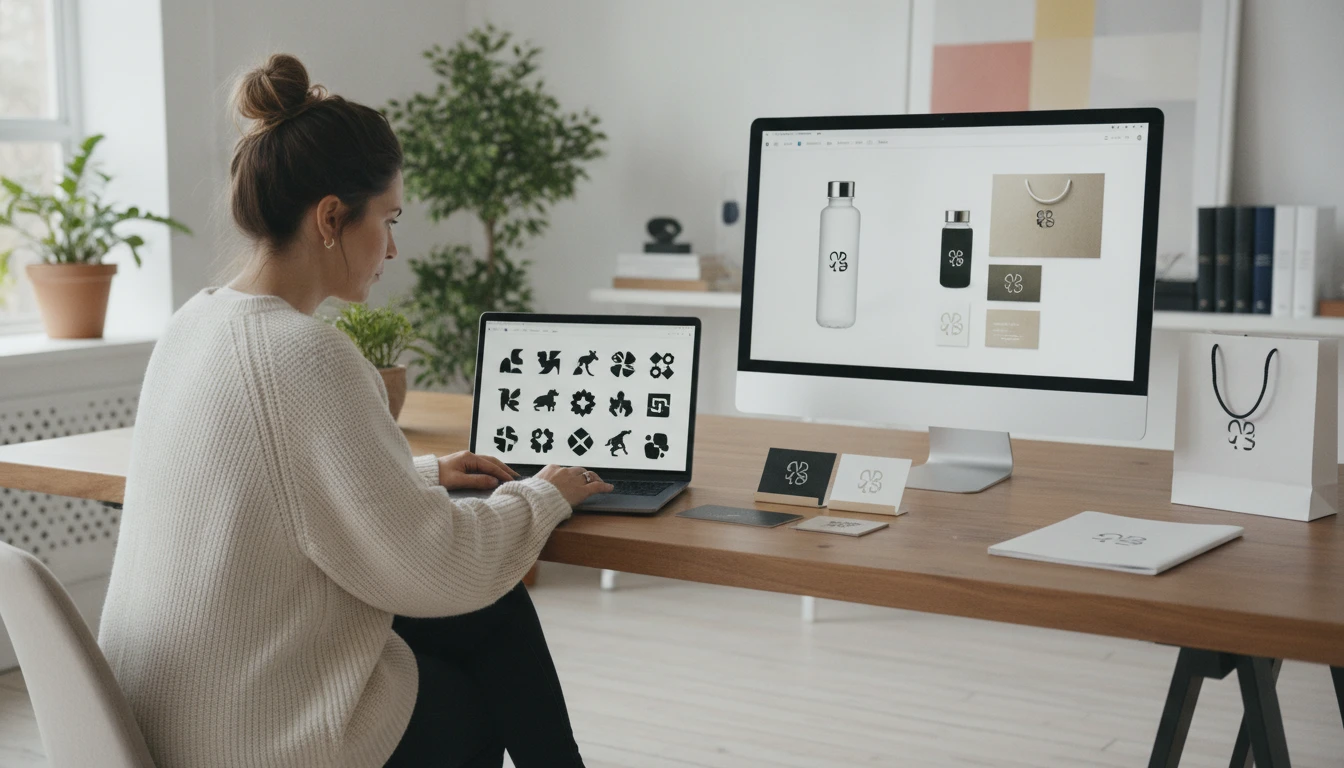
Logo and Brand Designers
Create sharp silhouette marks for logos, emblems, and brand icons. Animal, human, and object silhouettes make powerful, instantly recognizable brand symbols.
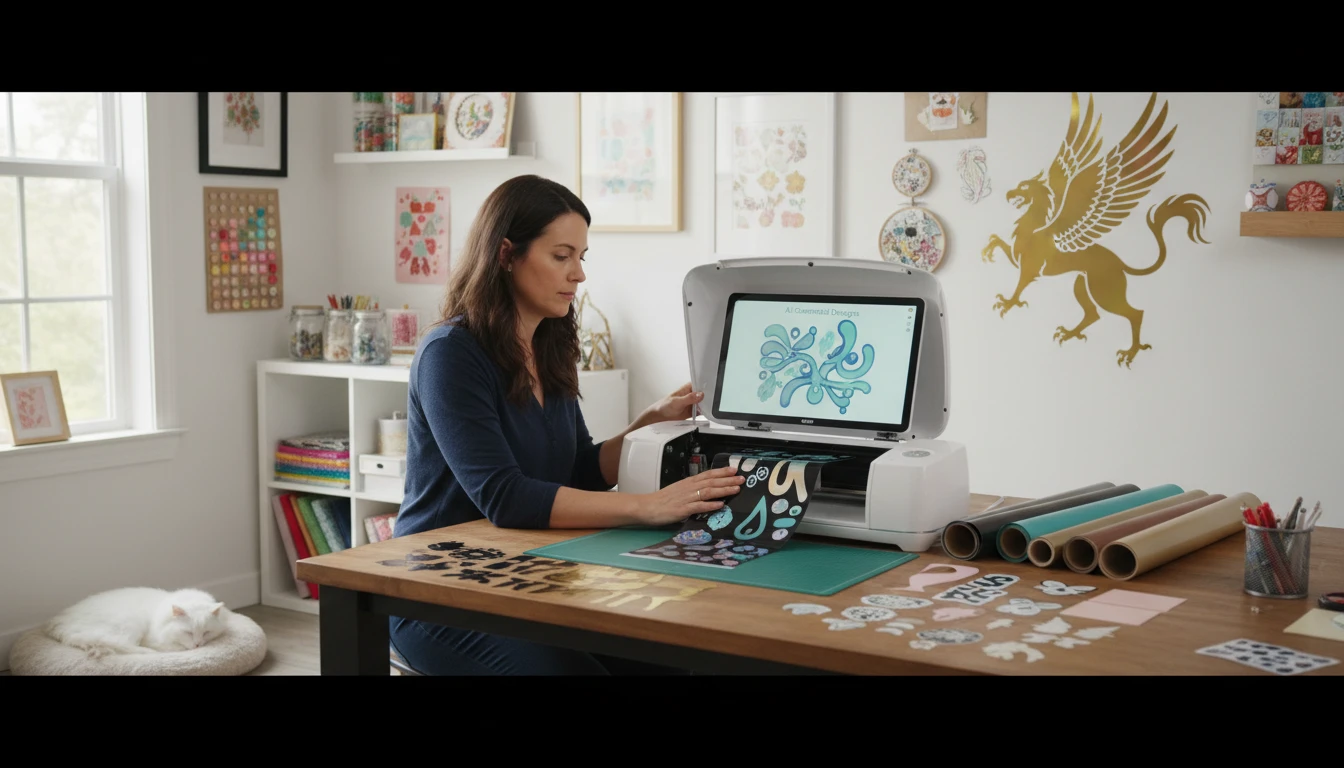
Crafters and Makers
Generate clean outlines for laser cutting, vinyl cutting, paper crafts, and Cricut projects. Precise silhouette shapes with clean edges ready for cutting machines.
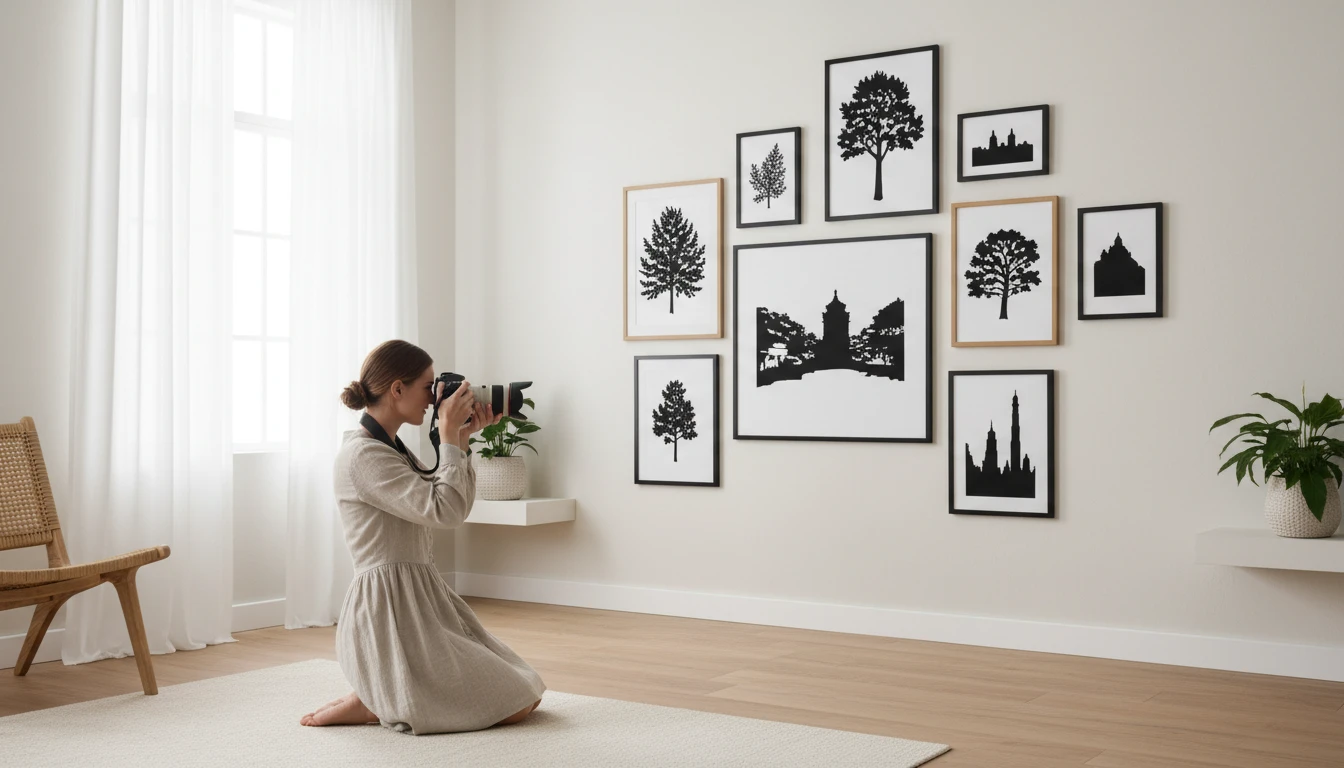
Wall Art and Décor Sellers
Design wall art prints, window decals, and decorative vinyl silhouettes. From family portrait silhouettes to wildlife scenes and inspirational figure poses.
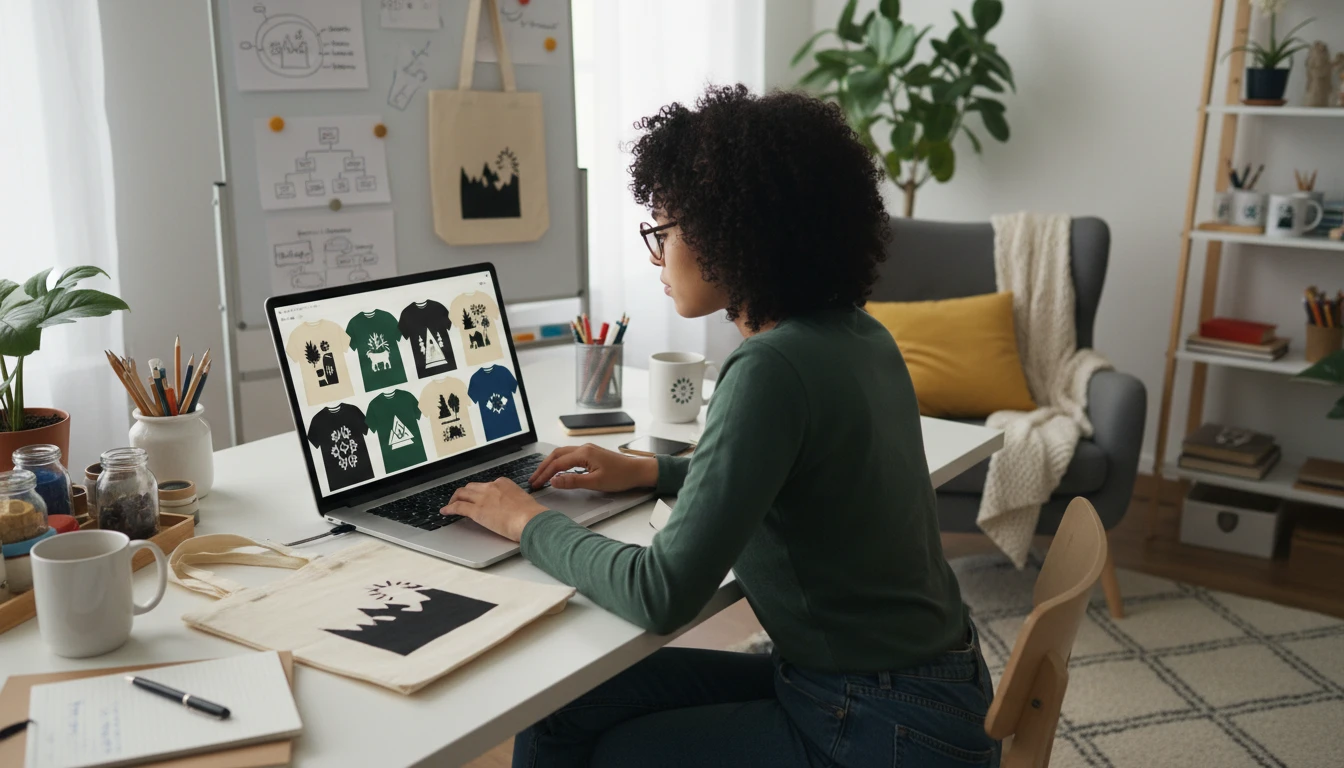
Print and Apparel Designers
Use silhouettes as graphic elements in posters, t-shirts, tote bags, and social media content for instant bold visual impact.
How to Generate AI Silhouettes
From description to crisp silhouette in three simple steps
Describe Your Silhouette
Write a prompt describing the subject, pose, or scene. "A leaping stag", "a ballerina on tiptoe", "a city skyline at dusk". Side profiles and action poses give the clearest silhouette shapes.
Choose a Silhouette Style
Select a look — classic black, gold foil, neon glow, sunset, paper cut, cameo, and more. Each style applies a distinct visual treatment to the shape.
Choose a Shape and Generate
Pick square for icons and stickers, landscape for panoramic scenes, or portrait for full-body figures. Generate and download as PNG for logos, laser cutting, vinyl decals, or wall art.
Explore More
More AI Studio Tools
Discover other powerful AI tools to enhance your creative workflow
AI Clipart Generator
Generate high-quality clipart from text descriptions in flat design, cartoon, sticker, hand-drawn, and more styles
AI Icon Generator
Generate beautiful icons and app icons from text descriptions in flat, app icon, line, gradient, 3D, isometric, and more styles
AI Mascot Generator
Generate professional mascot characters from text descriptions in cartoon, sports, chibi, flat, vintage, 3D, anime, and pixel art styles
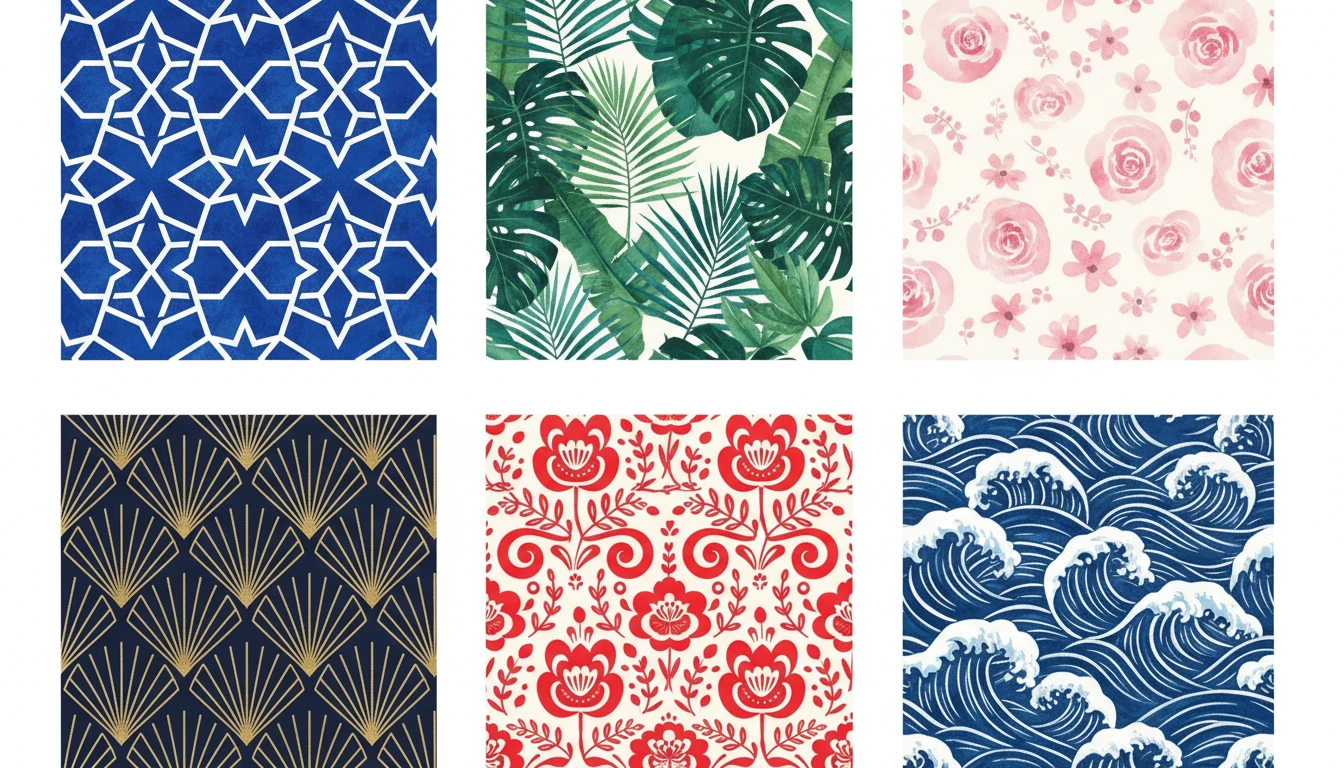
AI Pattern Generator
Generate seamless repeating patterns from text descriptions in geometric, floral, botanical, ethnic, abstract, Art Deco, damask, watercolor, Scandinavian, and Japanese styles
Opens in
Image Studio
Frequently Asked Questions
Everything you need to know to get started.
What is AI Silhouette Generator?
AI Silhouette Generator creates clean, crisp silhouette images from text descriptions. Describe any subject, pick a style, and AI generates the silhouette in seconds. People, animals, landscapes, botanical shapes, and more.
What silhouette styles are available?
You can choose from Classic Black, White on Black, Side Profile, Action, Scene, Gradient, Gold Foil, Duo-Tone, Neon Glow, Botanical, Sunset, Paper Cut, Stencil, Vintage, Double Exposure, Watercolor, Chrome, and Cameo. Each applies a distinct visual treatment to the silhouette shape.
How do I write a good silhouette prompt?
Describe the subject and pose clearly. "A leaping stag", "a ballerina on tiptoe", "a woman with arms raised" all produce strong results. Side-profile views almost always give the clearest, most readable silhouette shapes. Avoid describing colors or textures since only the outline shape matters.
Do I need a reference photo?
No. Describe the subject and pose in text, then pick a style. Side-profile and action poses give the clearest shapes. The studio generates from your description — no photo required.
What aspect ratio should I use?
Square (1:1) is best for icons, stickers, and logos. Portrait (2:3, 3:4) suits full-body figures and standing poses. Landscape (16:9, 3:2) is ideal for panoramic scene silhouettes like skylines, treelines, and mountain ranges.
Can I use generated silhouettes commercially?
Yes. You retain rights to the silhouettes you generate on RauGen and can use them commercially for logos, laser-cutting products, vinyl decals, wall art, print-on-demand merchandise, and any other commercial application.
Start Generating Silhouettes Today
Describe any subject or scene. AI creates a clean, crisp silhouette in seconds.
Generate Your First SilhouetteDisclaimer: This tool uses generative AI technology which may produce content that resembles copyrighted materials or that is inaccurate, incomplete, or out-of-date. It is provided for general information and educational purposes only and is not intended for illegal activities or to replace professional advice, diagnosis, or treatment. Users are solely responsible for how they use the generated content. If you plan to use AI-generated content commercially or publicly, we strongly recommend reviewing it for potential copyright issues and obtaining proper permissions where necessary. We accept no liability for copyright infringement or any other consequences resulting from the use of content generated by this tool.