Make a Lost Pet Flyer in Minutes
Upload a recent photo, add the name, last-seen place and time, and a phone number, then generate a letter-size poster or a square post for neighborhood groups. Classic, neighborhood tear-off, modern, and social styles are built to read from a sidewalk or a phone screen.
Make a Flyer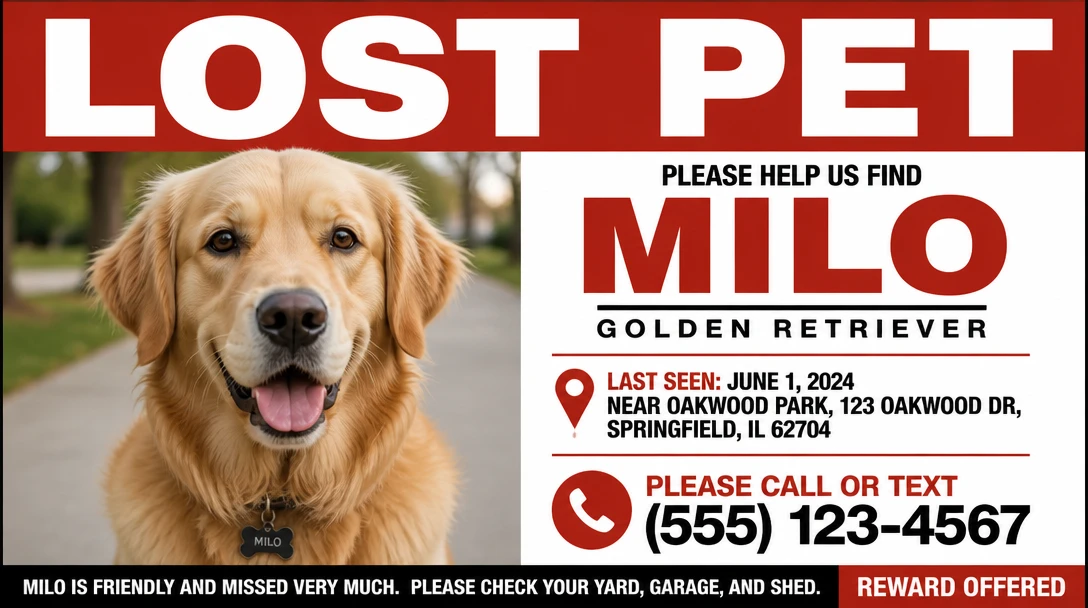
Upload a Clear Pet Photo
Upload a recent photo. In the prompt, add name, last-seen place and time, and a phone number you will answer. Pick classic, neighborhood tear-off, modern, or social. We'll open AI Pet Studio next.
Drag & drop your photo here
or click to browse — JPG, PNG or WebP, up to 15MB
Runs inside the AI Pet Studio — pet portraits in one place.
Printable Classic Posters
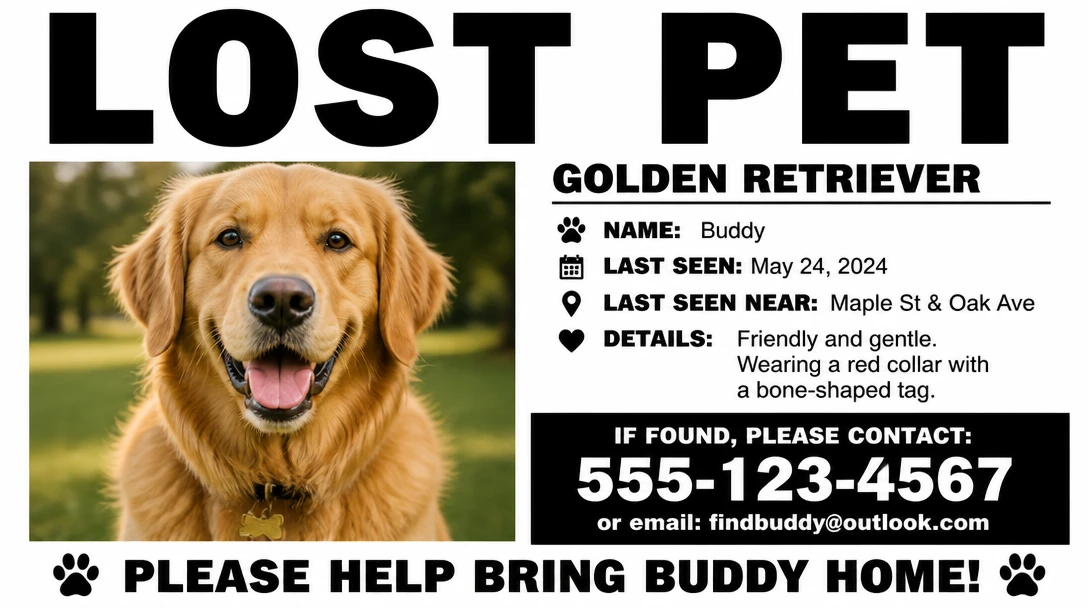
A large LOST PET headline, a hero photo, and a clear block for name, last seen, and contact. Designed to read from a sidewalk when you tape it to a pole or shop window.
Make a Classic Flyer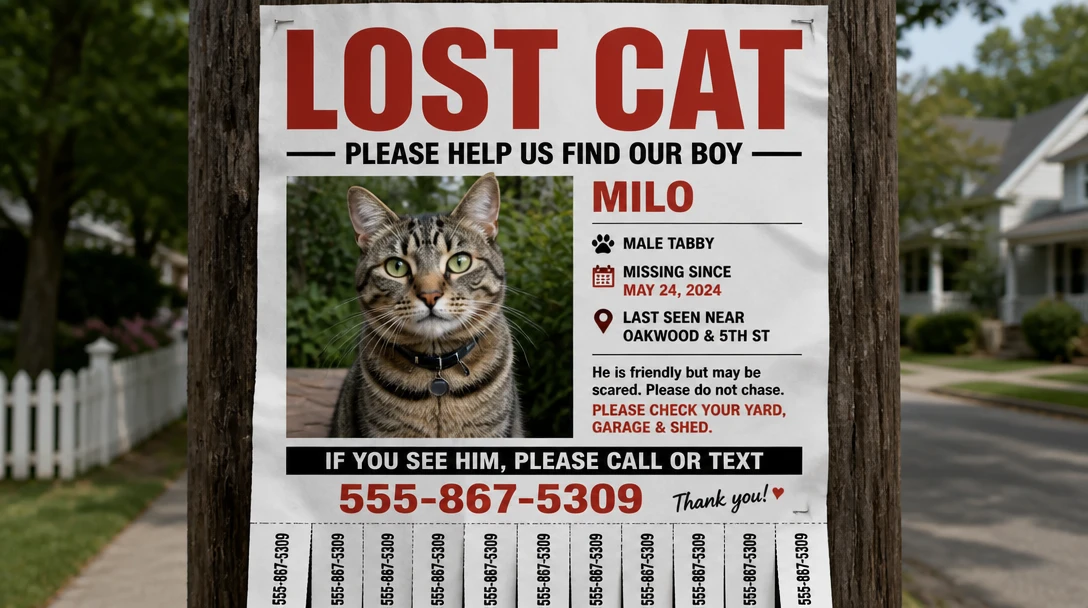
Neighborhood Tear-Off Sheets
Lamp-post and community-board layout with tear-off contact strips along the bottom. Neighbors can take a number without photographing the whole poster.
Make a Neighborhood Poster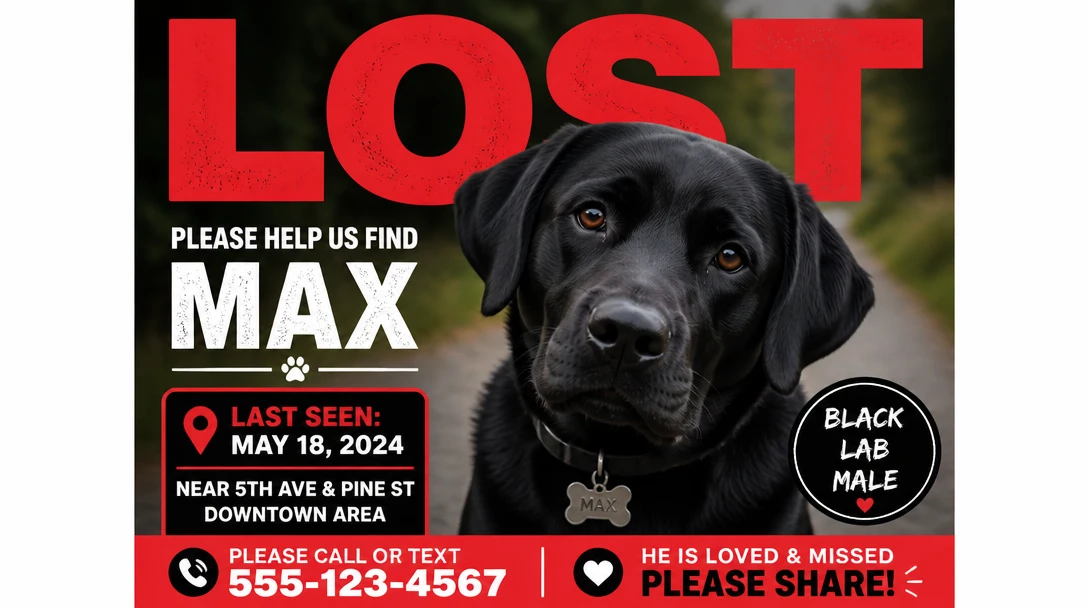
Modern Print Layouts
A cleaner sans-serif layout with a large photo, QR-code placeholder, and tidy fields for name, last seen, and phone. Useful when you want something that still prints well at home.
Make a Modern Flyer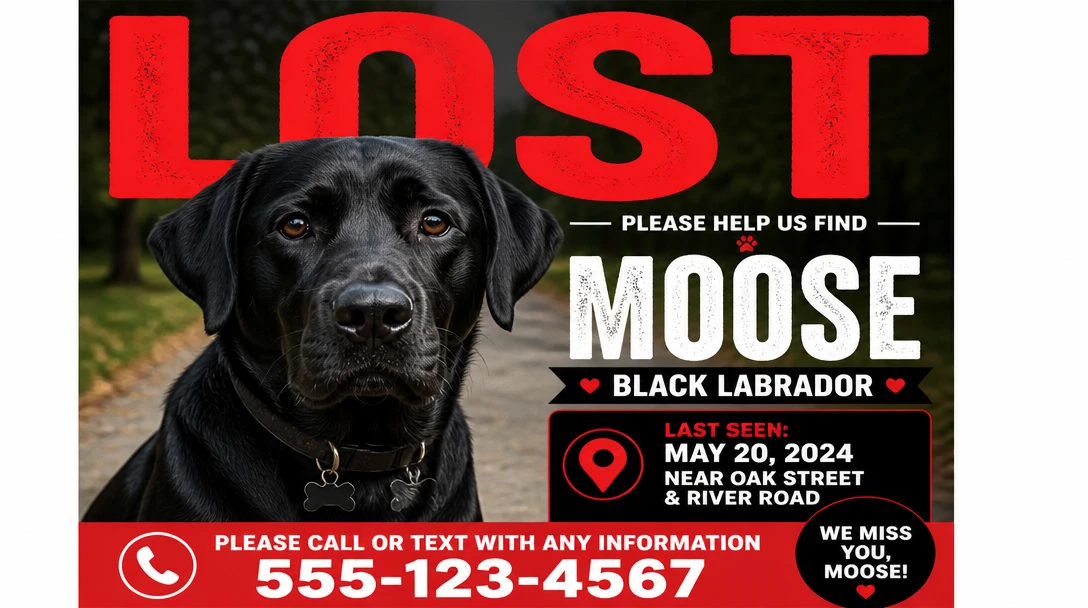
Social Share Graphics
Square posts you can screenshot and send to Nextdoor, Facebook groups, and neighborhood chats the same day. High contrast so the word LOST and the face stay readable on a small screen.
Make a Social PostHow People Use Lost Pet Flyers
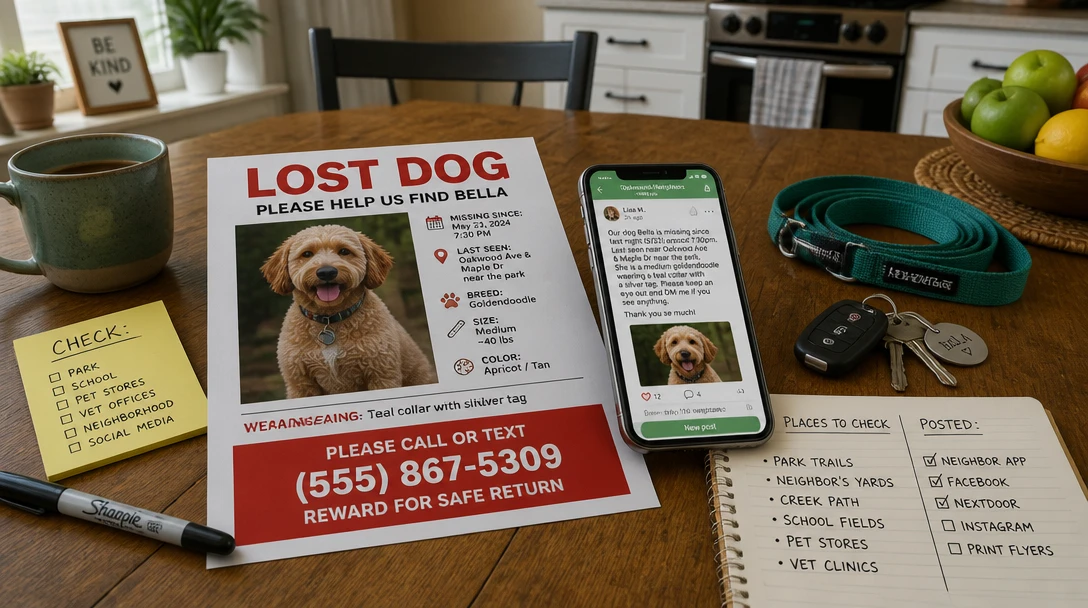
The First Hour After a Pet Goes Missing
Generate a flyer while someone else walks the block. Print a few copies, post near the last-seen spot, and share the social version in local groups before the trail goes cold.
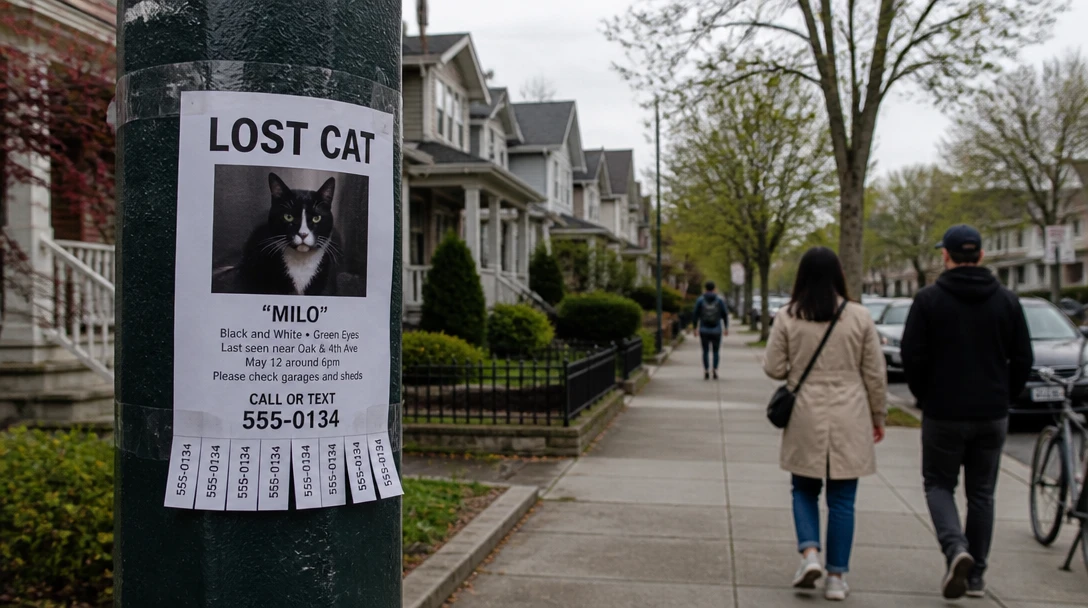
Neighborhood Canvassing
Tear-off posters work on lamp posts, vet boards, and cafe windows. Keep the photo large and the phone number repeated on every strip.
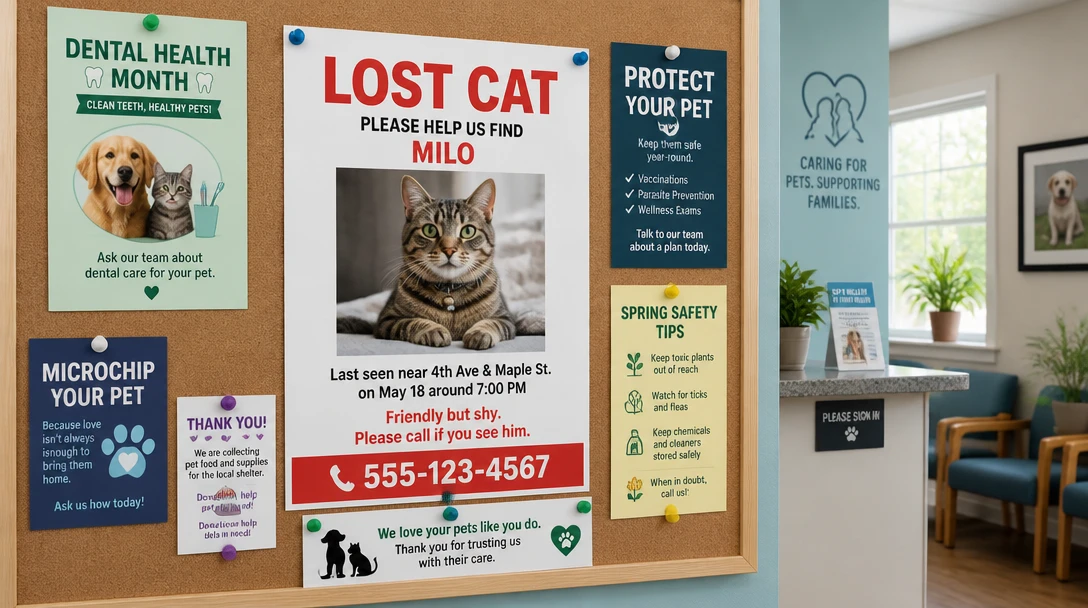
Shelter and Clinic Boards
Leave a classic or modern print at nearby shelters, groomers, and clinics. Staff and visitors often check those boards first.
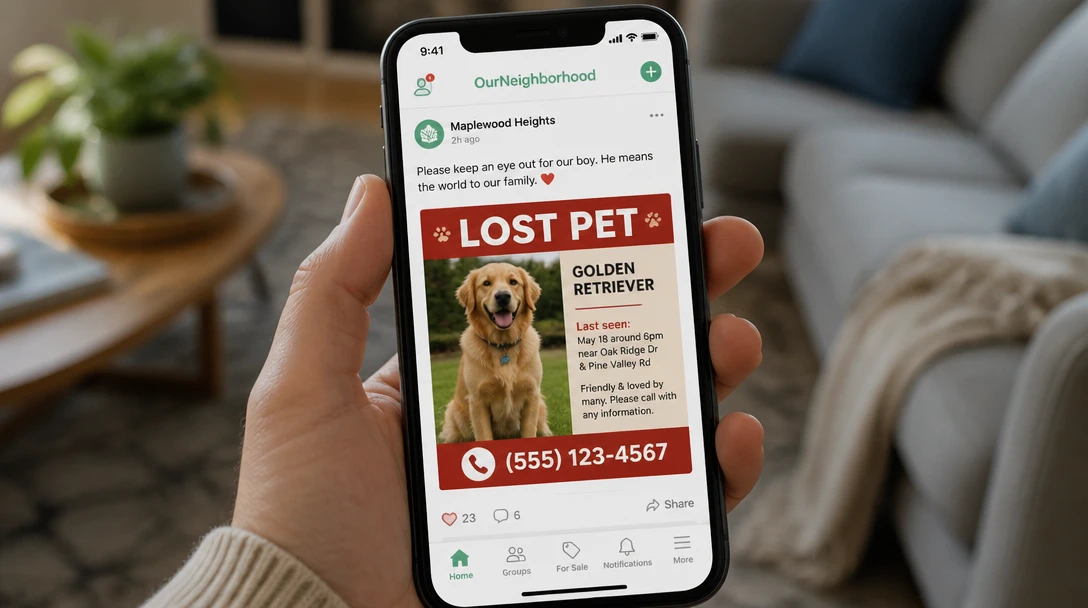
Group Chats and Social Apps
The social style is built to screenshot. Pin it in a family chat and post it to neighborhood apps with the same facts you printed.
How to Make a Lost Pet Flyer
Photo, facts, style, then print and share — four steps you can finish today
Upload a Recent Photo
Use a sharp photo that shows face and body. Recent coloring, collar, and distinctive markings help people recognize the pet from a distance. Avoid heavy filters and old puppy photos if the pet looks different now.
Add the Facts in the Prompt
Include name, breed or look, last-seen place and time, and a phone number. Example: "LOST: Bella, black cat with white chest, Maple Street near the park, Tuesday 6pm, call 555-0142, microchipped". Mention a reward only if you mean it.
Pick a Flyer Style
Classic print for windows and poles, neighborhood tear-offs for community boards, modern for a cleaner letter-size sheet, or square social share for phones.
Check, Print, and Post
Read every number in the image before you copy the flyer. Print letter size, post near the last-seen area, and share the social version the same day. Update or take down posters when the pet is found.
Explore More
More AI Studio Tools
Discover other powerful AI tools to enhance your creative workflow
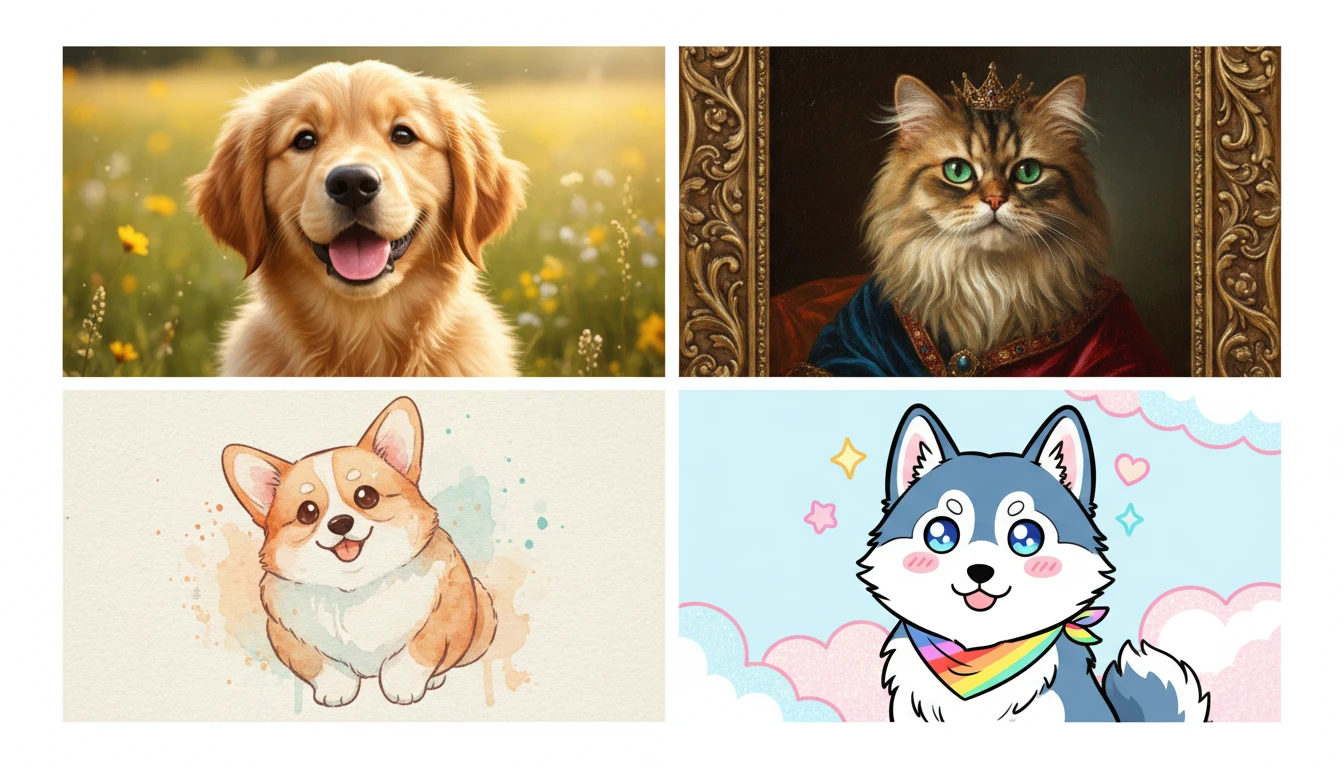
AI Pet Portrait Generator
Upload a pet photo and restyle it as a photorealistic, oil, royal, watercolor, anime, or vintage portrait. Face and markings stay the same.
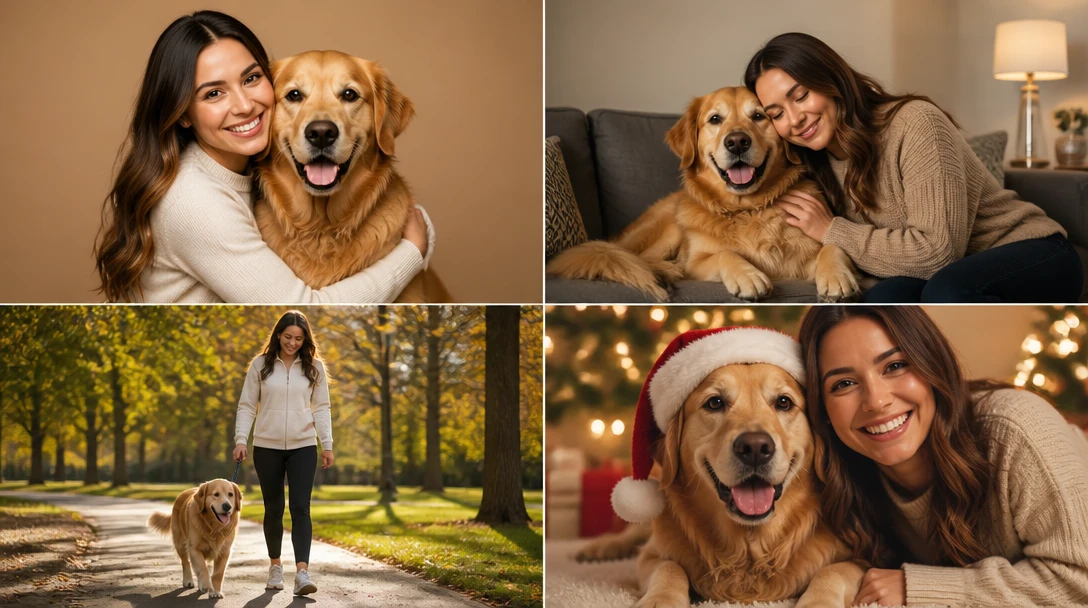
AI Pet and Owner Portrait
Upload a pet photo and a photo of you, then generate a shared studio, home, walk, picnic, or holiday-card portrait. Keeps both faces and the pet's markings recognizable.
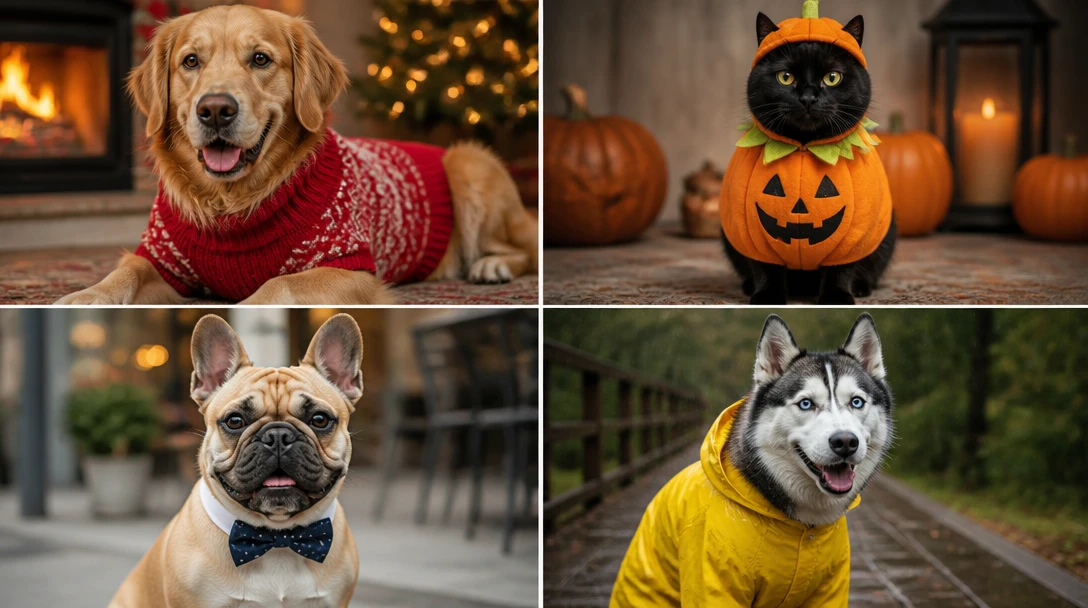
AI Pet Costume Generator
Dress any pet photo in sweaters, Halloween costumes, superhero capes, raincoats, holiday outfits, astronaut suits, and flower crowns. Keeps face, markings, and body shape the same.
animal-identifier
Opens in
Image Studio
Frequently Asked Questions
Everything you need to know to get started.
What should I put on the flyer?
Name, a clear recent photo, last-seen location and time, a phone number you will answer, and whether the pet is microchipped. Add breed or a short look ("black cat, white chest, red collar") if the photo is not enough. Mention a reward only if you intend to pay it.
Can I print this at home?
Yes. Classic, neighborhood, and modern styles are meant for letter-size print. Use the highest quality your printer allows and avoid shrinking the photo. Always check that the phone number in the generated image matches what you typed.
Should I also post online?
Yes. Use the social style for neighborhood apps, Facebook groups, and chats, and put physical posters near where the pet was last seen. Local lost-and-found groups and nearby shelters should get the same facts on the same day.
The generated text looks wrong. What do I do?
Image generators can misspell names or numbers. Treat the flyer as a layout: if a digit is off, add the correct contact in a caption when you post online, or write the number by hand on printed copies. Generate again with the facts written clearly in the prompt.
What photo works best?
A recent, well-lit shot that shows the face and as much of the body as you have. Include the current collar if they were wearing one. Side and front both help. Do not use a heavily filtered or distant photo that neighbors cannot match on the street.
Is this a replacement for calling shelters?
No. A flyer helps neighbors recognize your pet. Also call nearby shelters, clinics, and animal control, check microchip registration, and walk the last-seen area. Take the flyer down once the pet is home.
Make a Lost Pet Flyer Now
Upload a photo, add name, last seen, and a phone number, and generate a poster you can print and share today.
Open Lost Pet Flyer MakerDisclaimer: This tool uses generative AI technology which may produce content that resembles copyrighted materials or that is inaccurate, incomplete, or out-of-date. It is provided for general information and educational purposes only and is not intended for illegal activities or to replace professional advice, diagnosis, or treatment. Users are solely responsible for how they use the generated content. If you plan to use AI-generated content commercially or publicly, we strongly recommend reviewing it for potential copyright issues and obtaining proper permissions where necessary. We accept no liability for copyright infringement or any other consequences resulting from the use of content generated by this tool.