Convert MP4 Video to Animated GIF
Drop an MP4, pick the number of frames and playback speed, and download a looping GIF — all in the browser with no server upload.
Convert to GIF
MP4 to GIF Converter
Upload an MP4, set frame count, FPS and resolution, then download a looping animated GIF.
Drop an MP4 here
MP4 files only
Video Player Drop Zone
Drop any MP4 and it loads instantly in a full-width player. Seek through the clip before capturing so you know exactly what frames you will get.
Try It Now
Frame Count, Width, and FPS Controls
Choose 2 to 100 frames evenly distributed across the clip. Set the output width (up to 1920 px) and playback FPS. Per-frame custom delays are available for fine-tuned timing.
Try It Now
Preview and Download GIF
After encoding, the animated GIF plays inline so you can verify the result before downloading. If you want adjustments, change the FPS or re-capture with a different frame count.
Convert NowConvert MP4 to GIF in three steps
Upload your MP4
Drop an MP4 file onto the player or click Browse. The video loads instantly with native controls so you can preview the clip before capturing.
Set frame count, width, and FPS
Choose how many frames to capture (2–100), the output width in pixels, and the GIF playback speed in FPS. Use custom per-frame delays for precise timing control.
Capture, encode, and download
Click Capture Frames to extract stills, then Create GIF to encode them. Preview the looping result and download the GIF file when you are happy.
Deep Dive
How the MP4 to GIF Converter Works
All processing happens in the browser using the HTML5 Canvas API and the gif.js encoder library.
Why Use This MP4 to GIF Converter
2–100 Frames
Extract and encode 2 to 100 frames evenly distributed across the video.
Adjustable FPS
Set global playback speed from 0.1 to 10 FPS, or set custom delays per frame.
Custom Resolution
Output width up to 1920 px; aspect ratio is preserved automatically.
Browser-Only
Video and GIF data never leave your device — all encoding runs in the browser.
Who Uses It
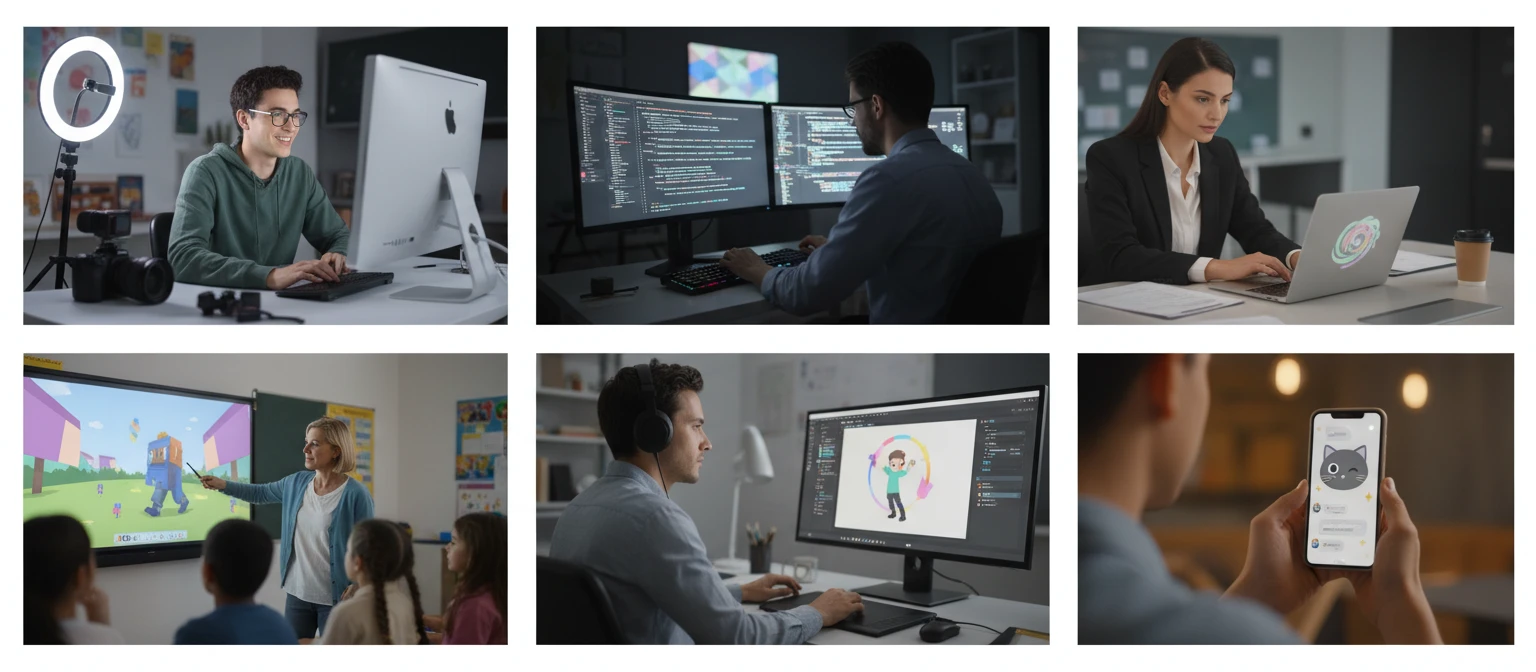
Who Converts MP4 to GIF
From social media creators to developers writing documentation, here are the most common uses.
Frequently Asked Questions
Which video formats are supported?
The tool currently accepts MP4 files (video/mp4). For other formats such as WebM or MOV, use the Video to Frames tool first and then the Images to GIF tool.
How many frames can I convert to a GIF?
Between 2 and 100 frames. More frames produce smoother animation but also larger file sizes. For short clips, 15–30 frames at 10 FPS is a good starting point.
Why does GIF have limited colors?
The GIF specification allows a maximum of 256 colours per frame. Videos with rich gradients or many colours may look posterised. Reducing the output width or choosing clips with simpler colour palettes improves the result.
What is the FPS setting?
FPS (frames per second) controls how fast the GIF plays back. A higher FPS means faster, smoother animation. The range is 0.1 to 10 FPS. Enable Custom Delays to set different durations per frame.
Can I set different delays per frame?
Yes. After capturing frames, enable the Custom Delays toggle. Each frame shows a millisecond input (10–5000 ms). This lets you hold specific frames longer or create variable-speed animations.
How large will the GIF be?
GIFs are typically 5–10 times larger than equivalent MP4 files. Reducing the output width and frame count is the most effective way to keep the file size manageable.
Can I download individual frames instead of a GIF?
Yes. After the frame capture step, click Download All Frames to receive a ZIP of all extracted PNGs before GIF encoding.
Ready to Convert Your MP4?
Drop an MP4, set your frame count and FPS, and download a looping GIF in seconds.